
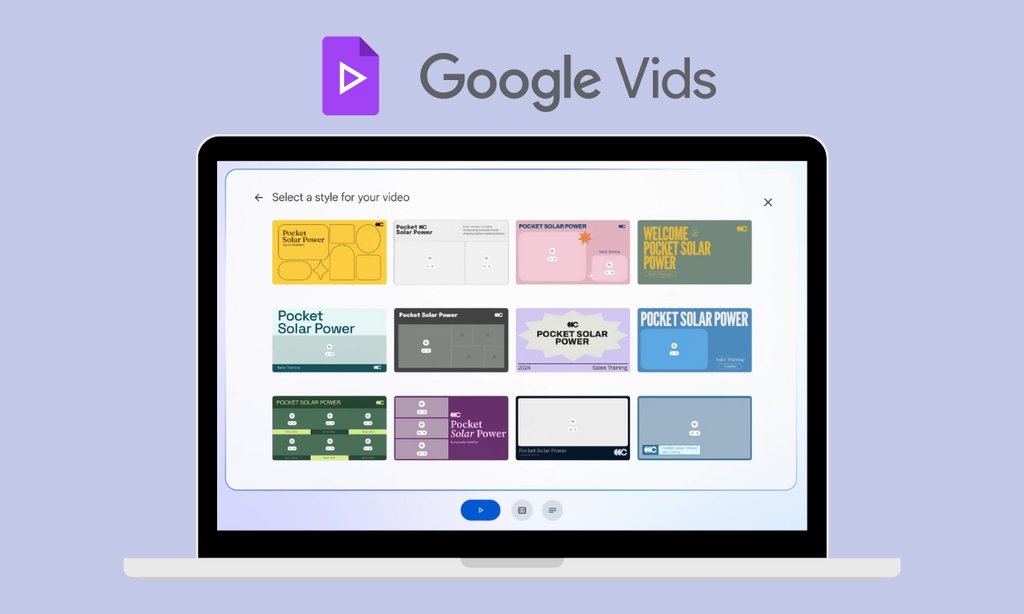
Google has officially released a major update to video creation that changes everything for creators, students, business owners, and casual users. You can now generate full 1080p high-definition video scenes inside Google Vids at zero cost using Google’s powerful Gemini Omni 1.1 Flash model.
This update means you no longer need expensive video editing software, powerful computers, or years of editing experience to create professional clips. Everything happens directly in your web browser with simple text prompts and intuitive creative controls.
If you have a standard Google Account or a Google Workspace account, you can jump in right now and start turning your ideas into polished videos in minutes.
What Is Happening with Google Vids and Gemini Omni?
Google Vids is a web-based video editing tool built right into the Google Workspace ecosystem. While it originally launched as an assistant for turning slides and documents into basic pitch videos, Google has now supercharged it with Gemini Omni.
According to the official announcement on the Google Blog, the integration of Gemini Omni 1.1 Flash brings high-end generative video capabilities to the platform.
The $0 Secret To Launching Your Entire Online Empire
Why pay hundreds every month for separate software? Build funnels, send emails, and make sales with Systeme.io completely free.
Get Started For $0Free Forever • No Credit Card Needed • Beginner-Friendly
Instead of generating short, blurry clips like older AI video tools, Gemini Omni allows you to create crisp 1080p HD scenes. You can dictate scene durations, control camera movements, and build seamless visual transitions across an entire project timeline.
The best part is that Google is offering these features at no extra charge to general Google users, opening up top-tier AI video generation to millions of people globally.
Understanding the Technology Behind Gemini Omni
To appreciate why this update is such a big deal, it helps to understand what Gemini Omni actually does.
Most basic video tools simply string together stock footage or apply filters over images. Gemini Omni is a multimodal artificial intelligence system developed by Google DeepMind. It understands text, images, video, and audio all at the same time.
When you type a description of a scene, Gemini Omni does not just match keywords to a video database. It generates original video frames from scratch while maintaining realistic motion, physical lighting, and logical camera framing.
For anyone following developments in technology and AI, this release represents one of the most accessible consumer rollouts of advanced generative video technology to date.
Key Features Built into the New Google Vids Update
Google did not just add a simple text-to-video box. They built a complete creative workflow inside Google Vids designed for flexible storytelling.
Here is a detailed breakdown of the primary features now available:
1. High-Definition 1080p Video Generation
You can generate brand-new video scenes directly in full HD resolution. If you already have existing AI-generated clips or stock videos in your project, the system can upscale and refine them so every scene looks uniform and sharp.
2. Direct Control Over Scenes and Timings
Older AI video tools often gave users random clip lengths that were hard to edit. In Google Vids, you can specify exact durations for scenes, adjust transitions, and modify camera angles using natural conversational English. If a clip is too fast, you can instruct Gemini Omni to extend the shot smoothly.
3. Natural AI Voiceovers in Over 100 Languages
Adding audio to your videos is getting much simpler too. Google is rolling out voiceover generation powered by Gemini Flash-Lite. You can type out a script, choose a natural-sounding voice, and instantly generate clear narration in more than 100 languages.
4. Built-In Transparency with SynthID Watermarking
Safety and content verification are huge priorities with modern AI media. Every video clip generated with Gemini Omni in Google Vids includes an invisible digital watermark called SynthID. Embedded directly into the video frames, SynthID allows platforms and viewers to verify that the video was created using generative AI without affecting visual quality.
5. Massive Stock Asset Library and Integration
Alongside AI generation, Google Vids connects seamlessly to a rich library containing millions of royalty-free stock photos, background videos, music tracks, and graphic overlays. You can blend custom AI scenes with actual product footage or Google Slides presentations without switching apps.
Step-by-Step Guide: How to Create Your First AI Video
Getting started takes less than two minutes. You do not need to install any heavy software or browser extensions.
Step 1: Open Google Vids
Launch your web browser on a desktop or laptop computer. Type vids.new into your address bar or navigate to the main Google Vids dashboard. Log in with your standard Google Account or work account.
Send, Spend & Hold Money Worldwide Without Hidden Fees
Transfer money internationally at the real exchange rate and hold 40+ currencies in one account.
Open a Wise AccountMid-market rate • Fast transfers • 40+ currencies
Step 2: Select “Create AI Videos”
On the main creation menu, click on the tile labeled “Create AI videos”. This action activates the Gemini Omni generation workflow.
Step 3: Write Your Scene Prompt
Describe what you want to see in clear, simple language. For example, you can write: “A scenic aerial shot of a tropical coastline at sunset, with soft waves crashing against dark rocks, panning slowly to the left.”
Specify details like camera movement, lighting, or mood to get the exact look you want.
Step 4: Fine-Tune Scene Durations
Once the model generates your initial preview, use the timeline controls to adjust clip lengths. You can ask Gemini Omni to tweak specific elements, like making the lighting brighter or extending the ending of the shot.
Step 5: Add Audio and Text Overlays
Type out narration for your scenes or select background music from the royalty-free library. You can also drop in text headings, captions, or custom graphics onto the timeline.
Step 6: Export and Share
When your video looks ready, click the export button to render your project in full 1080p HD. You can save the finished MP4 file directly to your computer or Google Drive.
Who Benefits Most from This Free Upgrade?
The decision to make these video creation tools free opens up huge possibilities across different fields.
Content Creators and Online Publishers
For individuals running social channels or exploring YouTube automation, producing consistent video content can be time-consuming and costly. Gemini Omni lets creators produce B-roll footage, intro sequences, and explanatory clips rapidly without paying high stock library fees or subscription costs.
Business Owners and Sales Teams
Explaining a new product or sending a project update used to require lengthy emails or dull slide decks. Sales teams can now convert product briefs into animated video pitches complete with custom voiceovers and HD visuals.
Educators and Community Leaders
Teachers and group organizers can easily turn lesson notes or announcement posts into eye-catching videos. Complex topics become much easier to explain when paired with generated visual representations.
The $0 Secret To Launching Your Entire Online Empire
Why pay hundreds every month for separate software? Build funnels, send emails, and make sales with Systeme.io completely free.
Get Started For $0Free Forever • No Credit Card Needed • Beginner-Friendly
Why Google’s Approach to AI Video Is Different
There are several AI video tools on the market today, but most of them come with steep pricing plans, restrictive watermarks on free tiers, or long rendering queues.
Google is taking a completely different route by integrating Gemini Omni directly into everyday productivity software.
Because Google Vids lives in the cloud alongside Google Docs, Slides, and Drive, real-time collaboration is built right in. Multiple team members can work on the same video project simultaneously, leaving comments and editing scenes together in real time just like a shared document.
By pairing this collaborative environment with free 1080p generation, Google is lowering the bar of entry for video production across the board.
Tips for Getting the Best Results with Gemini Omni Prompts
To make your AI-generated videos look as clean and professional as possible, keep these simple prompting tips in mind:
- Be descriptive with lighting: Mention terms like “golden hour,” “soft studio lighting,” or “dramatic moonlight” to set a clear visual mood.
- Define camera motion: Use direction words like “slow pan left,” “zoom in slowly,” or “steady tracking shot” so the motion feels smooth and natural.
- Keep scenes focused: Avoid crowding too many different actions into a single prompt. Focus on one primary subject or motion per clip for the sharpest results.
- Combine with stock media: Use AI generation for hard-to-find shots, and layer standard stock footage or real recordings for real-world balance.
Frequently Asked Questions (FAQs)
Is Gemini Omni in Google Vids completely free to use?
Yes, anyone with a personal Google Account or a Google Workspace account can access Google Vids and generate HD videos using Gemini Omni 1.1 Flash at no cost. Expanded usage pools are also available for enterprise and Google AI plan subscribers.
Do I need any previous video editing experience?
Not at all. The interface relies on natural language commands and simple click-and-drag controls, making it accessible for absolute beginners.
Can I download the videos in high definition?
Yes, you can export and download your finished projects in full 1080p HD resolution.
How do people know if a video was made with AI?
Google embeds an invisible digital watermark called SynthID into every clip generated by Gemini Omni. This watermark helps identify AI-generated media while keeping the video clear to human eyes.
The launch of Gemini Omni inside Google Vids marks a exciting moment for digital content creation. High-quality video generation is no longer restricted to professional studios or people with big software budgets.
Head over to vids.new on your desktop browser today to test out these features and bring your visual ideas to life.
To learn more about who we are and what we do, visit our About page or feel free to reach out directly through our Contact page.
Stay connected with us across all our social channels on Instagram, Facebook, and X for the latest updates on technology, AI trends, and modern digital tools!
