
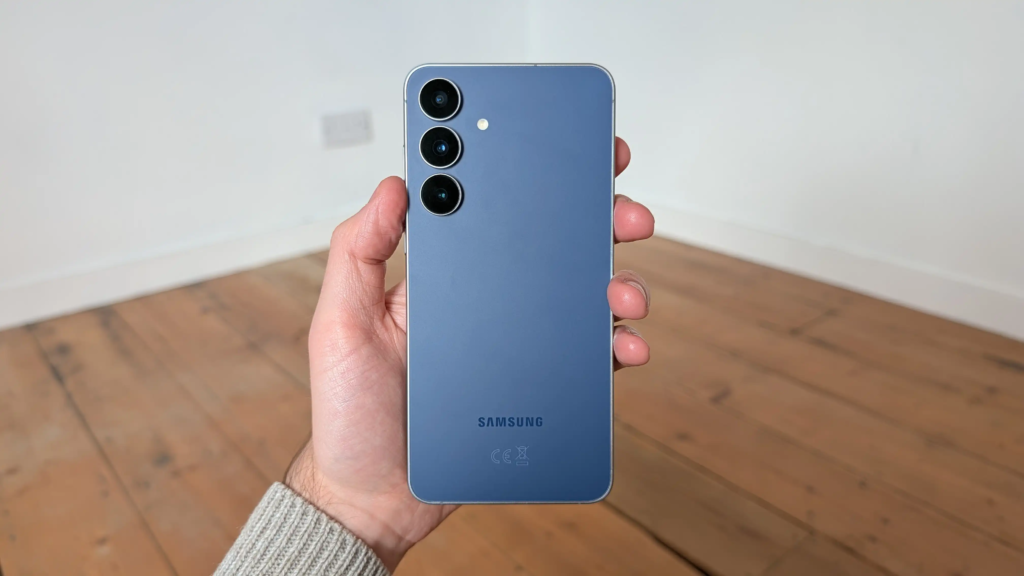
Let’s be honest—losing your photos, contacts, or important files feels terrible. One wrong tap, a broken phone, or a software glitch and everything can disappear. That’s why backups matter.
If you own a Samsung phone, you have two obvious choices: Samsung Cloud and Google Drive. Both can save your data. But they work very differently.
So which one should you trust with your files? I’ll break down exactly how each service works, where they fall short, and which one actually gives you peace of mind when something goes wrong.
What Each Service Actually Backs Up
This is where most people get confused. You assume both save everything. They don’t.
Samsung Cloud is designed specifically for Samsung devices. It backs up things like:
Build Funnels, Email Lists & Sell Online With One Free Tool
Create funnels, send emails, and sell online using Systeme.io without paying for multiple tools.
Create Free AccountFree forever • No credit card • Beginner-friendly
- Contacts and calendar events
- Notes and reminders
- Wi-Fi passwords and Bluetooth settings
- Home screen layout and app arrangement
- Samsung Messages (texts)
- Voice recordings
- Gallery photos and videos (but only if you turn that on)
What Samsung Cloud does not back up: app data, most third-party app logins, or downloaded files. It’s mostly system settings and Samsung-native content.
Google Drive on Android works through Google’s backup system. It saves:
- App data from many apps (if developers support it)
- Call history and contacts
- Device settings
- SMS text messages
- Photos and videos (through Google Photos, which uses Drive storage)
The big difference? Google Drive can restore app data and logins for apps like Spotify, WhatsApp, and many games. Samsung Cloud cannot do that.
Storage Limits and Pricing
Free storage is never really free. Both services give you something, but one is much more generous.
Samsung Cloud gives you 15GB for free. That’s it. If you want more, plans start at $0.99 per month for 50GB, going up to $7.99 for 2TB. The free 15GB is shared across everything—Gallery, Drive storage, and your backup.
Google Drive gives you 15GB for free as well. But here is the catch: that 15GB is shared across Gmail, Google Photos, Google Drive files, and your device backups. If you get a lot of emails with attachments, that space disappears fast.
Paid Google Drive plans start at $1.99 per month for 100GB, then $2.99 for 200GB, and $9.99 for 2TB.
Real talk: 15GB sounds decent until you start backing up photos. A single minute of 4K video can eat 400MB. Fifty photos might take 300-500MB. That free space vanishes in weeks if you aren’t careful.
Ease of Restoring After a Problem
Backups only matter if you can actually restore them without a headache.
Restoring from Samsung Cloud is smooth if you stay within Samsung’s ecosystem. When you set up a new Samsung phone, you sign in, pick your latest backup, and within twenty minutes your home screen layout, texts, and settings are back. Photos and videos come back separately through Gallery sync.
But here is the problem nobody talks about. If you switch to a non-Samsung phone—say a Pixel or OnePlus—you cannot restore that Samsung Cloud backup. At all. You lose your texts, settings, and app arrangements. Your photos are fine because you can download them manually, but everything else stays locked inside Samsung’s system.
Google Drive restores across almost any Android phone. Sign into your Google account during setup, choose your backup, and your apps, call history, settings, and texts come back. Even if you switch phone brands.
That flexibility matters if you aren’t 100% sure you will stay with Samsung forever.
Photo and Video Backup: Where Things Get Tricky
Photos are usually the most important thing on a phone. Both services handle them, but not equally well.
Samsung Cloud syncs your Gallery photos and videos automatically. They live in Samsung’s cloud and you can view them through the Samsung Gallery app or a web browser. However, sharing them with people who don’t use Samsung is clunky. You end up downloading files and sending them manually.
Google Drive integrates with Google Photos. That means your photos are searchable by people, places, or even objects (“dog,” “beach,” “birthday”). You can share albums instantly with anyone, even if they use an iPhone. And Google’s image recognition is far ahead of Samsung’s.
But Google Photos has a catch. If you choose “Storage saver” quality (compressed photos), they don’t count against your Drive storage. Original quality photos do count. Samsung Cloud always counts original quality against your storage.
For most people, Google Photos is the better photo backup tool. It’s easier to search, share, and access from any device.
Automatic vs Manual Backups
You want backups to happen without thinking about them.
Samsung Cloud offers automatic backups but only when your phone is charging, on Wi-Fi, and the screen is off. It works well, but you cannot manually trigger a full backup whenever you want. You have to wait for the automatic schedule (usually daily).
Google Drive also backs up automatically under similar conditions. But you can manually start a backup anytime by going into Settings > Google > Backup > Back up now.
That manual control matters before a factory reset or phone repair. With Samsung Cloud, you cross your fingers that the latest automatic backup ran recently.
Which One Should You Actually Use?
Here is the honest answer: use both. They are not competitors. They do different jobs.
Use Samsung Cloud for:
- Saving your home screen layout and Samsung-specific settings
- Keeping text messages and call logs safe (if you plan to stay with Samsung)
- A secondary copy of your photos if you have extra storage space
Use Google Drive for:
- App data and login restoration when switching phones
- Photo backup that works across any device or brand
- Files you need to access from a computer or share with others
If you force me to pick one for backups only, Google Drive wins for most people. Why? Because it works across brands, restores app data, and Google Photos is simply better for managing images. You are not locked into Samsung forever.
But if you are deeply in Samsung’s world—Samsung tablet, Samsung laptop, Galaxy Buds—then Samsung Cloud adds convenience. Just do not rely on it as your only backup.
Build Funnels, Email Lists & Sell Online With One Free Tool
Create funnels, send emails, and sell online using Systeme.io without paying for multiple tools.
Create Free AccountFree forever • No credit card • Beginner-friendly
A Realistic Backup Strategy That Takes Five Minutes
Stop overcomplicating this. Here is what actually works:
- Turn on Google Drive backup on your Samsung phone (Settings > Google > Backup)
- Turn on Samsung Cloud backup for Gallery and system settings (Settings > Accounts and backup > Samsung Cloud)
- Check once a month that both backups have run recently
That is it. Two backups running in parallel. If one fails, the other saves you.
The only cost? You might need to buy extra storage on one service if you run out of free space. Start with free tiers and see how long they last. Most people get six to twelve months before hitting limits.
FAQ
Can I use Samsung Cloud without a Samsung account?
No. You need a Samsung account. It takes two minutes to create one.
Does Google Drive backup my WhatsApp messages?
No. WhatsApp has its own separate backup system to Google Drive, but that is different from Android’s system backup. Turn on WhatsApp’s chat backup inside the app.
What happens to my Samsung Cloud backup if I stop paying for extra storage?
Samsung gives you a grace period (usually 30 days) to download your data. After that, older backups are deleted. You keep whatever fits inside the free 15GB.
Can I access Samsung Cloud from an iPhone or computer?
Yes, through a web browser at support.samsung.com. But you cannot restore a full phone backup to an iPhone—only download individual files.
Which service is faster for restoring?
Samsung Cloud is faster if you stay on Samsung phones because it only restores settings and first-party data. Google Drive takes longer because it also reinstalls apps and app data.
Wrapping This Up
Neither service is perfect. Samsung Cloud locks you into their ecosystem but nails the basics for Samsung users. Google Drive gives you freedom and better app backup but shares storage with your Gmail and Google Photos.
The smart move is using both. One backup is no backup. Two backups mean you sleep better at night.
Here is the question I want you to really think about: If your phone died right now, what is the one thing you would be most upset about losing? Go check that thing is backed up today. Not tomorrow. Today.
What did you find when you checked? Drop a comment—I read every one.
