
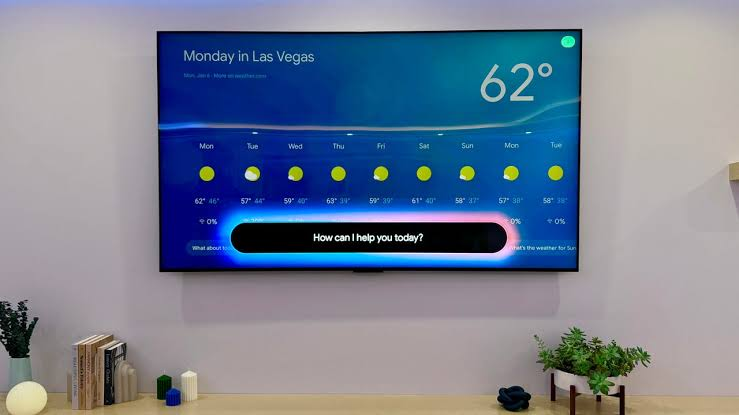
Tweaking your TV’s picture settings can be a real headache. You press the menu button, scroll through endless options, and try to figure out what “sharpness” or “color temperature” even means just to make your movie or sports game look right.
Google just made all of that fuss a thing of the past with a new Gemini update. Instead of wrestling with your remote, you can now just talk to your TV.
This isn’t a prediction for the future. The update is rolling out right now. It means you can use natural, conversational language to adjust your picture and sound. Just tell Gemini what you want or describe a problem you’re having, and it handles the technical stuff behind the scenes.
How It Works: The 4 Things Gemini Can Do For You
The new feature allows Gemini to take direct control of your Google TV’s settings. It’s not just a shortcut to the menu; Gemini actually makes the adjustments for you. The capabilities fall into four simple buckets.
1. Direct Adjustments
This is the most straightforward use. You can give Gemini specific voice commands to change a single setting. For instance, just say:
Build Funnels, Email Lists & Sell Online With One Free Tool
Create funnels, send emails, and sell online using Systeme.io without paying for multiple tools.
Create Free AccountFree forever • No credit card • Beginner-friendly
- “Set picture mode to Movie” to get the best settings for watching a film.
- “Increase the bass” if your action movie’s explosions aren’t shaking the room.
- “Set picture mode to Sport” to optimize the screen for fast-moving action during a game.
- “Change the brightness to 70%” for a specific level of control.
2. Troubleshoot Problems By Describing Them
This is where Gemini really shines. You don’t need to know the technical terms for the problem you’re seeing. You just need to describe what you’re experiencing, and the AI will figure out which settings to change to fix it. Try phrases like:
- “Hey Google, the screen is too dark.” Gemini will boost the brightness for you.
- “I can’t hear the dialogue clearly.” It will automatically adjust the audio to make voices clearer.
- “The colors on this show look washed out.” Gemini will tweak the color settings to make the picture pop.
This feature is a game-changer for anyone who isn’t a tech expert. You just tell the TV what’s wrong, and it fixes itself.
3. Optimize Settings for Your Content
Instead of tweaking individual settings, you can give Gemini a “vibe” or tell it what you’re about to watch, and it will choose the best picture and sound modes for that experience. For example, you can say:
- “It’s movie night. Make this feel like a cinematic experience.”
- “Help me get the best settings for playing video games.”
- “It’s just background noise for the kids’ cartoons.”
4. Open the Exact Menu You Need
Maybe you still want to do things manually but you’re tired of digging through layers of settings. Gemini can take you directly to the right place. Just say:
- “Open display settings.”
- “Take me to the sound menu.”
This saves you the headache of navigating a complex settings system, as you can jump straight to where you want to go.
The Big Catch (You Need To Know This)
Now for the part that might disappoint you. This fantastic feature is not available for everyone… yet. The rollout is currently very limited.
It’s only for specific TV models
The feature is currently a TCL exclusive. Only owners of certain 2025 and 2026 TCL Google TV models can use it. The first sets to get it are the: QM9K, QM7L, RM7L, X11L, QM9L, QM8L, and RM9L.
It’s only in the US
For now, the update is only being released in the United States.
It’s not for Google TV Streamers
If you use a separate Google TV Streamer dongle or any other streaming box, you are out of luck for this feature. Gemini is adjusting the internal settings of the television itself, so your streaming device doesn’t have access.
How to Check if You Have the Update
If you have one of the listed TCL Google TV models from 2025 or 2026, you should be getting the update over the next few weeks. Here is how to check and install it:
Your TV will check for new software. If the Gemini settings update is available, it will download and install it. The rollout is gradual, so if it’s not there today, check again in a few days.
Frequently Asked Questions
Do I have to use a wake word like “Hey Google” to use this?
You can, but you don’t have to. You can also simply press and hold the microphone button on your remote to give Gemini commands without the wake word.
What if my TV doesn’t have all the settings Gemini mentions?
Not all TVs have the same features. The exact capabilities Gemini has will depend on what your specific model supports. It won’t try to change a setting your TV doesn’t have.
Will this work on my Sony or Hisense Google TV?
Not at launch. The feature is currently a TCL exclusive. However, it will likely come to other Google TV models in the future, as a 60-day exclusivity period has been mentioned.
Is this free?
Yes, this is a free software update to the existing Gemini assistant on compatible Google TV devices.
Conclusion
This update fundamentally changes how we interact with our televisions. It takes a frustrating, technical task and makes it simple and conversational.
The ability to just describe a problem, like saying “the screen is too dark,” and have the TV fix it for you is a huge leap forward. It’s a feature that turns a complicated machine into a helpful tool that just works the way you want it to.
For the lucky few who own a compatible TCL TV in the US, this is arriving very soon. For the rest of us, it’s a clear sign of where the future of TV is headed. It might be a few more months before it lands on your set, but when it does, you’ll never want to go back to digging through menus again. And to be honest, after struggling with settings for years, what’s a few more months of waiting?
What’s the first setting you’d ask Gemini to change on your TV? Drop a comment below and let everyone know.
