
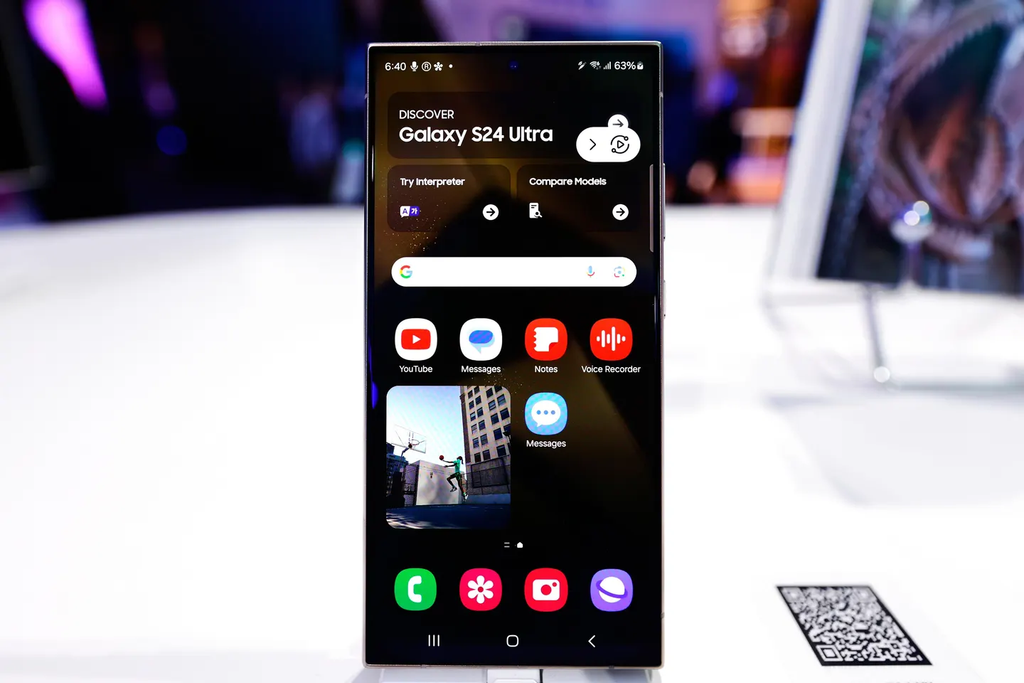
Samsung recently started rolling out its massive Android 17 software update, bringing the brand-new One UI 9 interface to millions of smartphones across the globe. For many users, this software release came with high anticipation. It promises smoother system animations, enhanced lock screen customization, smarter artificial intelligence widgets, and refined privacy controls.
As covered when Samsung dropped the Android 17 One UI 9 update, the upgrade was expected to breathe fresh life into existing flagship hardware. But instead of enjoying a clean software bump, a growing number of Samsung Galaxy S24 owners are waking up to an irritating reality: their batteries are draining at an alarming pace.
Reports from device owners on Reddit and Samsung official community message boards describe phones losing charge within a handful of hours, heating up while sitting idle in pockets, and requiring multiple trips to the wall charger before lunch.
If your Galaxy S24, Galaxy S24 Plus, or Galaxy S24 Ultra suddenly feels like it cannot hold power, you are far from alone. Here is the full breakdown of what is going on, why this update is draining your device, and the exact steps you can take right now to fix it.
The Battery Drain Complaints: How Bad Is It?
Over the past few days, social media platforms and tech forums have seen a steady wave of frustration from Samsung users who recently hit the install button. The reports are not just vague complaints about slightly worse endurance. Several owners are documenting severe, sudden power losses under everyday use.
The $0 Secret To Launching Your Entire Online Empire
Why pay hundreds every month for separate software? Build funnels, send emails, and make sales with Systeme.io completely free.
Get Started For $0Free Forever • No Credit Card Needed • Beginner-Friendly
According to reporting from Android Central, one Galaxy S24 Ultra owner shared diagnostics showing that their phone burned through 95% of its total battery capacity in just five hours and twenty minutes. Even more concerning, the device only logged around three hours and fifteen minutes of active screen-on time during that stretch. For a flagship device carrying a large 5,000mAh battery pack, losing nearly all its power with only three hours of light screen use points to an abnormal workload behind the scenes.
As detailed by Android Authority, the issue is not limited to the top-tier Ultra model. Owners of the base Galaxy S24, the Galaxy S24 Plus, and the Galaxy S24 FE are reporting identical symptoms. A Galaxy S24 FE user noted that a battery that normally lasted through an entire workday now completely taps out in roughly six hours.
The trouble has also begun appearing on newer hardware. Owners of the Galaxy S25 line who received the One UI 9 rollout are describing similar idle drops, with some devices losing as much as 40% of their charge overnight while sitting untouched on a nightstand.
Users who routinely relied on top Samsung phones known for great battery life are finding themselves carrying power banks just to make it through normal errands.
Why Is One UI 9 Draining Galaxy S24 Batteries?
When a phone suddenly loses half its battery life immediately after a software upgrade, it is easy to assume that the firmware is permanently broken. While software bugs certainly happen, several technical factors explain why a major operating system update causes intense power consumption during its first few days.
1. Intense Background Re-Indexing and File Compilation
When your phone moves to a completely new version of Android, like Android 17, it cannot simply apply the new look over the old files. The operating system has to rebuild its internal databases.
The system re-indexes all your photos, videos, downloaded documents, and search entries so the new search tools can find them instantly. At the same time, the Android runtime environment re-compiles thousands of app packages into optimized machine code.
All of this invisible work demands sustained power from your processor. If you have hundreds of apps and thousands of photos saved locally, this background maintenance can keep your processor running at elevated speeds for 24 to 72 hours after installation.
2. The Adaptive Battery Engine Has Been Reset
Samsung uses a built-in machine learning tool called Adaptive Battery. This system constantly monitors your daily routines. It learns which apps you launch every morning, which ones you only open once a week, and which ones should never be allowed to run in the background.
When you install a major operating system release, that learned behavioral data is often wiped clean. The phone has to start learning your usage patterns from scratch.
Until Adaptive Battery figures out your daily rhythm again, it allows almost every app on your device to remain active in memory. This temporary free pass causes a sharp spike in idle power draw. In normal circumstances, this learning process takes between one and two weeks to settle down.
3. Rogue Third-Party Apps Not Ready for Android 17
App developers do not always update their software on the exact day a new operating system arrives. Older apps built for previous Android versions can get stuck in infinite processing loops when trying to interact with the new One UI 9 framework.
A social media app, an old weather widget, or a fitness tracking tool might repeatedly attempt to request background location data or refresh its feed using obsolete code. Because the new operating system restricts or handles those permissions differently, the app gets confused, stays awake, and silently eats away at your battery while your phone is locked.
4. Background Cloud Syncing and Samsung Account Handshakes
Upgrades on modern Galaxy phones often trigger automated backups to Samsung Cloud and Google Drive to secure your system preferences. After your Samsung phone receives the One UI 9 upgrade, several core system services work around the clock to reconcile account settings, gallery backups, and artificial intelligence model downloads. If your connection drops in and out, these background sync services will repeatedly attempt re-connections, draining your battery quickly.
Are All Galaxy S24 Devices Experiencing This Problem?
Not every Galaxy S24 user is facing this issue. Across community discussions, user experiences are mixed. While many people are dealing with steep battery drops, other Galaxy S24 owners report that their phones feel just as fast and dependable as they did before the upgrade. A small group of users even reported a slight boost in screen-on endurance.
Send, Spend & Hold Money Worldwide Without Hidden Fees
Transfer money internationally at the real exchange rate and hold 40+ currencies in one account.
Open a Wise AccountMid-market rate • Fast transfers • 40+ currencies
This split in experiences usually comes down to three things:
- Regional processor variants: Depending on where you bought your Galaxy S24 or S24 Plus, your phone runs either a Qualcomm Snapdragon 8 Gen 3 chipset or Samsung’s own Exynos 2400 processor. In past rollouts, modem efficiency and software thermal profiles have varied slightly between these two hardware variants.
- Cellular signal strength: A phone that is already working hard on background indexing will consume twice as much battery if it is also fighting to maintain a weak 5G connection.
- Installed app library: Users with clean, lightweight app setups rarely see significant idle drain. Users who have hundreds of apps, multiple email accounts, and persistent background monitors are far more likely to run into software conflicts.
How to Fix One UI 9 Battery Drain on Your Galaxy S24
If your Galaxy S24 has been running One UI 9 for several days and your battery is still running down too fast, you do not have to sit around and wait for an official patch. You can take practical, proven steps right now to stop background power leaks.
Step 1: Track Down the Rogue App
The first thing you should do is check exactly where your battery percentage is going.
- Open your Settings app.
- Scroll down and tap Battery.
- Tap View details or the battery usage graph.
- Review the list of apps sorted by battery percentage.
Look closely at the numbers. If you see an app that you barely used today sitting near the top with double-digit battery consumption, that app is malfunctioning. Tap on the app from this menu and hit Force Stop. You can also check if an update is waiting for that specific app in the app store.
Step 2: Update Every App in Both App Stores
When a phone receives a new base operating system, apps must be updated to maintain efficiency. Many users forget that Samsung devices rely on two different storefronts for updates:
- Open the Google Play Store, tap your profile picture in the top corner, go to Manage apps & device, and tap Update all.
- Open the Galaxy Store, tap the Menu tab at the bottom, select Updates, and install any pending updates for built-in Samsung system tools and services.
Getting all your installed software onto the latest code built for Android 17 eliminates many of the background crashes that cause runaway battery drain.
Step 3: Put Unused Apps into Deep Sleep
Samsung provides one of the best battery management features in the smartphone world: Background Usage Limits. This feature lets you stop unused apps from running in the background entirely.
- Open Settings and tap Battery.
- Select Background usage limits.
- Turn on the switch for Put unused apps to sleep.
- Tap Deep sleeping apps.
- Tap the plus icon in the upper corner and add apps that you do not need push notifications from (such as shopping apps, casual games, travel booking tools, and streaming apps).
Apps on the Deep Sleep list are completely frozen when you are not actively looking at them on your screen. They will never run in the background, ping remote servers, or drain your battery while your phone rests in your pocket. If you want to tidy up your device further, you can also review Samsung background apps you can safely remove to keep your system clean.
Step 4: Wipe the Android Cache Partition
This is one of the most effective troubleshooting tricks for post-update battery issues, and it will not erase your photos, contacts, or messages. Over time, temporary system files left over from the update process can conflict with the new software. Clearing the system cache forces the phone to generate fresh, error-free system files.
Here is how to do it:
The $0 Secret To Launching Your Entire Online Empire
Why pay hundreds every month for separate software? Build funnels, send emails, and make sales with Systeme.io completely free.
Get Started For $0Free Forever • No Credit Card Needed • Beginner-Friendly
- Turn off your Galaxy S24 completely.
- Connect your phone to a computer or a pair of USB-C earphones using a USB-C cable (Samsung requires a data connection to enter recovery mode).
- Press and hold the Volume Up button and the Power (Side) button at the same time.
- When the Samsung logo appears on the screen, release both buttons.
- You will see the black Android Recovery menu. Use the Volume Down button to navigate down the list until Wipe cache partition is highlighted.
- Press the Power button to select it.
- Use the volume button to highlight Yes, and confirm with the power button.
- Once the process finishes at the bottom of the screen, select Reboot system now.
Your phone will restart normally, carrying clean cache data without any leftover update junk.
Step 5: Switch to the Light Performance Profile
Samsung includes a dedicated Performance Profile setting designed specifically to improve battery life and keep the phone cool without slowing down regular everyday tasks.
- Go to Settings.
- Tap Device care.
- Tap Performance profile.
- Select Light.
The Light profile prioritizes battery life and cooling efficiency over peak processing speeds. It does not affect gaming, because gaming performance is handled separately by the Game Booster service. For daily web browsing, messaging, and social media, you will not notice any drop in speed, but your battery will last significantly longer.
Step 6: Use Battery Protection Features Correctly
If you are trying to keep your battery healthy over the lifetime of your phone, managing charging habits is essential. Learning how to enable Samsung battery protection helps protect the physical battery cells from heat and high voltage stress.
However, if you currently have the Maximum protection setting turned on, your phone stops charging at 80%. If you are already struggling with higher post-update consumption, starting your morning with only 80% charge can make the problem feel much worse than it is. Consider switching to Basic protection temporarily while you troubleshoot post-update drain.
What Has Samsung Said About the Issue?
As of right now, Samsung has not issued a formal global press release admitting to a widespread battery flaw in One UI 9. However, the company is actively taking notice.
In multiple instances across community support boards and social media platforms, Samsung customer support representatives have reached out directly to affected users to collect diagnostic logs. In at least one high-profile case involving a Galaxy S24 Ultra owner reporting extreme power drain, Samsung arranged a technical service appointment to inspect the device’s hardware and battery health.
Historically, Samsung follows a predictable pattern when major software updates land. The initial release is often followed within three to four weeks by a secondary maintenance patch. This follow-up update typically contains minor bug fixes, stability tweaks, and thermal optimizations that address early rollout issues.
If you want to help Samsung identify software conflicts faster:
- Open the built-in Samsung Members app.
- Tap the Support tab at the bottom.
- Select Phone diagnostics to test your battery health and charging circuits.
- If your battery tests normal, tap Send feedback, choose Error reports, and select Battery.
- Check the box to attach system log data and describe your sudden drop in screen-on time.
Sending error logs gives Samsung engineering teams real data to fix problems in the next monthly update.
Should You Wait to Install One UI 9?
If you own a Galaxy S24 device and have not downloaded the One UI 9 update yet, you might be wondering whether to hold off.
If your Galaxy S24 is your primary work device and you depend on it to last an entire day away from power outlets, pausing the update for two to three weeks is a sensible choice. You will miss out on the latest cosmetic touches and new features for a short time, but you will also avoid the temporary background indexing and potential app conflicts that early adopters are experiencing.
You can prevent your phone from installing the software automatically by heading into:
- Settings > Software update > and turning off Auto download over Wi-Fi.
You can then keep an eye on tech news, community feedback, and official patch notes. Once Samsung issues its first follow-up maintenance release for One UI 9, you can install the update with much greater confidence.
Before updating any smartphone, it is always wise to keep a complete backup of your files. If a software rollout ever goes severely wrong or causes continuous crashes, knowing what to do when a phone gets stuck in a boot loop or being familiar with how to factory reset your Samsung device safely ensures you never lose access to your important files.
For users holding older Galaxy devices who are curious about what software support lies ahead, checking Samsung devices that won’t receive the One UI 9 update helps clear up long-term upgrade plans.
Frequently Asked Questions
Why is my Galaxy S24 battery draining so fast after the One UI 9 update?
Your phone performs heavy background tasks after a major software update. It re-indexes files, re-compiles application code, and resets your Adaptive Battery learning patterns. This causes the processor to work harder than normal for the first few days, leading to higher power consumption.
How long does it take for a Samsung battery to stabilize after an update?
It usually takes between 3 to 7 days for normal background indexing to finish. For Samsung’s Adaptive Battery engine to fully learn your habits and restrict background apps effectively, it can take up to two full weeks.
Does One UI 9 permanently damage the physical battery?
No, the software update does not physically damage your battery cells. The drop in longevity is caused by software-level background processing and unoptimized applications, which can be resolved through settings adjustments, app updates, or upcoming bug patches.
Should I perform a factory reset to fix the battery drain?
You should treat a factory reset as a last resort. Before wiping your phone, try updating all apps in the Google Play Store and Galaxy Store, putting unused apps into Deep Sleep, and clearing the system cache partition through Android Recovery mode.
What is the fastest setting to improve battery life immediately?
Switching your phone to the Light performance profile (found under Settings > Device care > Performance profile) reduces heat and processor strain during daily tasks without affecting everyday responsiveness.
Major software rollouts bring exciting improvements, but they also bring unexpected growing pains. If your Galaxy S24 is burning through its charge faster than usual on One UI 9, give the phone a few days to settle down, keep your applications fully updated, and adjust your background usage limits to keep rogue processes under control.
