
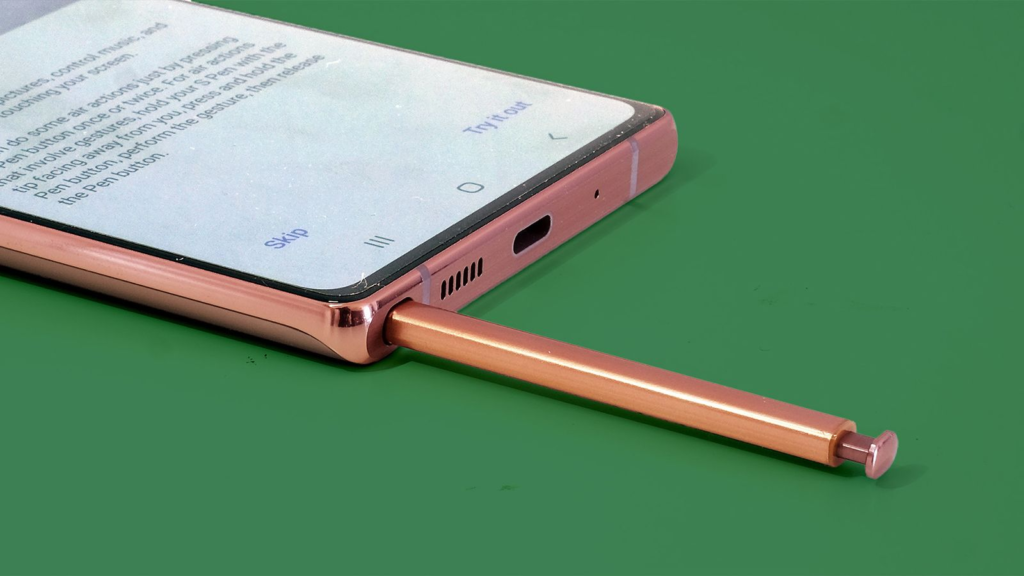
Buying a brand new Samsung Galaxy phone is a great feeling. The screens look incredible, the cameras are top-notch, and everything feels blazing fast right out of the box.
But as you start scrolling through your new app drawer, you might notice something annoying. Your phone is packed with extra applications you never asked for, many of which run in the background, drinking your battery life and hogging your system memory.
Samsung loves to include its own versions of tools that Google already provides. While some people enjoy the Samsung ecosystem, many of us just want a clean, fast phone without the extra clutter.
The good news is that you do not have to keep these around. You can reclaim your storage space and give your battery a break. Here are 8 Samsung background apps you can safely uninstall or disable today without breaking your phone.
The Samsung apps you do not actually need
Removing these apps will not crash your operating system or stop your phone from making calls. They are mostly extra services designed to get you to use Samsung-branded platforms. If you prefer Google apps, or just want less noise on your device, feel free to get rid of them.
The $0 Secret To Launching Your Entire Online Empire
Why pay hundreds every month for separate software? Build funnels, send emails, and make sales with Systeme.io completely free.
Get Started For $0Free Forever • No Credit Card Needed • Beginner-Friendly
1. Samsung Global Goals
This app comes pre-installed on almost every modern Galaxy device. It is a partnership with the United Nations meant to raise awareness about global issues. It shows ads on your lock screen while your phone charges, earning money that you can donate to various charities.
While it is a noble idea, it sits constantly in the background, pushing notifications and waking up your screen. If you prefer to donate to charities directly rather than through a phone application, this one is completely safe to remove. Clearing it out will instantly clean up your lock screen experience.
2. AR Zone
If you have ever explored your camera settings, you have probably run across the Augmented Reality (AR) features. The AR Zone app is where Samsung lumps all its virtual stickers, emoji creators, and digital makeup tools. It runs background processes to keep these camera filters ready to launch.
Unless you spend your time creating virtual emojis of yourself or measuring furniture with your camera lens, you will never use this. Removing it frees up space and stops the background camera plugins from wasting your resources.
3. Samsung Free (or Samsung News)
Depending on how old your phone is or what software update you are running, sliding all the way to the left on your home screen brings up a feed. It used to be called Samsung Free, and newer updates often label it as Samsung News. It is filled with free streaming channels, casual mobile games, and news articles.
Most people already have a favorite news source or use the standard Google Discover feed. Samsung Free constantly updates itself in the background to keep the news stories fresh, which eats into your data plan and your battery. You can easily turn this feed off in your home screen settings and uninstall the app completely.
4. Samsung Members
Samsung Members is designed to be a hub for community forums, customer support, and device diagnostics. It periodically runs checks on your hardware in the background to ensure your phone is running smoothly, and it sends alerts about tips or promotional rewards.
While the diagnostic tools can be handy if your screen or battery is acting up, you do not need the app running 24/7. If you ever need to test your phone, you can always download it again from the Galaxy Store. For day-to-day use, it is just another source of background notification spam.
5. SmartThings
SmartThings is the command center for Samsung’s smart home system. It allows you to connect to smart TVs, smart refrigerators, washer-dryer units, and compatible light bulbs. Because it needs to know when you are near your smart devices, it constantly tracks your location and scans for local Bluetooth signals in the background.
If your home is not full of connected smart appliances, this background scanning is a massive waste of electricity. Uninstalling it will stop your phone from constantly searching the airwaves for devices you do not own.
6. Samsung TV Plus
This is a free, ad-supported streaming video service built right into your phone. It gives you access to live news channels, old sitcom reruns, and random movie streams. It sounds like a great perk until you realize it functions like an old cable TV package that you cannot easily customize.
If you already pay for services like Netflix or YouTube Premium, or if you simply do not watch long videos on your phone, Samsung TV Plus is dead weight. It frequently runs background services to refresh its video guide, making it a prime candidate for deletion.
7. Samsung Shop
As the name implies, this app is a direct portal to buy more Samsung gear. It sends you alerts about trade-in deals, discounts on the latest Galaxy Buds, and promotions for new tablets.
You do not need an app running in the background just to buy a phone product once every few years. If you want to shop, you can use any standard web browser to visit their store. Keeping the app on your phone only invites shopping ads into your notification shade.
8. Bixby (and Bixby Voice)
Bixby is Samsung’s digital voice assistant. While it has improved over the years, the vast majority of Android users prefer Google Assistant or other tools. Bixby sits quietly in the background, listening for its wake phrase and waiting for you to accidentally press the power button.
Send, Spend & Hold Money Worldwide Without Hidden Fees
Transfer money internationally at the real exchange rate and hold 40+ currencies in one account.
Open a Wise AccountMid-market rate • Fast transfers • 40+ currencies
If you never use voice commands, or if you strictly stick to Google, leaving Bixby active is unnecessary. Disabling Bixby stops the background microphone monitoring and lets you map your power button back to a normal shutdown menu.
How to remove these apps from your phone
Getting rid of these background apps is straightforward. For most of them, you can do it directly from your app drawer.
The regular method
- Open your phone Settings and tap on Apps.
- Scroll through the list until you find the app you want to remove.
- Tap on the app name.
- Look at the bottom of the screen. If the app allows it, tap Uninstall.
- If the uninstall button is grayed out, tap Disable instead. Disabling an app turns it completely off, removes it from your app drawer, and stops it from ever running in the background. Samsung
Settings ➔ Apps ➔ Select App ➔ Uninstall or Disable
A Quick Tip for Deep Cleaning: Some core system apps cannot be disabled using the standard settings menu. If you want to go a step further and remove hard-coded bloatware, advanced users often turn to tools likeADB AppControlor the Android Debug Bridge (ADB) via a desktop computer. This allows you to safely strip out deeper system packages without needing to root your phone. Just be careful not to delete essential tools like the phone dialer or the main system settings package.
Frequently Asked Questions
Will uninstalling these apps delete my personal data?
No. Deleting these specific apps will only remove the data tied directly to those services. Your photos, text messages, contacts, and Google account information will remain completely safe and untouched.
Can I get these apps back if I change my mind?
Yes. If you ever realize you actually want an app like Samsung Members or SmartThings back on your phone, you can simply open the Galaxy Store or the Google Play Store, search for the app, and download it again.
What is the difference between uninstalling and disabling?
Uninstalling completely deletes the app files from your phone’s storage. Disabling leaves the base files intact but puts the app into a deep sleep. A disabled app cannot open, cannot use battery, cannot collect data, and will not show up in your app list. For pre-installed software, disabling achieves the exact same performance boost as uninstalling.
Will removing these apps void my phone’s warranty?
Not at all. Using the built-in settings menu to uninstall or disable applications is a completely standard feature of the Android operating system. It does not alter your phone’s core firmware, so your official warranty remains fully valid.
Conclusion
You bought your phone for your own personal use, not to act as a billboard or a testing ground for extra software services. Taking five minutes to clean out these 8 background apps is a simple way to make your phone feel brand new again. You will enjoy a cleaner interface, fewer annoying notifications, and a battery that lasts a little bit longer throughout the day. Go through your app list, clear out what you do not use, and enjoy a faster, lighter Galaxy experience.
