
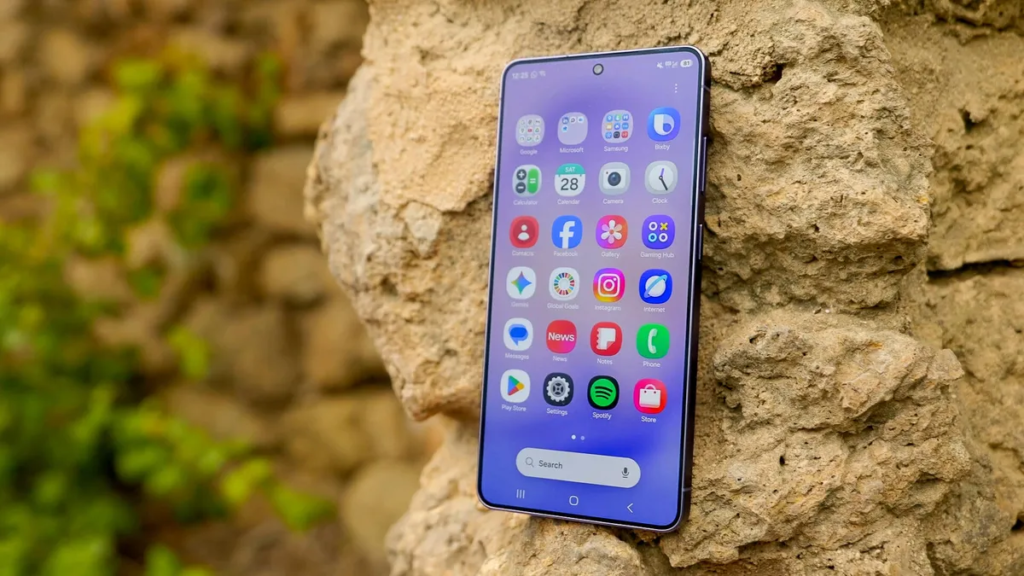
Let’s keep this simple. Samsung Secure Folder is the digital safe built right into your Galaxy phone. It is a locked, encrypted space that sits completely apart from the rest of your device.
You can move sensitive apps, private photos, or important documents into this folder. Once they are inside, they are invisible to anyone casually scrolling through your Gallery or App Drawer. Accessing them requires a separate PIN, password, pattern, or fingerprint.
Think of it as having a second, secret phone living inside your actual phone.
How to Set Up Secure Folder
Before you add anything, you need to turn on the folder itself. You will need a Samsung account to use it (it is free and easy to create). Here is how to get started:
- Find the setting: Open the Settings app on your phone.
- Navigate: Tap on Security and privacy, then tap More security settings.
- Tap Secure Folder: You will see a welcome screen. Tap Continue and agree to the permissions.
- Sign in: You must sign in with your Samsung account details.
- Set your lock: This is the most important part. You will be asked to choose a lock for just this folder. You can use a PIN, password, pattern, or your fingerprint.
A critical piece of advice: Do not use the same PIN or password you use to unlock your phone screen for your Secure Folder. If someone sees you type that, they will get into your private space too. Keep these locks completely separate.
Build Funnels, Email Lists & Sell Online With One Free Tool
Create funnels, send emails, and sell online using Systeme.io without paying for multiple tools.
Create Free AccountFree forever • No credit card • Beginner-friendly
How to Move Photos and Videos
You cannot hide photos directly inside the Samsung Gallery app. The gallery is for showing off your memories. To truly lock them away, you have to move them to the Secure Folder. Here is the easiest method:
- Open your regular Gallery app.
- Find the photo or video you want to hide. Tap and hold it until a checkmark appears.
- Look at the bottom menu and tap More (the three dots).
- From the list, select Move to Secure Folder.
The file will immediately disappear from your main gallery. To view it later, you have to open the Secure Folder app, unlock it, and then open the Gallery copy that lives inside that vault.
How to Hide Apps (Like a Banking App)
This is where Secure Folder shines. You can put a copy of almost any app inside the folder. This is great for banking apps, dating apps, or any other app you do not want people to see on your home screen.
- Open the Secure Folder app and unlock it.
- Tap the Add apps (the plus sign) button.
- Scroll through your list and select the apps you want to clone into the vault.
- Tap Add.
The original app will still be visible on your main screen. But the app inside Secure Folder acts like a completely separate account. You can log in with different credentials, and none of its data will spill over into your regular phone.
How to Hide the Secure Folder Itself (Next-Level Privacy)
You have hidden your photos and apps inside a folder. But the folder itself has an icon on your home screen. If a curious friend sees a folder called “Secure Folder,” they will try to open it. Here is how to hide the folder from plain sight.
You have two choices:
1. Disguise the Icon (Easiest)
This just makes the folder look boring, so nobody clicks on it.
- Open the Secure Folder app.
- Tap the three-dot menu (top right).
- Tap Customize.
- Here, you can change the icon (pick a boring one like a calculator) and the name (rename it to “Settings” or “Tools”).
2. Vanish Completely (Maximum Security)
This removes the icon from your app drawer entirely.
- Open the Secure Folder app and tap the three-dot menu.
- Go to Settings.
- Toggle off the switch next to “Add Secure Folder to Apps Screen“.
How to find it now: The icon is gone from your drawer. To open your secret folder, you now have to go to Settings > Security and privacy > More security settings > Secure Folder. It is an extra step, but nobody will know it is there.
Advanced Tips (Don’t Miss These)
You have the basics down. Here are three settings that people often forget, which can accidentally reveal your secrets.
1. Stop the Notifications
If you have WhatsApp or Messenger installed inside your folder and you get a message, a notification will pop up on your main screen saying “Hey, you have a secret message.” You must turn this off.
- Go into Secure Folder > Settings > Notifications.
- Toggle on the switch for “Hide content“. This stops the text previews.
2. Set it to Auto-Lock
By default, the folder might stay open after you leave it. If you set your phone down to grab coffee, someone could pick it up and swipe right back into your photos. Fix this.
3. Back Up Your Vault
What if you lose your phone or break the screen? Your photos are gone. You must back up the folder.
- Open Secure Folder > tap the three-dot menu > Settings.
- Tap Backup and restore.
- Tap Back up Secure Folder data and choose what you want to save (Photos, Apps, Contacts).
Frequently Asked Questions
What kind of security is this using? Is it actually safe?
Yes. Secure Folder uses Samsung Knox, which is a hardware-based security platform. It is the same level of protection that governments and big corporations use to secure their data. Your files are encrypted at the hardware level, meaning they are locked down tight.
Can I back up the data inside Secure Folder?
Yes, you can back it up to Samsung Cloud. If you switch to a new Samsung phone, you can restore the folder with everything inside it. Just remember to back it up first using the steps above.
How is this different from “Hide Photos” in Google Photos?
Google Photos Locked Folder is good for hiding a few pictures, but it is just a local lock. Secure Folder is a full separate space. It hides your apps, your accounts, and your files from the rest of the phone. It also hides them from your computer if you plug the phone in via USB. Google Photos does not offer that level of isolation.
Can I transfer Secure Folder to a non-Samsung phone?
Unfortunately, no. Secure Folder relies on Samsung Knox hardware to work. If you switch to a Google Pixel or an iPhone, you must move your files out of the folder first, because the Knox security will not work on those other brands.
Conclusion
Your phone is private. Your photos, your banking apps, and your messages belong to you, and you should be the only one to see them. Samsung Secure Folder gives you a zero-cost, zero-fuss way to take back that control.
It takes less than sixty seconds to set up, but it provides years of peace of mind. Stop letting your private photos sit out in the open. Lock them down.
The best time to set this up was yesterday. The second best time is right now. What is the first app you plan to move into your Secure Folder?
