
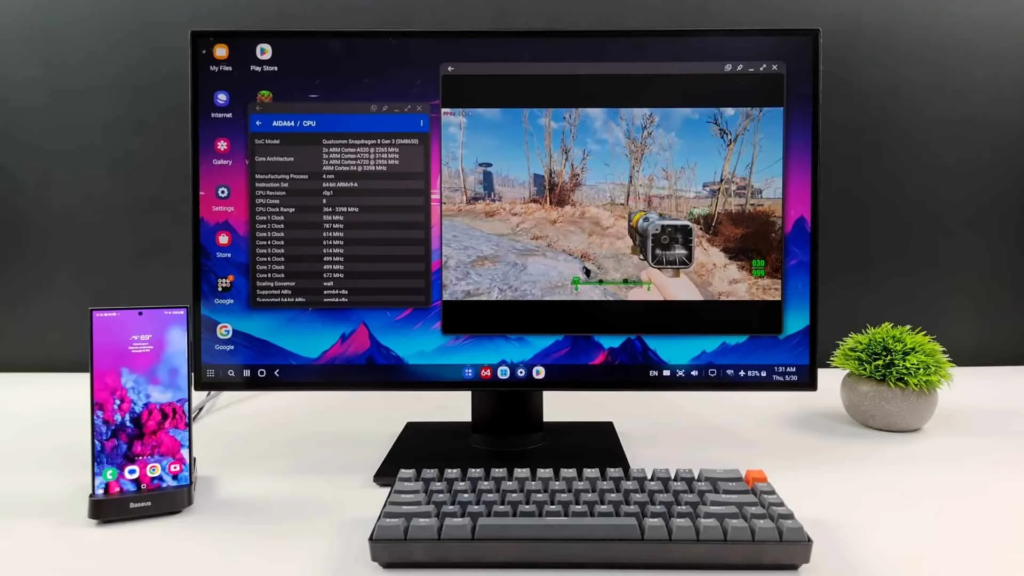
You might be sitting on a powerful desktop computer without even knowing it.
Most people see their Samsung phone as just for calls and social media. But hidden inside recent Galaxy phones and tablets is a feature called DeX.
Short for “Desktop Experience,” DeX transforms your device’s interface into something that looks and works like a Windows or macOS computer. With a mouse, keyboard, and monitor, you can do serious work without a laptop or PC.
This guide walks through exactly what Samsung DeX is, how to set it up for free, and why it might be all the computer you actually need.
What Is Samsung DeX?
DeX is a software platform built into Samsung’s flagship phones and tablets. It gives you a PC-like interface with resizable windows, a taskbar, and support for keyboard shortcuts—all powered entirely by your phone. It has been around since 2017 and has only gotten better over time.
Build Funnels, Email Lists & Sell Online With One Free Tool
Create funnels, send emails, and sell online using Systeme.io without paying for multiple tools.
Create Free AccountFree forever • No credit card • Beginner-friendly
The main benefit is that you stop carrying two devices. Your phone holds everything: your messages, files, spreadsheets, emails, movies, and apps. Connect it to a monitor, and you have a desktop. Disconnect, and you are back to a phone. You never have to move files or sync anything because it is all in the same place.
How To Set Up Samsung DeX On Your Phone
There are three ways to use DeX. Choose whichever fits your situation.
Method 1: Wired Connection (Most Reliable)
This method works with almost any TV or computer monitor. You just need a USB-C to HDMI cable or a USB-C hub. Most USB-C-to-HDMI cables will work, but it is smart to check the listing to confirm it says “DeX compatible”.
Here is the step-by-step process:
- Plug the HDMI end of the cable into your monitor or TV.
- Connect the USB-C end to your Samsung phone or tablet.
- Once connected, you should see the Samsung DeX logo appear on the big screen.
Cable vs. Hub: A simple USB-C to HDMI cable is the cheapest option. However, if you want to plug in a wired mouse and keyboard or keep your phone charged while using DeX, a USB-C hub is the better choice.
Method 2: Wireless Connection (Tidy and Convenient)
Wireless DeX gets rid of cables entirely, but it has specific requirements. Your monitor or TV must support Miracast screen mirroring. Most Samsung Smart TVs made in 2019 or later support this, as do many newer Samsung Smart Monitors.
- Make sure both your phone and the TV are connected to the same Wi-Fi network (5 GHz gives the best performance).
- Pull down the notification shade and tap the DeX icon in the quick settings panel. (If you do not see it, swipe down again or tap the pencil icon to edit the buttons and add it).
- Select “DeX on TV or monitor.”
- A list of available devices will appear. Choose your TV and tap “Start now.”
- Accept the connection request on your TV screen.
Method 3: Directly On Your Tablet
If you have a Samsung Galaxy Tab, you can use DeX mode without any external screen at all. Swipe down the notification panel, tap the DeX icon, and your tablet’s interface will instantly transform into a desktop layout on its own screen.
This is perfect when traveling or when you want a laptop-like experience without extra hardware.
Hardware Requirements: What You Need
Here is the truth about what you need to make this work well.
Mouse and Keyboard: You can technically use your phone screen as a touchpad or keyboard, but for real work, grab a Bluetooth or USB mouse and keyboard. It makes everything ten times easier.
Charging: Running DeX, especially wirelessly, drains your battery. For long sessions, keep your phone plugged into a charger. USB-C hubs with “Power Delivery” (PD) pass-through charging let you plug in both your phone and charger at the same time.
What Can You Actually Do With DeX?
Not every app is perfect for a big screen, but many are surprisingly good.
Real Work The full Microsoft Office suite works in DeX mode, giving you spreadsheets and documents on a proper display. Popular video meeting apps function well, and you can use email and calendar apps the same way you would on a PC.
Content Creation: Light photo editing works fine. You can manage social media across multiple windows. Managing YouTube channels or writing blog posts becomes much easier with a real keyboard.
Entertainment: Watching movies from streaming services on a hotel TV without bringing a laptop is a lifesaver while traveling. And mobile games feel entirely different when played on a monitor.
DeX is a desktop experience, but it is not a full PC. It runs Android apps and still has the limitations of mobile software. You cannot run professional video editing software or heavy coding tools directly. For everyday tasks, it works wonderfully.
Which Devices Work With Samsung DeX?
Most flagship Samsung devices support DeX. Older or budget phones usually do not.
Phones that work
Every Galaxy S model from the S8 to the latest S26 series supports DeX. Galaxy Note models from the Note8 onward work as well. The Z Fold series also supports the feature, but the Z Flip series does not.
Tablets that work
The Tab S series (from the Tab S4 to the newest Tab S11 series) all work with DeX, including direct on-tablet mode.
TVs and Monitors
You can use Wireless DeX with any Samsung Smart TV or monitor made in 2018 or later. Any display that supports Miracast screen mirroring will also work.
Frequently Asked Questions
Is Samsung DeX free?
Yes. It is a built-in feature on Galaxy devices. No subscriptions or extra costs.
Can I use DeX on a Windows PC?
The official DeX for PC app is no longer supported on newer phones. Instead, use Windows Phone Link to access calls and messages. There is a third-party workaround, but it requires technical know-how.
Will my phone overheat?
Wireless DeX can make your phone warm, especially during intensive tasks. For long sessions, a wired connection is better because it keeps the phone cooler.
What resolution does it support?
DeX can output up to 4K resolution on compatible monitors. It looks as sharp as a standard computer.
Can I use an S Pen?
Yes. If your device supports the S Pen, you can use it to navigate and draw in DeX mode.
Conclusion
Samsung DeX will not replace a high-end workstation for a professional video editor or a hardcore gamer. But for the majority of people who live in email, spreadsheets, and web browsers, it is more than enough. It takes the computer that is already in your pocket and turns it into a workstation.
Build Funnels, Email Lists & Sell Online With One Free Tool
Create funnels, send emails, and sell online using Systeme.io without paying for multiple tools.
Create Free AccountFree forever • No credit card • Beginner-friendly
You do not need to buy an expensive laptop just to check emails at home. You already have everything you need.
Have you ever tried using your phone as a computer? Drop a comment below and share your experience or any questions you have about getting started.
