
Ever wish you didn’t have to remember that endless list of passwords for your email, bank, or social media accounts? You’re not alone.
Here’s some good news: if you own a Samsung Galaxy phone, you already have a powerful tool built right in that can handle all of this for you. It’s called Samsung Pass, and it’s designed to make your digital life simpler and way more secure.
Forget about typing in long, complicated passwords. With Samsung Pass, you can log into apps and websites using just your fingerprint or your face. It’s like having a personal, high-security key that only you can use.
In this guide, we’ll walk through everything you need to know about Samsung Pass: what it is, how to set it up, how to use it every day, and how it keeps your information safe. No confusing tech talk, just straightforward, helpful advice.
What Exactly is Samsung Pass?
Think of Samsung Pass as a smart, secure vault built into your Galaxy phone. Its main job is to remember your usernames and passwords for all your different online accounts, and then it uses your unique fingerprint or facial scan to let you in.
Build Funnels, Email Lists & Sell Online With One Free Tool
Create funnels, send emails, and sell online using Systeme.io without paying for multiple tools.
Create Free AccountFree forever • No credit card • Beginner-friendly
But it’s more than just a password keeper. Once you’ve saved your biometric data (your fingerprint or face), Samsung Pass becomes your key to a lot of things:
- Log into apps and websites: This is its core function.
- Save your personal info: It can store your home address, contact details, and even your credit or debit card information. This makes filling out online forms super fast and secure.
- Use “Passkeys”: This is a newer, more advanced way to log in. Instead of a password, you create a digital key that’s stored only on your phone. It’s even safer because it can’t be guessed or stolen in a data breach.
Everything you store is protected by Samsung Knox, which is Samsung’s defense-grade security platform. Your biometric information never leaves your phone, which is a huge layer of protection.
Setting Up Samsung Pass in 5 Simple Steps
Turning on Samsung Pass is quick and easy. Just follow these steps:
- Open the Settings app on your phone.
- Tap on Security and privacy.
- Tap on More security settings.
- Select Passwords, passkeys, and autofill, then tap on Samsung Pass.
- You’ll be asked to sign in with your Samsung account (you need one to use this service) and to verify your screen lock (PIN, password, or pattern).
Once that’s done, the app will guide you through registering your fingerprint or face. After that, you’re all set!
How to Use Samsung Pass to Manage Your Passwords
Now that it’s set up, here’s how you use it in your daily life.
1. Saving a New Password
The easiest way is to let Samsung Pass learn as you go.
- Open the Samsung Internet browser and go to a website where you log in, like your email or a social media site.
- Type in your username and password and tap “Sign in.”
- A pop-up will appear from Samsung Pass asking, “Save password to Samsung Pass?”
- Tap Save. That’s it! The next time you visit that site, your login details will be ready.
You can also add passwords manually by opening the Samsung Pass app and tapping the ‘+’ button.
2. Logging In Automatically
This is where the magic happens. The next time you visit a saved website in the Samsung Internet browser:
- Tap on the username or password field.
- Samsung Pass will recognize the site and suggest your saved credentials.
- Use your fingerprint or face to authenticate.
- Your info will instantly fill in, and you’re logged in. No typing required.
3. Using Autofill for Apps and Forms
This feature works for apps on your phone, too! When you open a supported app (like a banking or shopping app) and tap the login field, the same Samsung Pass prompt will appear, asking for your fingerprint to fill in your details.
To make sure this works smoothly:
- Go to Settings > General management > Passwords, passkeys, and autofill.
- Tap Preferred service and make sure Samsung Pass is selected.
Is It Really Safe? (The Security Question)
This is the most important question, and the answer is yes. Samsung Pass is designed with several layers of strong security.
- Hardware-Backed Security: Your biometric data (fingerprints, face scans) is stored in a super-secure, isolated part of your phone’s processor called the Trust Zone (or Knox Vault). This area is completely cut off from the main operating system, making it nearly impossible for hackers or malware to access it.
- Encryption: All your passwords and personal data are encrypted, meaning they are scrambled into an unreadable code.
- No Cloud Storage for Biometrics: Your actual fingerprint data is never uploaded to Samsung’s servers or the cloud. It stays securely on your device.
- Two-Factor Authentication (2FA): You can add an extra layer of security by enabling 2FA on your Samsung account. This means you’ll need a code from your phone to log into your account on a new device.
Of course, no system is perfect. The biggest risk is if someone steals your phone and knows your screen lock and has a similar fingerprint. But for the vast majority of people, Samsung Pass is far more secure than reusing the same weak password across multiple sites.
Pros and Cons: Is It Right for You?
Like any tool, Samsung Pass has its strengths and weaknesses.
The Good (Pros)
- It’s Free: No subscriptions, no hidden fees. It’s a standard feature on your Galaxy phone.
- It’s Fast & Convenient: Logging in with a fingerprint takes less than a second.
- Integrates Perfectly: It’s built into the phone’s software, so it works smoothly with your settings and Samsung apps.
- Very Secure for Samsung Users: For someone who only uses Galaxy devices, it’s an excellent, highly secure option.
The Not-So-Good (Cons)
- It’s Locked to Samsung Devices: This is the biggest catch. The passwords you save in Samsung Pass cannot be easily transferred to a different password manager (like Google’s or LastPass) if you ever switch to a non-Samsung phone.
- Limited Browser Support: The automatic “save and fill” feature works best with Samsung’s own Internet browser. It can work with others, but it’s not as seamless.
- Potential Lock-In: Since your data doesn’t easily leave the Samsung ecosystem, you might feel “stuck” using Samsung phones in the future.
Frequently Asked Questions (FAQs)
Can I use Samsung Pass on more than one phone?
Yes, you can use the same Samsung account on up to 5 different Samsung devices. Your saved website logins will sync, but you’ll need to register your fingerprint separately on each device for security.
What if I delete my passwords by accident?
If you have backup enabled with Samsung Cloud, you can restore them. Go to Settings > Samsung account > Samsung Cloud > Restore data and look for the backup. If you didn’t have a backup, they are likely gone forever, so it’s good to turn that on.
Is Samsung Pass better than Google Password Manager?
It depends on your needs. Samsung Pass is more secure locally (using your phone’s hardware) and is better integrated into Samsung phones. Google Password Manager works across almost any device (Android, iPhone, PC, Mac) so it’s better if you use a mix of brands.
My friend told me Samsung Pass is moving to Samsung Wallet. What does that mean?
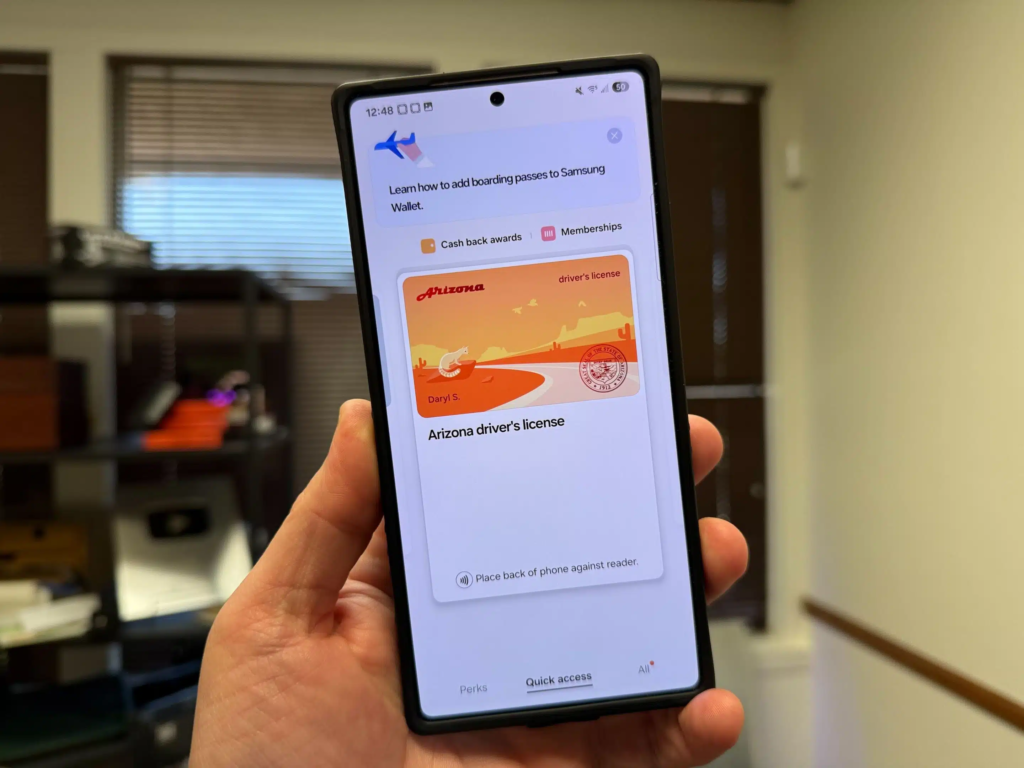
That’s a great question! Samsung is gradually merging its security features. The Samsung Pass service you use to log in is moving inside the Samsung Wallet app.
Don’t worry, the core functionality (logging in with your fingerprint) isn’t going away. It’s just getting a new home, making it a one-stop shop for all your digital keys, passes, and payments.
Conclusion
For anyone with a Samsung Galaxy phone, Samsung Pass is a hidden gem that can make your online experience safer and much less frustrating. It transforms your phone into a powerful tool that recognizes you by your unique fingerprint, eliminating the need to remember hundreds of passwords.
It’s free, it’s built-in, and it’s secure. The only real catch is that it doesn’t play well outside the Samsung family, so it’s perfect if you’re all-in on Samsung, but something to think about if you plan to switch brands in the future.
Now, we’d love to hear from you. Have you tried using Samsung Pass? What do you think of it compared to other password managers? Let me know in the comments below
