
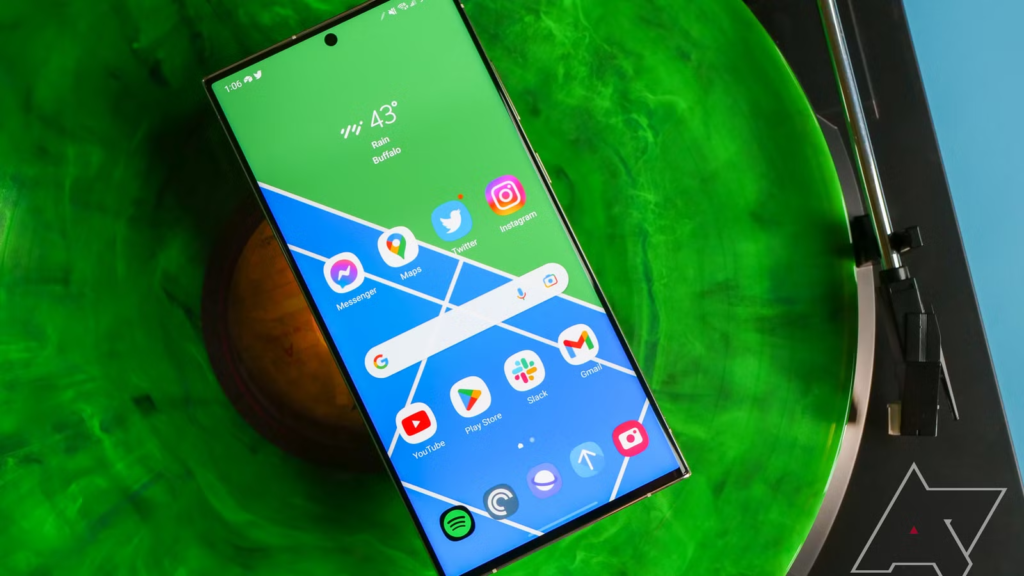
You just got a new Samsung Galaxy S23, S24, or S25. You heard about eSIM and how it lets you activate a phone plan without touching a tiny plastic card. No more fumbling with paperclip tools or worrying about losing that little tray.
Good news. Setting it up takes about five minutes if you know where to look.
Let me show you exactly how.
What Actually Is eSIM?
eSIM stands for embedded SIM. Think of it as a digital version of that physical card you’re used to. It lives inside your phone and does the same job—connecting you to a carrier’s network—but without the hardware.
The best part? You can store multiple eSIM profiles on one phone. Traveling to Japan next week? Add a local data plan before you leave. Need a second line for work? Done. No swapping cards.
Build Funnels, Email Lists & Sell Online With One Free Tool
Create funnels, send emails, and sell online using Systeme.io without paying for multiple tools.
Create Free AccountFree forever • No credit card • Beginner-friendly
Before You Start: What You’ll Need
Get these three things ready first:
- A compatible Samsung Galaxy – S23, S23+, S23 Ultra, S24 series, S25 series, or the newer foldables like Z Fold 5 and Z Flip 5.
- A carrier that supports eSIM – Most major carriers do now. In the US, that’s T-Mobile, AT&T, Verizon, Google Fi, and most prepaid brands like Mint Mobile and Visible. Check your carrier’s website if you’re unsure.
- Your eSIM activation details – Usually a QR code from your carrier. Sometimes just an activation code you type in manually.
One important thing: Some carriers lock eSIM activation on phones bought through them. If you got your Galaxy from a carrier and still owe money on it, call them first to confirm eSIM is available.
Step-by-Step: Adding Your eSIM
The process is nearly identical on the S23, S24, and S25. Samsung keeps things consistent.
1. Using a QR Code (Easiest)
This is how most people will do it.
- Open Settings (the gear icon)
- Tap Connections
- Tap SIM Manager
- Tap Add eSIM
- Tap Scan QR code from carrier
- Point your camera at the QR code your carrier gave you
- Wait a few seconds while your phone downloads the plan
- Tap Confirm or Add
That’s it. Your eSIM should show up in SIM Manager next to your physical SIM if you have one.
2. Typing the Code Manually
Sometimes the QR code is blurry or you only got a numeric code. No problem.
Follow steps 1-4 above, then:
- Tap Enter code manually instead
- Type in the activation code your carrier sent you
- Tap Add
- Wait for the download to finish
Choosing Your Default SIM
Once the eSIM is added, you’ll see both your physical SIM and eSIM listed in SIM Manager. You need to tell your phone which one to use for what.
Tap Default SIM and you can choose:
- Mobile data – Which SIM uses the internet
- Calls and texts – Which SIM makes calls and sends messages
Here’s a practical setup many people use: Physical SIM for calls and texts on your main number. eSIM for data on a cheaper prepaid plan. Your phone handles both seamlessly.
Switching eSIMs On and Off
You can store multiple eSIM profiles but only use one at a time (plus your physical SIM).
To turn an eSIM on or off:
- Go to Settings > Connections > SIM Manager
- Tap the eSIM you want to manage
- Toggle Use eSIM on or off
Travel tip: Before leaving for another country, add a local eSIM (apps like Airalo or Nomad make this easy). Turn off your main SIM’s data roaming to avoid surprise charges. Turn on the travel eSIM for data. Keep your main SIM active for calls and texts if you need them.
Why This Matters for Remote Work and Business
If you run a business or freelance, dual SIM capabilities change how you work.
You can keep your personal number on a physical SIM and your business number on an eSIM. Two lines, one phone. No carrying two devices. No missing client calls because you left the work phone at home.
Traveling for a conference? Add a local data eSIM for maps, email, and Slack. Your main number still works for calls. Clients don’t even know you’re in another country.
Common Issues and How to Fix Them
The QR code won’t scan
Make sure you’re in good light. Hold steady about six inches away. If it still won’t work, tap “Enter code manually” and type it in.
“Couldn’t add eSIM” error
This usually means one of three things: your carrier hasn’t activated the eSIM on their end, your phone is carrier-locked, or you’re not connected to WiFi. Most eSIMs need an internet connection to download.
No service after adding
Restart your phone. Seriously, this fixes it 90% of the time. If not, go to SIM Manager and make sure the eSIM is toggled on and set as active for what you need (calls, data, or both).
Can’t make calls but data works
Check your default SIM settings. You might have data on the eSIM but calls still trying to use a physical SIM that doesn’t have service.
Removing an eSIM
Moving to a new phone or don’t need that travel plan anymore?
- Settings > Connections > SIM Manager
- Tap the eSIM you want to remove
- Tap Remove eSIM
- Confirm
Removing doesn’t cancel your plan. You’ll still be billed unless you contact your carrier separately. It just deletes the profile from your phone.
A Note on Transfers Between Samsung Phones
Here’s something Samsung doesn’t advertise enough: eSIM transfer between Galaxy phones isn’t smooth yet. Unlike iPhones where you can transfer eSIMs during setup, Samsung still makes you go through the carrier most of the time.
Before trading in your old Galaxy for a new one, either keep your physical SIM or contact your carrier for a new eSIM QR code. Don’t delete the eSIM from your old phone until the new one is active.
Frequently Asked Questions
Can I use two eSIMs at the same time?
No. Samsung phones support having multiple eSIM profiles stored, but only one can be active at a time. You can use one physical SIM and one eSIM simultaneously, though.
Will eSIM work if I’m traveling internationally?
Yes, but check that the local carrier or eSIM provider supports your Galaxy model. Most do, but some budget travel eSIM apps work better on iPhones. Read recent reviews before buying.
Does eSIM drain my battery faster?
No noticeable difference. The radio hardware is the same whether it’s reading a physical card or an embedded one.
Build Funnels, Email Lists & Sell Online With One Free Tool
Create funnels, send emails, and sell online using Systeme.io without paying for multiple tools.
Create Free AccountFree forever • No credit card • Beginner-friendly
Can I still use a physical SIM with eSIM enabled?
Yes. The S23, S24, and S25 all have one physical SIM slot and support one active eSIM at the same time.
Wrapping This Up
eSIM on Samsung Galaxy phones is one of those features that seems complicated until you do it once. Then you wonder why phones still have SIM trays at all.
The process is straightforward: get your QR code or activation details, go to SIM Manager, scan or type, confirm. Five minutes and you’re done.
The real power shows up later. When you land in a new country and add a local data plan before your luggage hits the carousel. When you separate work calls from personal ones without carrying two phones. When you switch carriers in minutes instead of waiting days for a card to arrive.
What will you use dual SIM for first—travel, business, or just testing out a cheaper carrier?
