
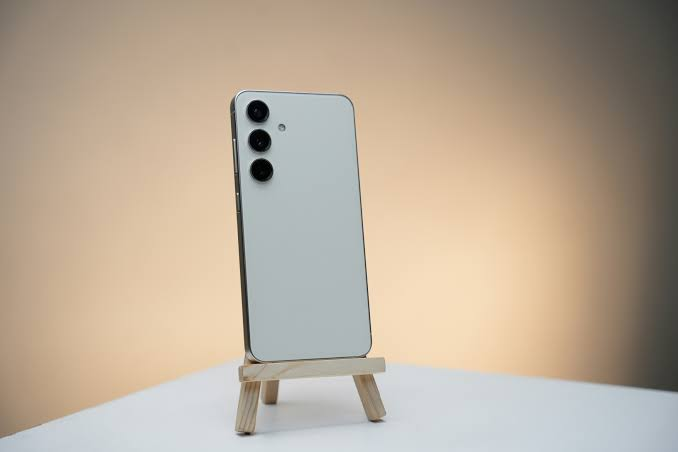
The Samsung Galaxy S26 Ultra solves one of the most annoying problems of owning a smartphone: people peeking at your screen in public places. Whenever you open a banking app on a crowded train or check a private message while waiting in line, there is always a risk that someone nearby is looking directly at your display. For years, the only solution was buying a cheap stick-on privacy screen protector. Those plastic films dimmed your display, ruined vibrant colors, and created ugly line patterns across your screen.
Samsung fixed this problem by embedding a hardware-level Privacy Display directly into the screen of the Galaxy S26 Ultra. Instead of forcing you to use a permanent dark filter, this technology lets you narrow the screen viewing angle using built-in controls. Someone sitting right next to you sees a dark, washed-out screen, while you enjoy a bright, crystal-clear view from the front.
Understanding how to set up and customize this feature helps you protect personal details, financial records, and private messages effortlessly. Here is everything you need to know about turning on, tweaking, and getting the most out of the built-in privacy screen on your Samsung Galaxy S26 Ultra.
How the Galaxy S26 Ultra Built-In Privacy Display Works
The Privacy Display on the Galaxy S26 Ultra is a breakthrough in mobile display hardware. Traditional screen privacy solutions rely on physical plastic or glass filters applied over the glass. These filters use microscopic physical blinds to block light from traveling sideways. While they block side glances, they also permanently destroy screen clarity, lower overall brightness, and reduce touch sensitivity.
Samsung took a completely different approach. The Galaxy S26 Ultra uses special display hardware combined with software controls to change how pixels emit light on demand. When Privacy Display is off, the screen works like a high-end display with wide viewing angles, rich colors, and peak outdoor brightness. When you turn Privacy Display on, the phone changes how light scatters from the display pixels.
The $0 Secret To Launching Your Entire Online Empire
Why pay hundreds every month for separate software? Build funnels, send emails, and make sales with Systeme.io completely free.
Get Started For $0Free Forever • No Credit Card Needed • Beginner-Friendly
From a straight-on perspective, the screen remains clear, sharp, and colorful. From side angles, the display appears dark and blurry, making text completely unreadable to anyone standing or sitting next to you. You get complete visual protection without sacrificing screen quality when using your phone.
This hardware innovation represents a major step forward for mobile display safety. If you enjoy staying informed on the latest mobile devices, display tech, and smart software, check out our latest guides in our technology and AI section.
How to Turn On Privacy Screen on Samsung Galaxy S26 Ultra
Turning on the privacy screen feature on your Galaxy S26 Ultra is fast and simple. You can enable it through the main system settings or use a quick panel shortcut when you need instant protection.
Method 1: Enabling Privacy Display Through Settings
- Open the Settings app on your Galaxy S26 Ultra.
- Scroll down and tap on Display.
- Scroll through the display options until you see Privacy Display.
- Toggle the switch next to Privacy Display to the ON position.
Once toggled on, the display immediately restricts side-angle visibility. If you tilt the phone sideways, you will notice the screen content fading into a dark shadow.
Method 2: Quick Toggle via the Quick Panel
Opening the main settings menu every time you want extra privacy can be slow. Using the Quick Panel lets you turn the feature on or off in a single tap.
- Swipe down from the top right corner of your screen to open the Quick Panel.
- Swipe down again to expand the full grid of quick settings tiles.
- Look for the Privacy Display tile.
- Tap the Privacy Display icon to turn it on or off instantly.
If you do not see the Privacy Display tile in your Quick Panel, tap the edit icon (the pencil symbol) at the top of the Quick Panel screen. Drag the Privacy Display tile into your active quick toggles grid and tap Done. Now you can activate privacy protection whenever someone sits too close to you.
Customizing Automatic Privacy Rules for Daily Use
Keeping Privacy Display turned on all day long is not always necessary. If you are sitting alone at home or showing a photo to a family member, you want normal wide viewing angles. Samsung included smart automatic triggers so Privacy Display turns on only when sensitive tasks occur on screen.
To configure these rules, go to Settings > Display > Privacy Display, and select Conditions for Turning On.
Auto-Shielding Banking and Private Messaging Apps
You can set Privacy Display to turn on automatically whenever you open specific applications. This ensures financial information and private chats remain hidden without needing manual toggle adjustments.
- In the Privacy Display settings menu, tap Conditions for Turning On.
- Tap Apply Privacy Display to Selected Apps.
- Select the specific apps you want to protect, such as banking apps, WhatsApp, Telegram, Signal, password managers, or your photo gallery.
- Return to your home screen.
Now, whenever you launch any selected app, the phone automatically narrows the viewing angle. As soon as you exit the app and return to your home screen, the display returns to standard wide viewing mode.
Protecting Passwords, PINs, and Lock Screen Patterns
Entering a lock screen PIN, pattern, or account password in a crowded area can feel risky. People standing nearby can easily watch your finger movements and memorize your passcode.
- Inside the Privacy Display settings menu, find the option labeled Apply Privacy Display to PIN, Pattern, and Password.
- Toggle this switch to ON.
Whenever a password field, PIN prompt, or lock screen unlock pattern pops up, the phone automatically restricts side visibility. Anyone trying to peek over your shoulder while you log into your accounts will see only a dimmed screen.
Partial Privacy for Notification Pop-ups
Incoming text notifications often contain private messages, verification codes, or personal updates. If your phone lights up while sitting on a desk or held in your hand, people nearby can read those pop-ups.
Samsung added a Partial Screen Privacy feature specifically for notification banners:
- Open Settings > Display > Privacy Display.
- Enable the switch for Apply Privacy Display to Notification Pop-ups.
When enabled, only the top area where notification banners pop up gets restricted side viewing angles. The rest of your screen remains unaffected, keeping private notifications shielded from curious eyes.
Send, Spend & Hold Money Worldwide Without Hidden Fees
Transfer money internationally at the real exchange rate and hold 40+ currencies in one account.
Open a Wise AccountMid-market rate • Fast transfers • 40+ currencies
Maximum Privacy Protection Mode
When riding a packed bus, standing inside an elevator, or sitting tightly packed in an airplane, basic side-angle protection might not feel like enough. The Galaxy S26 Ultra includes a Maximum Privacy Protection mode for extreme crowded spaces.
- Open Settings > Display > Privacy Display.
- Tap on Privacy Level and select Maximum Privacy Protection.
This mode narrows the viewing cone even further and slightly adjusts side glare. Anyone standing even at a slight angle will see a completely dark display, providing maximum visual security in high-density public areas.
Real-World Scenarios Where You Need Privacy Display
Knowing when to use the built-in privacy screen makes daily phone usage much safer. Here are practical situations where this feature proves invaluable:
- Public Transit and Commuting: Subways, buses, and trains place you right next to strangers. Enabling Privacy Display prevents adjacent passengers from reading your private text conversations or watching what you browse.
- Entering OTPs and Financial Logins: One-Time Passwords (OTPs) sent via SMS are critical for securing bank transfers. Activating automatic protection ensures your 2-Factor Authentication codes remain confidential when logging into accounts in public places.
- Working Remotely in Public Spaces: Coffee shops, airport lounges, and hotel lobbies are great for remote work, but they expose client data and business documents. If you manage remote online channels or work on YouTube automation, shielding sensitive analytics, revenue dashboards, and creator settings keeps your business accounts protected from onlookers.
- Open-Office Environments: Walking past co-workers’ desks often leads to casual screen glances. Setting automatic rules for personal apps keeps personal messages private while working at your desk.
Comparing Built-In Privacy Display vs Traditional Screen Protectors
Many phone owners wonder if they still need to buy an aftermarket privacy screen protector. Understanding how Samsung’s built-in technology compares to traditional stick-on film highlights why physical screen protectors are obsolete.
Traditional Stick-On Privacy Protectors
- Permanent Screen Dimming: Physical privacy films reduce screen brightness by up to 30 percent at all times, making daylight viewing difficult.
- Reduced Color Accuracy: Plastic and tempered glass filters create a dull, washed-out appearance on high-resolution displays.
- Visible Grid Distortion: Micro-louvers in physical protectors create a visible pattern or wave distortion across your display.
- Inflexible Protection: Once applied, the privacy filter is permanently active until you peel it off and throw it away.
Samsung Galaxy S26 Ultra Built-In Privacy Display
- On-Demand Activation: Turn privacy protection on or off instantly via Quick Panel toggles or automated rules.
- Zero Brightness Loss Head-On: Full brightness, vivid colors, and high resolution remain untouched when looking directly at the display.
- No Physical Film Required: Keep your phone screen smooth and clean without ugly plastic edges or air bubbles.
- Granular Control: Protect specific apps, password prompts, or notification pop-ups without affecting the rest of your system.
According to official device documentation on the Samsung Official Website, this built-in technology provides peak hardware integration while preserving full touch responsiveness and HDR display quality.
Troubleshooting Common Issues with Samsung Privacy Display
If your Privacy Display is not working as expected, here are quick fixes for common issues:
Screen Appears Too Dark for People Sharing Content
If you are trying to show a photo or video to a friend sitting beside you and they complain that the screen is dark, Privacy Display is still active. Simply swipe down the Quick Panel and tap the Privacy Display toggle to turn it off temporarily.
Automatic Rules Are Not Triggering for Certain Apps
If an app does not switch to privacy mode automatically:
- Go to Settings > Display > Privacy Display > Conditions for Turning On.
- Tap Apply Privacy Display to Selected Apps.
- Double-check that the application is toggled ON in the list.
- Restart your phone if the app was recently installed or updated.
Display Appears Too Dim Under Direct Sunlight
While Privacy Display preserves front-facing brightness, keeping Maximum Privacy Protection active under direct sunlight might make subtle text harder to read. If you are outdoors in bright light, set the privacy level back to Standard or temporarily disable it.
Screenshots and Screen Recordings Show Darkened Views
Users often worry that Privacy Display will darken their screenshots or video screen recordings. Privacy Display operates at the hardware pixel lighting level. Screenshots and screen recordings capture internal system graphics, meaning your saved images and videos remain completely normal, bright, and clear.
The $0 Secret To Launching Your Entire Online Empire
Why pay hundreds every month for separate software? Build funnels, send emails, and make sales with Systeme.io completely free.
Get Started For $0Free Forever • No Credit Card Needed • Beginner-Friendly
Frequently Asked Questions (FAQs)
Does the Privacy Display feature drain extra battery power?
Privacy Display uses minimal power because it adjusts light emission directly within the OLED pixel hardware rather than running heavy background processing. You will not notice any significant difference in daily battery life whether Privacy Display is enabled or disabled.
Can I use a tempered glass screen protector with Privacy Display?
Yes. You can use standard clear glass or TPU screen protectors on your Galaxy S26 Ultra. Since Privacy Display is built into the screen hardware, clear screen protectors will not interfere with its functionality. Avoid using third-party privacy glass, as double-filtering will make your display far too dark.
Is Privacy Display available on the base Galaxy S26 or S26 Plus?
The built-in hardware Privacy Display is exclusive to the Samsung Galaxy S26 Ultra due to specialized display panel hardware. Base Galaxy S26 and S26 Plus models do not feature built-in hardware viewing angle controls.
Does Privacy Display work in landscape orientation when watching videos?
Yes. The hardware light control adapts automatically when you rotate your phone to landscape mode. Side angles remain protected whether you hold your phone vertically or horizontally.
Will Privacy Display affect screen brightness or resolution for me?
No. When viewing the screen straight on, display resolution, sharpness, and color accuracy remain 100 percent clear. Only individuals viewing the screen from off-center angles experience dark or washed-out visuals.
Final Thoughts on Setting Up Galaxy S26 Ultra Privacy
The built-in Privacy Display on the Samsung Galaxy S26 Ultra is one of the most practical smartphone innovations in recent years. By removing the need for dark plastic screen covers, Samsung offers hardware-grade privacy that fits seamlessly into daily life. Setting up automatic rules for financial apps, passcodes, and incoming notifications gives you peace of mind whenever you step out in public.
Want to discover more guides, tech tips, and viral trends? Learn more about our story on our about page or reach out to our team directly through our contact page.
Join our growing community on social media for daily tech updates and trending discussions:
- Follow us on Instagram
- Like our Facebook page
- Connect with us on X (formerly Twitter)
