
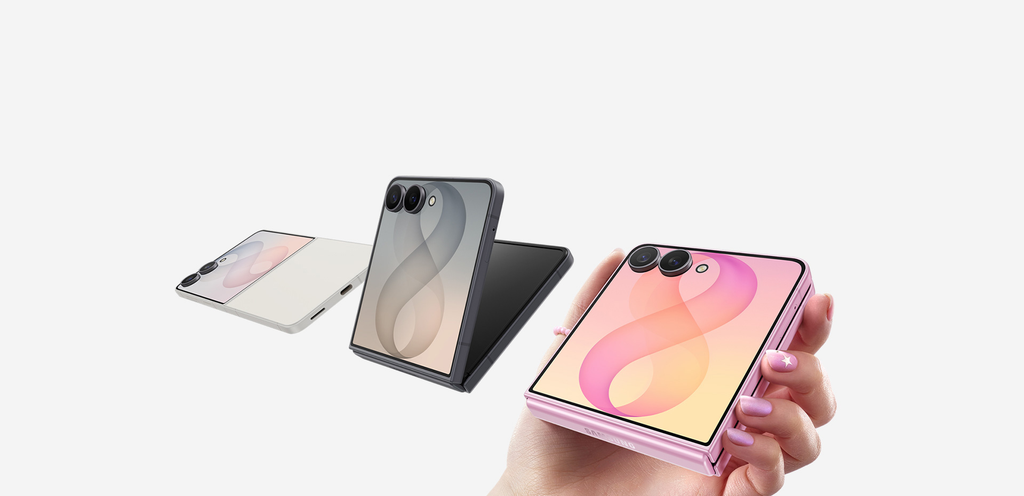
Front-facing selfie cameras have always played second fiddle to the main camera setup on the back of phones. They often produce softer images, struggle in dim light, and lack the sharp detail you get from high-end main sensors. Samsung solved this exact problem with the Galaxy Z Flip series. Because the phone folds in half, you can use the outer cover screen as a live viewfinder while taking photos with the main rear cameras.
You no longer have to guess if you are in the frame when holding your phone backward. The cover display shows you exactly what your rear lens sees. That means sharper details, richer colors, better background blur in portrait mode, and effortless ultra-wide group shots.
From taking quick photos on the go to filming social media videos or setting up hands-free photos on a table, learning how to use your cover display transforms how you take pictures. Here is a complete guide on how to take stunning selfies with your Samsung Z Flip rear camera using the cover screen.
Why Main Rear Cameras Produce Superior Selfies
Most smartphone front cameras use tiny camera sensors designed primarily for video calls and quick video chats. These smaller sensors struggle to collect enough light in darker rooms or nighttime environments, leading to grainy, washed-out images.
Main rear cameras, on the other hand, feature significantly larger physical sensors, wider lens apertures, advanced optical image stabilization, and dedicated depth hardware. When you snap a picture using the rear camera on your Z Flip, you gain several clear benefits:
The $0 Secret To Launching Your Entire Online Empire
Why pay hundreds every month for separate software? Build funnels, send emails, and make sales with Systeme.io completely free.
Get Started For $0Free Forever • No Credit Card Needed • Beginner-Friendly
- Higher Resolution and Sharpness: Main sensors capture fine details like hair texture, clothing patterns, and facial features far better than standard front lenses.
- Superior Low-Light Performance: Larger sensors absorb more light, keeping night shots clean, bright, and low on digital noise.
- Ultra-Wide Flexibility: The dedicated ultra-wide rear lens lets you fit larger groups of friends or entire scenic backgrounds into your picture without needing an extended selfie stick.
- Natural Depth of Field: Rear lenses create a soft, natural blurred background effect that looks professional rather than digitally artificial.
Method 1: Using Quick Shot Mode While the Phone is Folded
The fastest way to take a selfie using your Z Flip rear camera is Quick Shot. You do not even need to open your phone. The whole process takes less than two seconds once you learn the button shortcuts.
Step 1: Launch the Camera App From the Cover Screen
With your Z Flip completely folded shut, quickly double-press the Side Key (the power button located on the side of the device).
The outer cover display will turn on instantly and open a live preview of the camera. You will see your face directly on the outer screen, captured by the high-resolution rear lenses.
If double-pressing the side button opens Bixby or another app instead of the camera, you can change this setting in a few quick taps:
- Open your phone and go to Settings.
- Tap Advanced features.
- Select Side key.
- Under Double press, choose Quick launch camera.
Step 2: Switch Camera Modes and Lenses
Depending on your Z Flip model, you can switch modes directly from the cover display using simple touch gestures:
- Switching Between Modes: Swipe left or right across the cover screen to toggle between Photo, Video, and Portrait Mode.
- Switching Lenses: Swipe up or down on the cover screen to switch between the standard main wide lens and the ultra-wide lens. This makes fitting extra people or scenic backgrounds into your photo super easy.
- Zooming In and Out: On newer models like the Z Flip 5, Z Flip 6, and Z Flip 7, you can double-tap the cover display screen or pinch-to-zoom to adjust the focal length.
Step 3: Changing the Photo Aspect Ratio
By default, cover screen preview photos might capture in a square or full-screen crop. If you want standard 3:4 or 9:16 aspect ratios for your photos, you can set your preference ahead of time:
- Unfold your phone and open the main Camera app.
- Tap the aspect ratio icon at the top of the main screen (such as 3:4, 16:9, or 1:1).
- Select your preferred image shape.
- Close your phone. The cover screen Quick Shot feature will now save all future photos in that chosen aspect ratio.
Step 4: Taking the Photo
When you are ready to snap the image, you have a few easy choices for triggering the shutter without shaking the phone:
- Volume Buttons: Press either the Volume Up or Volume Down button on the side of the phone to take the photo.
- Tap the Cover Display: Tap anywhere on the cover screen display to trigger a short timer and capture the shot.
- Palm Gesture: Hold your palm up facing the camera. The phone will detect your hand, display a brief circle countdown on the cover screen, and automatically take the picture.
Method 2: Using Flex Mode as a Built-In Tripod
One of the best advantages of a foldable phone is its ability to hold itself upright at almost any angle. Flex Mode allows you to set your Z Flip on a table, counter, desk, or flat rock to take completely hands-free selfies using the cover screen.
How to Set Up Flex Mode Selfies
- Keep your Z Flip slightly folded at an angle between 75 degrees and 115 degrees.
- Place the bottom half of the phone firmly on a flat surface like a table or desk.
- Position the top half so the rear camera lenses and cover display face toward you.
- Check your framing on the cover display while standing or sitting in front of the phone.
- Use a hands-free shutter trigger to take the shot without touching the device.
Setting Up Hands-Free Camera Triggers
Touching the phone to tap the screen can shift your framing or cause unwanted camera blur. Setting up hands-free triggers ensures crisp, steady photos every time.
To activate hands-free shooting modes:
- Unfold your phone and open the Camera app.
- Tap the Settings gear icon in the top left corner.
- Scroll down and tap Shooting methods.
- Toggle on Show palm.
- Toggle on Voice commands.
With these features turned on, you can take a picture by simply raising your open palm toward the camera until the countdown timer appears. Alternatively, you can say words like “Cheese,” “Smile,” “Capture,” or “Shoot,” and the phone will snap the photo automatically.
Method 3: Dual Preview Mode When Phone is Fully Unfolded
Sometimes you want a friend or family member to take a photo of you, but you still want to check your hair, outfit, or pose before they click the shutter. Dual Preview makes this seamless by turning on both the main inner display and the outer cover screen simultaneously.
How to Turn On Dual Preview
- Open your Z Flip completely and launch the Camera app.
- Look at the top right corner of the camera screen for a small rectangular icon that represents the cover screen.
- Tap the Cover Screen Preview icon to turn it on.
- The outer cover display will turn on, allowing whoever is standing in front of the lens to see a real-time preview of themselves.
This feature is ideal for portrait shots, group photos, and full-body outfit photos because both the photographer and the person posing can see the exact frame in real time.
Differences Across Samsung Z Flip Generations
Samsung has continuously upgraded the cover screen experience across different generations of the Galaxy Z Flip series. Understanding what your specific phone model supports will help you get the most out of your camera.
Galaxy Z Flip and Z Flip 3
- Features a smaller outer cover screen.
- Supports basic Quick Shot mode for quick photos and videos.
- Preview shows a cropped central view of your subject.
- Double-pressing the Side Key launches the camera instantly.
Galaxy Z Flip 4
- Improved cover screen preview brightness and aspect ratio controls.
- Added Portrait Mode directly to the cover screen Quick Shot menu.
- Better gesture recognition and faster processing for low-light shots.
Galaxy Z Flip 5, Z Flip 6, Z Flip 7 and Beyond
- Features the expansive FlexWindow outer display covering almost the entire front cover.
- Full-screen real-time camera viewfinder with clear detail.
- Direct access to camera settings, photo aspect ratios, filters, and color tones directly from the cover display without unfolding the phone.
- Advanced FlexCam auto-zoom features that automatically track subjects and adjust frame distance.
For official support, software updates, and detailed user guides on your specific device model, check out the official Samsung Support Guide.
Send, Spend & Hold Money Worldwide Without Hidden Fees
Transfer money internationally at the real exchange rate and hold 40+ currencies in one account.
Open a Wise AccountMid-market rate • Fast transfers • 40+ currencies
Pro Tips for Getting the Best Cover Screen Selfies
Taking great rear-camera selfies on a foldable phone is easy, but a few simple habits will elevate your photos from good to professional.
1. Wipe Your Rear Camera Lenses Clean
Because the rear camera module sits right next to where your fingers rest while picking up or holding the phone, finger oils and smudges build up quickly. A hazy or smudged lens causes soft focus and light streaks. Keep a micro-fiber cloth handy or gently wipe the camera glass on your shirt before snapping pictures.
2. Take Advantage of Natural Lighting
Rear cameras perform best when provided with good lighting. Position yourself facing a window or step into natural open shadow outdoors. Avoid strong light sources directly behind your head, as this creates heavy shadows across your face.
3. Use Portrait Mode for Studio-Like Separation
If you want your selfie to pop, swipe over to Portrait Mode on your cover display. The main camera uses hardware depth sensing to blur the background while keeping your face sharp, creating a clean effect similar to a professional camera.
4. Utilize the Ultra-Wide Lens for Group Shots
When taking photos with multiple friends, do not try to squeeze everyone into the standard frame. Swipe up on the cover screen to activate the ultra-wide lens. This widens your field of view so everyone fits comfortably without crowding.
5. Hold the Phone Securely
Using the side volume button to trigger shots while holding a folded phone can sometimes feel slippery. Using a phone case with an integrated ring holder or strap gives you extra stability and confidence when snapping quick photos with one hand.
Troubleshooting Common Cover Screen Selfie Issues
If your cover screen selfies are not working as expected, try these quick fixes to resolve common issues.
The Side Button Double-Press Does Not Open the Camera
If double-pressing the power key does nothing or opens another application, check your button settings:
- Open Settings > Advanced features > Side key.
- Ensure Double press is enabled and set to Quick launch camera.
The Cover Screen Image Looks Too Cropped
If the preview on your cover display cuts off the top or sides of your head, the aspect ratio is set incorrectly:
- Open your phone and launch the main Camera app.
- Change the aspect ratio setting from full screen or square to 3:4.
- Close the phone and relaunch Quick Shot. The framing will now accurately display your entire shot.
Palm Gesture Countdown Is Not Triggering
If showing your palm does not start the photo timer:
The $0 Secret To Launching Your Entire Online Empire
Why pay hundreds every month for separate software? Build funnels, send emails, and make sales with Systeme.io completely free.
Get Started For $0Free Forever • No Credit Card Needed • Beginner-Friendly
- Check that Show palm is enabled under Camera Settings > Shooting methods.
- Make sure your palm is fully open and facing directly toward the camera lens.
- Ensure you are within 3 to 6 feet of the phone so the software can clearly detect your hand.
Frequently Asked Questions (FAQs)
Can I record high-definition videos using the cover screen on Samsung Z Flip?
Yes. You can record high-resolution videos using the main rear cameras while viewing yourself on the cover screen. Simply double-press the side key while the phone is folded, swipe to Video mode, and tap the screen or press the volume button to start recording.
Do rear camera selfies offer better image quality than the inner selfie camera?
Yes, significantly better. The main rear cameras have larger sensors, superior low-light performance, sharper optics, and better dynamic range compared to the internal screen’s hole-punch camera.
Why does my cover screen selfie look different after saving in the Gallery?
The live preview on small or square cover screens sometimes shows a cropped preview to fit the display shape. However, the final photo saved to your Gallery uses the full resolution and aspect ratio selected in your main camera settings.
How do I stop camera shake when taking folded selfies?
Instead of pressing the screen or buttons while holding the phone, use the Show Palm gesture, voice commands, or set a 2-second countdown timer. This lets you position your hand comfortably before the camera takes the shot.
Does taking cover screen selfies drain the battery faster?
No. Using the smaller outer cover screen actually consumes less battery power than opening the main inner display screen to take photos.
Using the Samsung Z Flip cover screen to snap selfies with the main rear cameras is one of the single best features of Samsung’s foldable lineup. It combines the unmatched photo quality of high-end main lenses with the convenience of a real-time front preview display.
Whether using Quick Shot for fast snaps, setting up Flex Mode on a table for hands-free shots, or using Dual Preview for posed portraits, master these simple controls to elevate your photos every single day.
