
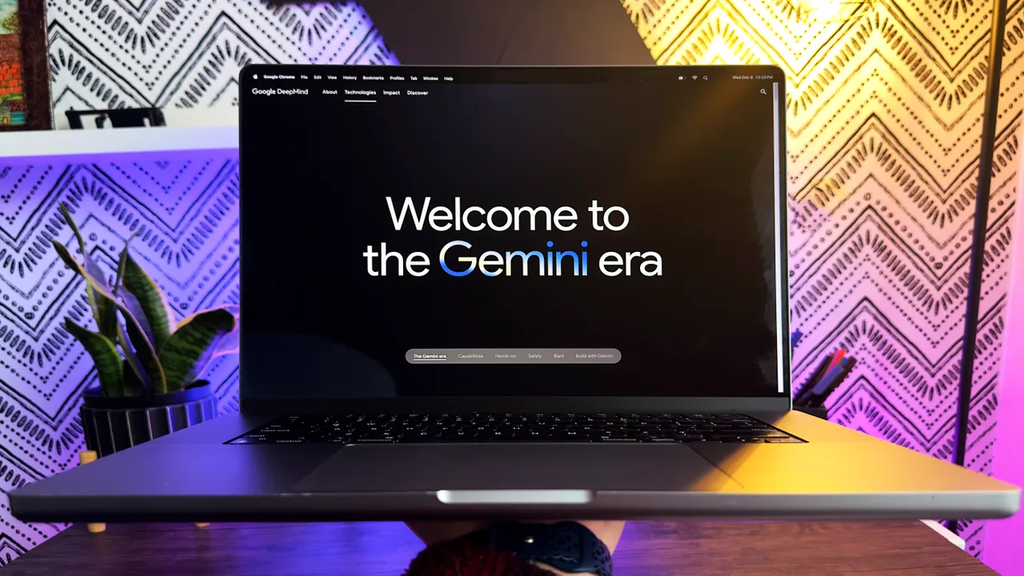
Google is making one of the biggest changes to its AI ecosystem yet. If you have been relying on custom Gemini Gems to handle your daily writing, coding, or brainstorming, big changes are coming to your dashboard. Starting November 17, 2026, Google is officially retiring Gemini Gems and migrating every single user setup over to a brand new framework called Skills.
This move marks a massive shift in how people interact with Google AI. Instead of forcing you to jump back and forth between standalone custom chatbots in separate windows, Google is integrating modular custom instructions right inside your standard chat window. By typing a simple slash command, you will be able to summon tailored workflows, specialized reference files, and automation rules instantly.
If you spent hours building custom Gems, there is no need to panic. Google is not throwing away your hard work. Every custom instruction, uploaded knowledge file, tool trigger, and shareable link will be carried over during the transition. However, understanding how Skills work right now will help you build much faster, smarter AI workflows before the official switch takes place.
Why Google Is Dropping Gems for Skills
When Google first introduced Gems, the idea was simple. Users wanted custom versions of Gemini that could remember specific roles, tones of voice, or corporate guidelines. You could build a Gem for editing blog posts, another one for summarizing technical PDFs, and a third one for coding helper scripts.
While Gems were helpful, they created a very clunky user experience. Every time you wanted to switch tasks, you had to exit your current chat, navigate to the sidebar, open a specific Gem, and start a completely new thread. This constant switching broken up your workflow and made it impossible to combine different custom tools in a single conversation.
The $0 Secret To Launching Your Entire Online Empire
Why pay hundreds every month for separate software? Build funnels, send emails, and make sales with Systeme.io completely free.
Get Started For $0Free Forever • No Credit Card Needed • Beginner-Friendly
The new Skills update solves this exact problem. By moving from standalone custom bots to inline slash commands, Google brings Gemini in line with modern AI productivity standards. You can check out how Google Gemini hit 950 million monthly users by focusing on speed, and this update is all about making daily work even faster.
Instead of locking custom instructions inside separate chatbot silos, Skills act as lightweight, reusable toolkits. You can call them up in any ongoing conversation whenever you need them without losing your current chat history or context.
What Are Gemini Skills and How Do They Work?
At its core, a Skill is a set of reusable instructions, rules, and optional reference files that tell Gemini exactly how to perform a specific task. Think of a Skill as a mini-recipe for the AI. Whenever you give Gemini that recipe, it follows your exact guidelines, tone, and formatting requirements without needing long prompts every single time.
Calling up a Skill in a chat is effortless. All you need to do is type a forward slash or an at-symbol in the prompt bar followed by the name of your skill.
For example, typing /blog-editor can instantly activate your brand tone, writing guidelines, and formatting rules. Typing /data-cleaner can tell Gemini to take raw spreadsheet text and format it into clean Markdown bullet points. You can read more about how Gemini Spark on Google Chrome brings speed to web browsing, and Skills bring that same instant action directly into your AI workspace.
According to official updates from the Google Gemini Help Center, Skills allow you to attach explicit instruction files, script triggers, and example outputs. This means your AI assistant goes from giving broad, generic responses to delivering spot-on results every single time.
Key Differences Between Gems and Skills
Understanding the transition comes down to how you trigger and combine your instructions. The older Gems framework treated every custom bot like a separate room in a house. You had to leave one room to enter another. Skills treat custom instructions like tools inside a toolbox that you can grab whenever you need them.
Here is a clear breakdown of how the old experience compares to the new system:
1. In-Chat Activation vs Separate Menus
With Gems, you had to open a specific chatbot from the sidebar menu to use its personality. With Skills, you stay in your active conversation and type /skill-name to apply custom guidelines on the spot.
2. Stacking Multiple Skills in One Thread
Gems could not talk to each other. If you wanted a coding Gem to write a script and a writer Gem to write documentation for that script, you had to copy and paste text between two different windows. With Skills, you can stack multiple tools in one prompt window. You can run a research Skill first, and then immediately call a summary Skill in the next prompt.
3. Portable Skill Files
Skills use an open format centered around markdown files. You can save your skill as a zip package containing a main instruction file named SKILL.md along with extra documentation files. This makes it super simple to back up your custom tools, edit them in plain text, or share them with team members.
4. Cross-Platform Compatibility
Because Skills rely on standard markdown formats, you can easily import skill packages created on other AI platforms or export your Gemini Skills to use elsewhere. This frees users from being locked into a single platform ecosystem.
Standout Features Coming with the Skills Upgrade
The shift to Skills is not just a visual redesign. It introduces powerful backend features that turn Gemini into a true agentic assistant capable of multi-step task execution. Tech reporting from Android Police highlights several major upgrades that make Skills far superior to standard Gems.
Multi-Skill Chaining and Nesting
One of the most impressive additions is the ability to chain skills together. You can write a master Skill that automatically invokes sub-skills to complete complex workflows. For instance, an executive assistant Skill can automatically invoke a research Skill, feed the output into a formatting Skill, and deliver a clean weekly brief without manual intervention.
Automated Task Scheduling
Skills are designed to work seamlessly with Gemini’s growing background automation features. You can configure a Skill to run at specific times or trigger automatically when certain conditions are met, such as summarizing long meeting notes or processing daily reports. If you are learning how to build a fully automated sales funnel, having automated AI prompt chains will make managing your leads much simpler.
Send, Spend & Hold Money Worldwide Without Hidden Fees
Transfer money internationally at the real exchange rate and hold 40+ currencies in one account.
Open a Wise AccountMid-market rate • Fast transfers • 40+ currencies
Increased Active Skill Limits
Google allows you to create as many Skills as you like, with up to 100 Skills marked as active at any given time. If you hit the 100-active limit, you can easily toggle unused Skills off in your settings dashboard without deleting your setups or losing your files.
Deeper Integration with Creative Tools
Skills work directly with default Gemini tools like Canvas, code interpreters, and visual generators. That means a single Skill can instruct Gemini to analyze data, draft visual concepts, and generate media inside one continuous session. You can explore how Google made HD video creation free using Gemini Omni to see how creative production is expanding across the platform.
What Happens to Your Existing Gems on November 17?
The most common concern among creators is whether their current Gems will vanish when the update goes live. Google has confirmed that on November 17, 2026, all user-created Gems will automatically migrate into the new Skills framework.
During the automatic migration process, Google will convert your Gem names, descriptions, custom instructions, and uploaded knowledge files into the new format. Your custom shareable links will also continue to function properly.
However, if you want full control over your setup or wish to start using Skills right away, you can manually recreate your Gems as Skills today by following a few simple steps.
Step 1: Export Your Knowledge Files
Open the Gem you want to convert in the Gemini web app. Check the Knowledge section for any uploaded PDFs, text documents, or spreadsheets. Download each file to your computer and save them inside a single dedicated folder on your desktop.
Step 2: Create Your Skill Package
Make sure your desktop folder uses a clean lowercase name separated by hyphens, such as my-custom-skill. Next, open a new browser tab, go to your Gemini settings, select Skills, and click on Create Manually. Copy over your Gem’s title, description, and custom instructions.
Step 3: Package as a Zip Archive
If your Skill uses reference files, hover over your newly created Skill in the dashboard and select Download. This gives you a zip file containing a file named SKILL.md. Unzip the file, move the SKILL.md file into your desktop folder alongside your knowledge files, and compress the entire folder back into a single zip package.
Step 4: Replace and Upload
Return to your Gemini Skills settings menu, hover over your Skill, and select Replace Skill. Upload your new zip folder containing SKILL.md and your reference files. Your custom Gem is now fully upgraded into a complete Skill package ready for slash-command use.
How to Write an Effective Skill That Gets Great Results
Creating a Skill is easy, but writing an effective Skill requires a clear structure. Because Gemini uses Skills to automate multi-step tasks, giving clear instructions prevents the AI from making wild guesses or generating off-topic answers.
The $0 Secret To Launching Your Entire Online Empire
Why pay hundreds every month for separate software? Build funnels, send emails, and make sales with Systeme.io completely free.
Get Started For $0Free Forever • No Credit Card Needed • Beginner-Friendly
If you are looking for ideas on optimizing your AI setups, exploring 7 hidden Google Gemini features that save hours every week is a great starting point for finding everyday tasks to automate.
To get the best possible results from your custom Skills, follow these key best practices:
1. Define Clear Usage Conditions
Start your instructions by telling Gemini exactly when it should use the Skill. State the specific inputs, file types, or user requests that should trigger the rules. This helps the AI recognize when to apply the guidelines automatically during normal conversations.
2. Keep Instructions Direct and Focused
Avoid padding your Skill instructions with long introductions or unnecessary fluff. Write short, clear rules using simple English. Bullet points work best for specifying formatting requirements, forbidden words, target tone, and mandatory output sections.
3. Provide Concrete Examples
The fastest way to teach an AI model what you want is by providing examples. Include a short sample input alongside the exact output you expect. Showing Gemini a concrete example reduces errors far better than writing paragraphs of detailed explanations.
4. Organize Complex Rules into Modular Files
If your instructions require heavy documentation, standard operating procedures, or large cheat sheets, do not paste everything into the main instruction box. Keep the main prompt clean and place extra reference material into separate text files inside your Skill zip folder.
Will Skills Be Free or Locked Behind a Paywall?
One big question lingering across tech forums involves account tier access. Historically, Gemini Gems were accessible to both free users and paid subscribers on Google One AI Premium plans.
With the move to Skills, Google has not yet made a final announcement regarding free tier limits. Some industry observers suggest basic Skills functionality will remain free for everyone, while advanced capabilities—such as uploading complex file directories, running automated background triggers, or accessing higher model limits—might require a paid plan.
Regardless of your subscription status, setting up clean, well-structured prompts today ensures you are completely prepared when the final account guidelines drop in mid-November. If you work online or are looking into how to get a fully remote job from anywhere, mastering these AI tools will give you a real edge in productivity and speed.
Frequently Asked Questions
When are Gemini Gems being officially retired?
Google will begin automatically shutting down Gems and migrating user accounts to the new Skills framework on November 17, 2026.
Will I lose my custom prompts and uploaded files during the migration?
No, Google has confirmed that all existing custom instructions, uploaded reference files, default tool settings, and shareable links will carry over automatically.
How do I trigger a Skill in a conversation?
You can activate any active Skill directly inside your normal Gemini chat window by typing a forward slash or at-symbol followed by the Skill name, such as /editor or @summarizer.
How many Skills can I have active at the same time?
You can build an unlimited number of custom Skills, but you can have up to 100 Skills marked as active simultaneously. You can enable or disable Skills anytime in your account settings.
Can I import Skills created on other platforms like Claude or ChatGPT?
Yes, because Gemini Skills rely on open markdown file standards like SKILL.md, you can upload compatible zip packages created on other AI platforms directly into Gemini.
Do I need a paid Google Advanced subscription to use Skills?
Gems were available to all users, but Google has not finalized whether all Skills features will remain entirely free or if advanced file attachments and multi-skill chaining will require a paid Google One AI Premium account.
Looking Ahead at Google’s AI Evolution
The sunsetting of Gemini Gems in favor of Skills shows how quickly AI tools are maturing. What started as separate, gimmicky custom chatbots is turning into a streamlined, integrated productivity engine. By making custom instructions available right inside your chat window through simple commands, Google is eliminating daily friction and giving users far more control over their automated workflows.
Taking a few minutes now to clean up your prompt guidelines, organize your knowledge files, and test out slash-command workflows will put you way ahead of the curve when November 17 arrives.
For more tech updates, deep dives, and trending news across business, remote work, and digital culture, explore our latest stories on WhatsBuzzn About or get in touch directly through WhatsBuzzn Contact.
Stay connected with our community across social media for daily updates and real-time news:
- Follow us on Instagram
- Join our community on Facebook
- Catch up on latest updates on X (Twitter)
