
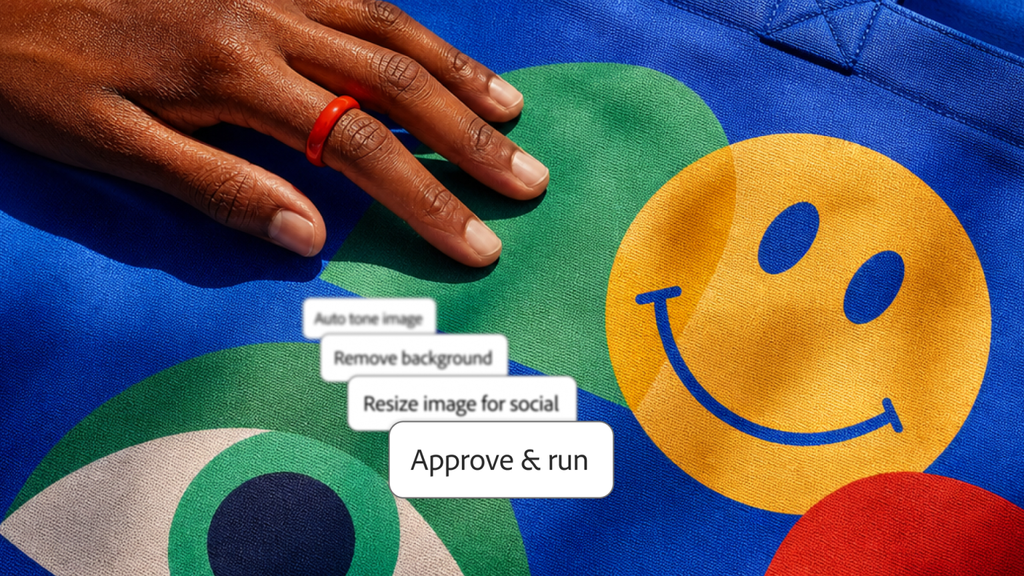
Adobe made a massive wave at Adobe MAX by rolling out a groundbreaking batch of artificial intelligence features for Photoshop. For decades, editing photos has meant hours of meticulous pen tool selections, tedious masking, dodging and burning, and endless manual cleanup. Adobe has flipped that script.
The latest Adobe MAX event brought a wave of next-generation features powered by the Firefly creative engine and third-party AI integrations. Whether you run an agency, make internet graphics, edit product shots for e-commerce, or just enjoy fixing up family photos on the weekend, these changes alter how daily design tasks are handled.
Instead of making you do all the heavy lifting, Photoshop is turning into an active creative partner. You can now command full lighting setups, convert flattened posters into movable layers, change whole camera angles, and fix reflections using direct, natural prompts.
Here is everything Adobe revealed for Photoshop at Adobe MAX, what each tool does in simple words, and how it impacts how we create digital content.
The Biggest AI Additions Coming to Photoshop
The headline news from Adobe MAX covers tools designed to eliminate the most frustrating parts of visual work. In past editions of the software, you spent half your afternoon cutting out subjects or trying to match mismatched shadows. The newly released suite aims directly at those pain points.
The $0 Secret To Launching Your Entire Online Empire
Why pay hundreds every month for separate software? Build funnels, send emails, and make sales with Systeme.io completely free.
Get Started For $0Free Forever • No Credit Card Needed • Beginner-Friendly
Relight: Add Virtual Lights After the Photo Is Taken
Ever take a photo where the background is stunning, but your subject is trapped in unflattering, dull shadows? Normally, fixing that requires careful brushwork, curve adjustments, and artificial edge highlights that rarely look organic.
The new Relight tool completely changes how you fix lighting. It lets you drop virtual light sources straight into a 2D photograph. You can place up to three separate lights inside an image, reposition them by dragging them across your canvas, and change their color, spread, and strength using a simple properties slider.
The tool understands the depth, contours, and physical surfaces of the people or objects inside your picture. It does not simply paint a flat brightness filter over your canvas. It wraps highlights around the cheekbones, casts matching highlights on clothes, and recalculates where shadows fall behind the subject.
Even better, Relight is completely nondestructive and lives on its own adjustment layer. If you decide three days later that you want a warm golden hour tint instead of a cool studio white, you can reopen the file, drag the slider, and adjust your settings without losing your original picture quality.
Generative Restyle: One-Click Aesthetic Makeovers
Changing the visual mood of an entire graphic used to require hours of manual color grading, filter stacking, and texture overlays. With Generative Restyle, you can transform an existing photo into entirely new artistic interpretations using quick text prompts.
You can request a watercolor painting style, a moody cinematic cyberpunk glow, or an editorial magazine tone. Once the tool generates the new look, a straightforward intensity slider lets you pick how far the effect goes. You can blend twenty percent of the style for a subtle atmospheric polish or push it to one hundred percent for an expressive, illustrative look.
Like Relight, this effect lives right in your layers panel, so your base photography stays safe.
Upgraded Remove Tool: Shadows and Reflections Are Gone for Good
Photoshop’s Remove tool has been a fan favorite for quick fixes, but it used to leave behind messy clues. If you removed a parked car or a person standing on a sidewalk, the person vanished, but their long cast shadow, their footprints, or their puddle reflections stayed behind. You had to brush over each shadow manually to avoid obvious editing blunders.
The newly updated Remove tool uses advanced contextual awareness. When you brush over a sign, a trash can, or a photobomber, the tool instantly detects connected elements. It tracks down:
- Cast shadows stretching along pavements or walls
- Surface reflections in glass, water puddles, or shiny floors
- Footprints in dirt, sand, or snow
- Distorting ripples and water waves around objects in the sea or a pool
It erases the target and its environmental footprints in a single brushstroke, then cleanly rebuilds the background texture behind it.
Sneak Peeks and Beta Features That Feel Like Sci-Fi
Along with the updates landing in the main stable release, Adobe pulled back the curtain on exciting beta tools inside the Photoshop testing app. These additions handle jobs that designers have wished existed for decades.
Convert to Text Layers: Bringing Flattened Files Back to Life
Every graphic artist has lived through this scenario: a client sends a flat JPG flyer or an old promotional banner and asks to change the date, phone number, or pricing. Because there are no original PSD layered files, you are forced to paint out the text, match the font by eye, and rebuild the text boxes from scratch.
The Convert to Text Layers beta tool ends that headache. It inspects flattened images, detects letterforms, identifies the font style, extracts the copy, and turns it into clean, editable live text layers. You can double-click the words and type new information in seconds.
If you build assets for user-generated content and paid campaigns, this single utility cuts asset turnaround down to a couple of minutes.
Camera Angles: Turning 2D Canvas Views
One of the most mind-bending demos at Adobe MAX was Camera Angles. Normally, once a camera clicks, your perspective is locked. If you shot a portrait directly from the front, you could never rotate that angle without arranging a whole new shoot.
Send, Spend & Hold Money Worldwide Without Hidden Fees
Transfer money internationally at the real exchange rate and hold 40+ currencies in one account.
Open a Wise AccountMid-market rate • Fast transfers • 40+ currencies
The Camera Angles feature gives you on-canvas orbit controls. You can tilt, elevate, or swivel the perspective of a flat image. The underlying generative system creates the missing sides and planes, creating an alternate perspective of your composition.
Generative Recompose: Perfect Crops for Every Social Ratio
Repurposing content across digital channels is a daily chore. An image framed nicely for a desktop banner often cuts off essential elements when cropped into a 9:16 vertical smartphone format.
Generative Recompose solves this by rearranging the elements rather than merely slicing off the edges. When you change your canvas dimensions, the AI shifts subjects, extends backgrounds, repositions headline items, and rebalances the visual weights to maintain a clean layout.
Quick Compare and Built-in Mockups
To make routine reviews easier, Photoshop added Quick Compare, an on-canvas split slider that lets you swipe across the before-and-after view of your edits instantly. You no longer have to spend time toggling layer visibility on and off to see how much progress you made.
Meanwhile, the new Mockups feature lets creators place flat logos and branding onto complex 3D surfaces—like apparel, tote bags, mugs, and packaging—complete with accurate material curvature, realistic folds, and lighting wraps.
Welcome to the Era of AI Agents in Creative Cloud
The most profound strategic change Adobe unveiled is not just another slider tool; it is the introduction of Adobe Creative Agent and open agent integrations.
Creative tasks are shifting toward agentic workflows. Instead of manually clicking through menus, you can open an AI-first workspace in Photoshop and instruct the software using plain conversational sentences. You can say things like:
- “Remove all clutter from the background, shift the lighting to late afternoon, and create a 4×5 export.”
- “Clean up the layers in this document and rename them according to the elements they hold.”
- “Isolate this subject, smooth out window reflections, and boost sharpness.”
Even bigger is Adobe’s introduction of the Model Context Protocol (MCP) preview. Adobe is opening Creative Cloud to compatible third-party AI agents from major companies like OpenAI, Anthropic, and Google.
This means that you are not locked into one proprietary system. A developer or creative studio can instruct external AI tools to open native Photoshop .psd files stored on their computer and perform structural edits.
Crucially, these agents do not just flatten your file or spit out uneditable pixels. They generate genuine, editable Photoshop layers, masks, and adjustment settings. You maintain complete artistic control and can refine or reverse any step an agent takes.
The $0 Secret To Launching Your Entire Online Empire
Why pay hundreds every month for separate software? Build funnels, send emails, and make sales with Systeme.io completely free.
Get Started For $0Free Forever • No Credit Card Needed • Beginner-Friendly
Why These Upgrades Matter for Modern Creators
The digital landscape has sped up dramatically over the past two years. Between managing high-frequency social platforms, handling brand sponsorships, and running online shops, creative workers are expected to produce dozens of polished assets every week.
Whether creators produce sponsored digital campaigns or assemble sales graphics for an automated online sales funnel, time is always the tightest bottleneck.
Routine tasks like cutting out flyaway hairs, balancing color tones, or masking intricate details have swallowed up thousands of billable creative hours. When software handles those repetitive jobs reliably, artists get to spend more of their day coming up with bold concepts, art direction, and storytelling.
It also lowers the barrier of entry for beginners. You do not need to memorize hundreds of keyboard shortcuts just to balance a photo’s illumination or fix an unwanted object. You can focus on the idea and let the software handle the mechanics.
The Balancing Act: Ethics, Costs, and Generative Credits
While these new features bring undisputed convenience, there are clear considerations every creator should keep in mind.
How Generative Credits Work
These advanced cloud-driven computations are not free. Adobe ties heavy AI operations to Generative Credits.
Running intense functions like Generative Restyle requires around 80 credits per use, while lighting adjustments through Relight consume roughly 30 credits. The enhanced Remove tool uses around 10 credits when tackling complex surroundings.
Adobe made a helpful choice by allowing users to preview and tweak lighting positions in Relight for free without deducting credits until they hit the final “Done” button. Even so, heavy users who produce hundreds of images daily will need to budget their monthly plan limits carefully.
Protecting Original Work and Ethical Training
AI tools across the industry have faced pushback from artists concerned about copyright infringement and data harvesting. Adobe continues to emphasize its safety-first stance.
The Firefly model powering these core Photoshop tools is trained on licensed Adobe Stock assets and public domain material whose copyrights have expired. Adobe reaffirmed that it does not use customer files or private Creative Cloud libraries to train its generative models.
This distinction is vital for commercial brands and independent freelancers who cannot risk copyright lawsuits on their deliverables.
At the same time, platforms across the web are establishing stricter policies around synthetic media. For example, recent industry shifts have seen platforms enforce strict transparency rules on AI-generated personas. Adobe embeds Content Credentials into assets, creating a tamper-evident digital tag that details whether AI tools were used during production.
Practical Ways to Integrate the New Features Today
If you want to make the most of these announcements right away, here is a simple roadmap to get moving:
- Update your Creative Cloud Desktop client: Go to your Creative Cloud app and update Photoshop to the latest version. To test experimental items like Camera Angles or Convert to Text Layers, download the “Photoshop Beta” app from the Beta Apps tab.
- Test Relight on existing portraits: Pull up an outdoor photo taken on an overcast day. Open the Relight tool and drop in a warm directional sun source from the upper left. Watch how the skin tones and hair catch realistic highlights.
- Clean up old stock photos: Run the new Remove tool over distracting items in your street photography. Notice how you no longer need to spend extra brushstrokes cleaning up the shadow left behind on the sidewalk.
- Experiment with the AI-first workspace: Try typing everyday descriptions into the prompt bar instead of hunting through submenus. Getting comfortable with conversational editing will give you a major speed edge as creative software continues to evolve.
Frequently Asked Questions (FAQs)
Are the new AI tools available on mobile and iPad versions of Photoshop?
Yes, core AI tools like Generative Fill, Generative Expand, and Select Subject are active across iPad, iPhone, and Android versions of Photoshop. However, heavy features like multi-light Relight and third-party AI agent connections are launching first on the desktop software.
Do Photoshop’s AI features require an internet connection?
Yes. Because these AI tools rely on Firefly models and heavy cloud server computing, your computer must have an active internet connection to run generative tasks like Relight, Generative Restyle, and Generative Fill. Standard manual tools continue to work offline as usual.
Will Adobe use my private Photoshop edits to train its AI?
No. Adobe has stated that Firefly is trained on licensed Adobe Stock images and public domain assets, not on user project files or personal customer libraries.
Do I get charged credits if I cancel an edit before saving?
For tools like Relight, you can preview and adjust your light position, hue, and brightness as much as you like without spending generative credits. Your account balance is only deducted once you confirm and commit the adjustment.
Can I still edit images the traditional way?
Yes. Adobe built these AI systems on separate layers, so the original manual tools—brushes, curves, dodge and burn, paths, and clone stamps—remain intact. You can jump between the AI assisted workspace and the traditional Pro Editor at any moment.
The announcements at Adobe MAX mark an exciting shift in digital design. By shifting repetitive, time-consuming tasks to intelligent tools, Photoshop gives creators more room to play, imagine, and build. As these tools roll out to users worldwide, the gap between what you see in your mind and what you can put on the canvas has never been smaller.
