
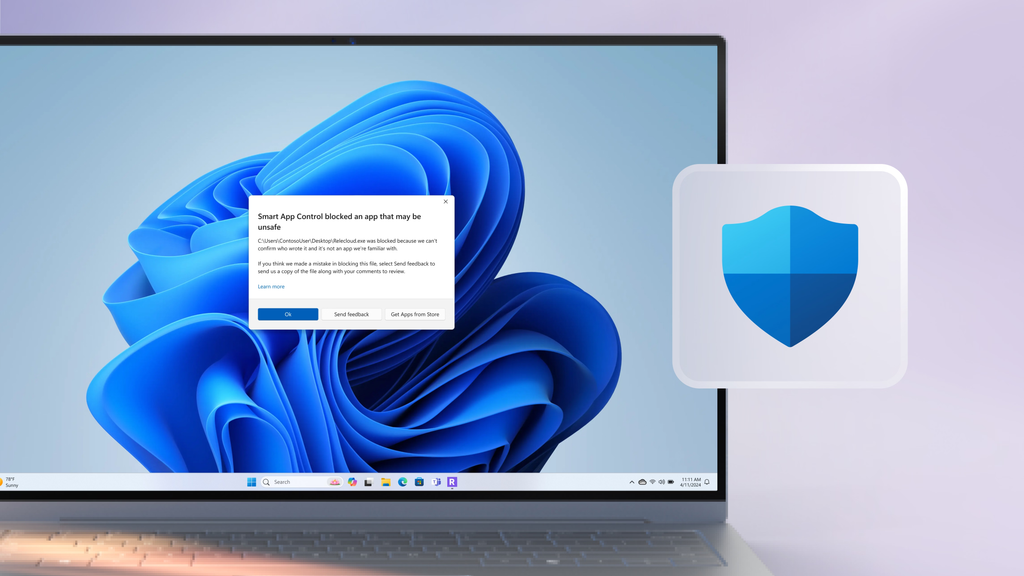
Microsoft released an urgent out-of-band security update for Windows 11 after a massive monthly patch caused widespread system crashes, audio failures, and network connection drops. Computer users and system administrators around the globe reported serious bugs immediately after installing the latest update package.
The emergency patch addresses critical failures in Remote Desktop Services, hypervisor virtualization tools, USB audio systems, and common office programs. Microsoft took immediate action after thousands of users flooded support forums with complaints regarding system instability and error messages.
What Happened With the Recent Windows 11 Security Patch?
Microsoft releases mandatory software patches on the second Tuesday of every month. These updates protect millions of computers against dangerous security bugs, hackers, and online threats.
The latest Patch Tuesday contained hundreds of crucial security fixes. However, shortly after millions of devices downloaded the update automatically, severe problems began to appear.
Users reported that their computers refused to shut down normally or rebooted continuously. Others found that essential tools used for remote work stopped functioning without warning. The sheer number of broken features made this rollout one of the most troubled update releases of the year.
The $0 Secret To Launching Your Entire Online Empire
Why pay hundreds every month for separate software? Build funnels, send emails, and make sales with Systeme.io completely free.
Get Started For $0Free Forever • No Credit Card Needed • Beginner-Friendly
As complaints escalated across community forums, tech news sites like BleepingComputer confirmed that Microsoft had paused the original rollout to prepare an emergency out-of-band repair patch.
Why Microsoft Issued an Emergency Out-of-Band Update
An out-of-band update is an unscheduled software fix released outside the normal monthly update schedule. Microsoft only sends out these patches when a bug is severe enough to cause major downtime for businesses and personal users.
Waiting several weeks for the next official Patch Tuesday was not an option. The glitches affected critical software infrastructure, leaving companies unable to log into remote servers and office workers unable to complete daily tasks.
The emergency repair package works as a full cumulative update. This means even if your PC failed to install the previous broken patch, installing this new repair update will deliver all necessary security protections while fixing the system bugs.
Detailed Breakdown of the Major Bugs Fixed by the Patch
The buggy security update hit multiple areas of the Windows 11 operating system. The following sections outline the specific problems reported by users and how the new patch resolves them.
1. Remote Desktop Services (RDS) Connection Failures
Remote Desktop Services allow employees to log into their office computers and enterprise servers from home. The monthly security update broke this connection mechanism on millions of machines running Windows 11 and Windows Server.
When workers tried to start a remote session, the program would hang indefinitely or throw connection error codes. In many cases, File Explorer and system management tools also stopped responding.
This issue caused massive disruptions for remote staff, IT support desks, and corporate networks. The new emergency fix replaces the faulty system files and restores full Remote Desktop functionality.
2. Audio Cutouts and USB Sound Card Errors
Music lovers, gamers, and video editors encountered severe sound glitches after updating their operating systems. The bug specifically targeted USB Audio Class 1.0 hardware connected to Windows 11 computers.
Users reported seeing a “This device cannot start (Code 10)” error inside the Windows Device Manager. On affected systems:
- External sound cards and USB speakers produced zero sound.
- Volume sliders inside the taskbar became completely unresponsive.
- Multichannel audio setups, including 3D audio and 8-channel speaker systems, failed completely.
While basic 2-channel stereo modes continued to work for some people, advanced sound hardware remained broken until Microsoft deployed this out-of-band update.
3. Hyper-V Virtual Machine Folder Sharing Crashes
Software developers rely heavily on Hyper-V virtual machines to test programs inside isolated digital environments. The recent security update damaged the host folder sharing system between Windows hosts and Linux virtual guest machines.
Shared files suddenly disappeared from view or threw permission denied errors when accessed inside virtual environments. The emergency release fixes this data bridge, allowing virtual machines to read shared local folders again without crashing.
4. Excel Copy and Paste Tools Freezing
Office productivity took a direct hit due to an unexpected conflict between security patches and Microsoft Office apps. Thousands of spreadsheet users found that copying and pasting data inside Microsoft Excel caused the application to lock up instantly.
When the bug occurred, Excel gave no warning or error dialog box. The software simply stopped accepting clipboard commands, forcing users to close the application via Task Manager and lose unsaved work. The out-of-band fix clears this clipboard barrier across all affected builds.
Send, Spend & Hold Money Worldwide Without Hidden Fees
Transfer money internationally at the real exchange rate and hold 40+ currencies in one account.
Open a Wise AccountMid-market rate • Fast transfers • 40+ currencies
How to Check and Install the Windows 11 Repair Patch
Microsoft is rolling out the emergency fix automatically through standard update channels. However, you can manually trigger the download to fix your computer immediately.
Follow these simple steps to update your computer right now:
- Click the Start Menu icon on your desktop taskbar.
- Open the Settings app by clicking the gear icon.
- Select the Windows Update section from the left navigation menu.
- Click the gray button labeled Check for updates.
- Look for the latest out-of-band cumulative update listed under available updates.
- Click Download and Install.
- Restart your computer when prompted to complete the repair process.
If your system fails to update automatically, you can visit the official Microsoft Update Catalog website. Search for your specific Windows 11 version build number, download the standalone installer file directly to your desktop, and double-click the file to begin installation manually.
Why Software Updates Break Features So Frequently
Modern operating systems are incredibly complex. Windows 11 runs on hundreds of millions of unique computer configurations, each with different hardware components, custom drivers, third-party security software, and background applications.
When software engineers modify core kernel code to close dangerous security holes, unexpected conflicts can happen. A minor change meant to block hackers might accidentally block a legitimate audio driver or network protocol.
Tech companies use automated testing systems, insider testing pools, and artificial intelligence models to spot bugs before software reaches the public. Even so, certain edge cases only surface when millions of real-world users install the software simultaneously.
To learn more about modern software design, machine learning testing, and cutting-edge software trends, explore our dedicated updates on technology and AI.
How System Stability Impacts Digital Creators and Workflows
System crashes cause serious trouble for digital creators, online business owners, and remote freelancers. A broken audio driver or frozen computer can disrupt live video streaming, podcast recording sessions, and automated content production.
Online publishers and content creators rely heavily on stable digital tools to build automated video workflows, manage multi-channel production schedules, and edit media without interruptions. When basic operating system features fail, project deadlines get pushed back.
If you produce online media or build automated video channels for a living, maintaining system health is vital. Discover practical guides on building efficient media workflows inside our section on YouTube automation.
The $0 Secret To Launching Your Entire Online Empire
Why pay hundreds every month for separate software? Build funnels, send emails, and make sales with Systeme.io completely free.
Get Started For $0Free Forever • No Credit Card Needed • Beginner-Friendly
Practical Troubleshooting Steps if Your PC is Still Having Problems
Installing updates does not always go smoothly. If your computer is still running slowly, crashing, or throwing error screens after attempting to install the patch, try these practical repair steps:
Run the Windows Update Troubleshooter
Windows includes a built-in diagnostic tool designed to clear corrupted update caches and restart broken background services.
- Open your computer Settings menu.
- Go to System and click on Troubleshoot.
- Select Other troubleshooters from the list.
- Locate Windows Update and click the Run button next to it.
- Allow the wizard to scan your computer and apply recommended fixes.
Clear the SoftwareDistribution Folder
If an update download gets stuck halfway through, corrupted temporary files might be blocking the process. Clearing these temporary files forces Windows to redownload a clean copy of the update.
- Press the Windows Key and type Command Prompt.
- Right-click Command Prompt and select Run as administrator.
- Type
net stop wuauservand press Enter to stop the update service. - Type
net stop bitsand press Enter to stop the background transfer service. - Open File Explorer and navigate to
C:\Windows\SoftwareDistribution. - Select all files inside this folder and delete them.
- Return to the Command Prompt window, type
net start wuauservand press Enter. - Type
net start bitsand press Enter to restart the background services. - Re-open Windows Update and check for updates again.
Use System Restore as a Last Resort
If your machine remains unusable and refuses to install the emergency patch, you can roll back your system to a state created before the problematic update was installed.
- Press the Windows Key and search for Create a restore point.
- Click System Restore inside the System Properties window.
- Choose a restore point dated before the recent Patch Tuesday release.
- Confirm your selection and let the system restore your previous files and registry settings.
Frequently Asked Questions (FAQs)
What is an out-of-band Windows update?
An out-of-band update is an urgent patch released outside of Microsoft’s regular monthly update schedule. Microsoft issues these updates to fix critical bugs, system crashes, or major security flaws that cannot wait until the next Patch Tuesday.
Will installing this emergency update erase my personal files?
No, cumulative Windows updates and emergency patches only modify system files and security settings. Your personal documents, photos, installed programs, and local saved data will remain intact. However, creating a backup of important files before installing any major patch is always good practice.
How do I know if my PC installed the emergency update?
You can check your update history inside system settings. Go to Settings, click Windows Update, and select Update History. Look under the Quality Updates section to confirm that the latest out-of-band cumulative patch has installed successfully.
Can I pause Windows updates to prevent buggy patches in the future?
Yes, Windows 11 allows users to pause automatic software updates for up to five weeks. Open Settings, navigate to Windows Update, and select Pause for 1 week from the drop-down menu. This gives Microsoft time to fix potential glitches before the software lands on your machine.
What should I do if my USB audio device is still not working?
If your USB microphone or sound card remains silent after updating, unplug the device, wait ten seconds, and plug it back into a different USB port. You can also right-click the Start Menu button, open Device Manager, expand the Sound section, right-click your audio hardware, and select Uninstall device. Restart your PC to allow Windows to reinstall fresh audio drivers automatically.
Summary and Final Thoughts
Operating system bugs are frustrating, especially when mandatory security patches accidentally break everyday features like sound playback, spreadsheet tools, and remote working connections. Fortunately, Microsoft responded quickly by deploying an emergency out-of-band update to fix these issues.
Keeping your system updated remains essential for staying protected against online threats. If you have experienced crashes or connection drops recently, take a few minutes today to check your Windows Update menu and install the latest emergency release.
Want to learn more about our mission to break down technical news into simple, digestible stories? Read all about our team on our official About Us page. If you have questions, feedback, or tech stories you want us to cover next, reach out directly through our Contact page.
Stay connected with our community and catch real-time updates across social media:
- Join our conversation on Facebook for breaking stories.
- Follow our visual updates and highlights on Instagram.
- Catch fast tech updates and trending discussions on X (formerly Twitter).
