
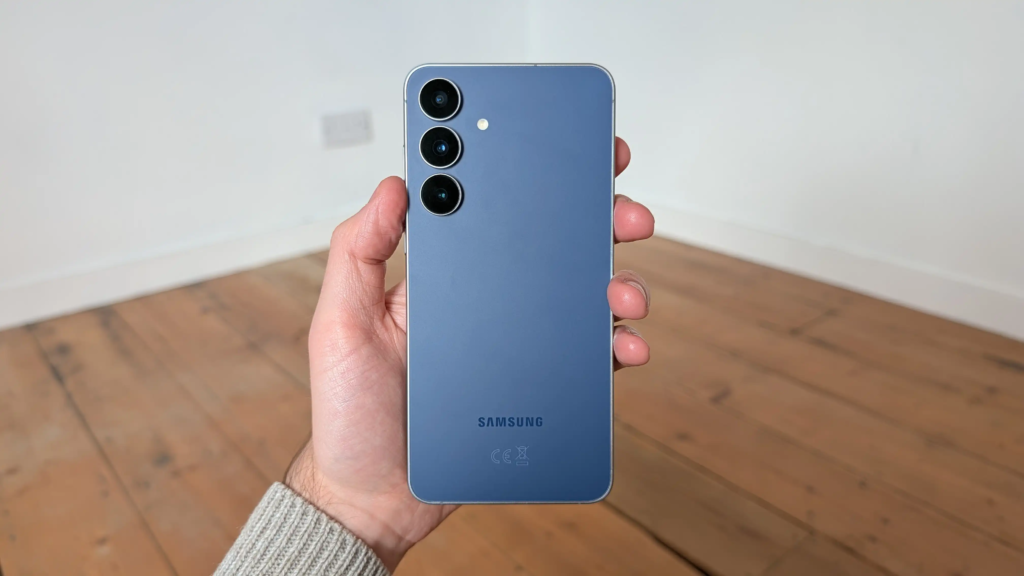
Recording your Samsung phone screen used to be a frustrating process. In the past, capturing video meant downloading clunky third-party applications, granting excessive permissions, or settling for muffled audio recorded through your phone microphone. That meant background chatter, room echo, and keyboard clicks always ruined what should have been a clean clip.
Samsung solved this issue by building a powerful screen recorder directly into One UI. This tool lets you record sharp high-definition video while capturing internal system audio directly from your games, music, or applications without outside noise.
Capturing crisp internal sound makes a massive difference whether you are creating mobile app tutorials, archiving gaming highlights, or saving videos for personal reference. Setting up internal audio recording takes only a few quick taps once you know where to locate the right settings.
Understanding Internal Audio on Samsung
Internal audio refers to any sound generated directly inside your smartphone operating system. This includes game sound effects, app notifications, music tracks, background audio from media players, and system alerts.
When you record internal audio, your device captures the clean digital audio signal inside the system software. External audio, by contrast, relies on the physical microphone built into your phone. Microphone audio picks up your voice, but it also records room noise, passing traffic, wind, and finger taps on the screen.
The $0 Secret To Launching Your Entire Online Empire
Why pay hundreds every month for separate software? Build funnels, send emails, and make sales with Systeme.io completely free.
Get Started For $0Free Forever • No Credit Card Needed • Beginner-Friendly
Samsung provides three distinct audio choices whenever you open the built-in screen recorder:
- No Sound: Captures video only, keeping the final output completely silent.
- Media Sounds: Captures internal audio produced by apps, games, and media playback. It ignores all external noise and mutes the microphone completely.
- Media Sounds and Mic: Captures both internal system audio and external sound through your phone microphone at the same time. This is ideal for gameplay commentaries, video walkthroughs, and presentations.
Which Samsung Phones Support Built-in Screen Recording?
The native screen recorder comes standard on Samsung devices running Android 10 or higher paired with One UI 2.0 or newer. Most recent flagship, mid-range, and foldable devices feature this built-in tool right out of the box.
Supported models include:
- Galaxy S Series: S10, S20, S21, S22, S23, S24, and all newer releases.
- Galaxy Note Series: Note 10, Note 20, and Note 20 Ultra.
- Galaxy Z Series: Galaxy Z Fold and Z Flip models across all generations.
- Galaxy A Series: A51, A52, A53, A54, A71, A72, A73, and selected newer budget phones.
If you own an older Samsung Galaxy device running Android 9 (Pie) or earlier, your device may not include the built-in Quick Panel screen recorder tool. Older models can still record internal audio using Samsung Game Launcher or reliable third-party tools from the Google Play Store.
How to Screen Record with Internal Audio on Samsung
Using the native One UI tool is the quickest way to record your screen without installing extra software or creating user accounts.
Step 1: Swipe Down the Quick Settings Panel
Swipe down twice from the top of your screen using one or two fingers. This expands the full Quick Settings icon grid.
Step 2: Locate the Screen Recorder Icon
Look through the active icons for Screen Recorder. If you do not see it on the first page, swipe left to check the second page.
If the icon is missing completely from your Quick Panel grid, you can add it manually:
- Tap the three-dot menu icon in the top-right corner of the Quick Panel screen (or tap the edit pencil icon on newer One UI versions).
- Tap Edit buttons.
- Find the Screen Recorder icon in the available button grid at the top.
- Touch, hold, and drag the icon down into your active Quick Panel grid.
- Tap Done to save your layout.
Step 3: Select Your Audio Preferences
Tap the Screen Recorder icon. A pop-up menu titled Start recording with Screen recorder? will display on your screen.
Look at the options under Sound settings:
- Tap Media sounds if you want to capture internal audio only without recording your voice or room noise.
- Tap Media sounds and mic if you want to record internal game/app sound while talking through the microphone.
Step 4: Start the Recording Session
Decide if you want to toggle the Show touches and taps switch. This displays a small white circle on the recording whenever your finger touches the display.
Tap the blue Start recording button. A 3-second countdown timer will pop up on your screen. You can tap Skip countdown if you need to record immediately.
Step 5: Manage and Stop Your Recording
When the recording begins, a small floating control toolbar appears near the top corner of your screen:
- Pencil Icon: Draws or highlights items directly on your screen while recording.
- Person Icon: Turns on your front-facing camera to display a selfie video overlay box.
- Pause Icon: Temporarily pauses recording so you can switch apps without capturing unwanted footage.
- Stop Icon (Square): Ends the recording session and saves the video file immediately to your phone storage.
To view your finished video, open the Samsung Gallery app and open the Screen recordings folder.
Customizing Samsung Screen Recorder Settings
Samsung allows you to change default video quality, internal volume levels, and selfie overlay sizes before you begin recording. Adjusting these settings ahead of time guarantees you get the exact video resolution and sound clarity you need.
Send, Spend & Hold Money Worldwide Without Hidden Fees
Transfer money internationally at the real exchange rate and hold 40+ currencies in one account.
Open a Wise AccountMid-market rate • Fast transfers • 40+ currencies
Access your permanent settings by following these steps:
- Open the Settings app on your phone.
- Scroll down and tap Advanced features.
- Tap Screenshots and screen recorder.
- Locate the Screen recorder settings section.
Key Customization Settings
- Sound: Choose your preferred default setting (None, Media sounds, or Media sounds and mic). Setting this to Media Sounds saves you from selecting it every single time you start a recording.
- Video Quality: Pick between 1080p (High definition), 720p (Medium definition), or 480p (Low definition). Selecting 1080p produces crisp, clear videos, but generates larger files that take up more storage space.
- Selfie Video Size: Drag the slider left or right to decrease or increase the size of your front camera overlay circle.
- Show Touches and Taps: Turn this toggle on or off based on whether you want visual finger taps visible in your recordings.
How to Record Internal Audio on Older Samsung Devices
If your Samsung phone runs an older version of Android or lacks the native Quick Panel button, Samsung Game Launcher offers a reliable built-in alternative for gaming and application recording.
Using Samsung Game Launcher / Game Booster
Game Launcher comes pre-installed on many older Galaxy devices running Android 9 or earlier. It includes Game Booster tools designed to record internal game audio without mic interference.
Follow these steps to record using Game Booster:
- Open the Game Launcher app on your phone.
- If the app you want to record is not listed, tap the three dots icon and choose Add apps to add non-gaming apps into the launcher list.
- Open your chosen app or game from inside Game Launcher.
- Swipe inward from the edge of your display to open the navigation bar, then tap the Game Booster icon (a controller symbol).
- Tap the Settings gear inside the Game Booster menu.
- Tap Record format or Audio source and select Internal Audio or Game Audio.
- Go back to your active app, open the Game Booster menu again, and tap Record.
For official software updates and device manuals, refer directly to Samsung Support.
Third-Party Apps for Samsung Screen Recording
While the native Samsung tool handles almost every everyday task, third-party screen recording applications provide advanced features like custom frame rates, higher bitrates, custom watermarks, and direct live streaming capabilities.
Since Android 10 introduced native system audio capture access, modern third-party apps can record internal sound legally without requiring root access.
1. AZ Screen Recorder
AZ Screen Recorder is one of the most reliable options available on Android. It supports high bitrate recording up to 60 FPS, overlay graphics, and full internal audio capture.
- Highlights: No watermarks, clear internal audio support, customizable bitrate controls up to 12Mbps, and built-in trimming tools.
- Best used for: Creators who need complete control over video bitrates and frame rate settings.
2. XRecorder by InShot
XRecorder delivers a user-friendly layout alongside essential features like brush tools, facecam support, and smooth frame recording.
- Highlights: Simple menu layout, crisp internal sound recording, on-screen drawing tools.
- Best used for: Quick tutorial recording and casual screen captures.
3. Mobizen Screen Recorder
Mobizen offers optimized performance specifically designed for Samsung Galaxy devices. It features personalized floating buttons and clean video output.
The $0 Secret To Launching Your Entire Online Empire
Why pay hundreds every month for separate software? Build funnels, send emails, and make sales with Systeme.io completely free.
Get Started For $0Free Forever • No Credit Card Needed • Beginner-Friendly
- Best used for: Streamers outputting directly to video channels. If you create content regularly for social platforms, check out our insights on YouTube automation to streamline your production process.
Troubleshooting Internal Audio Problems
If your screen recordings turn out silent or have out-of-sync sound, several common settings or software limitations could be causing the issue.
1. No Audio in Saved Files
If your recorded video has no sound at all:
- Double-check your audio selection before starting. Confirm that you selected Media sounds instead of None.
- Turn up your device media volume slider. If your phone volume is muted or set extremely low, the internal audio stream can record silently.
- Disconnect wired or wireless Bluetooth headphones. Audio routing to wireless earbuds can hijack the internal digital sound channel during screen recording.
2. App Privacy and DRM Restrictions
Certain applications intentionally block screen recording and internal audio due to copyright laws (DRM) or privacy safeguards:
- Streaming apps like Netflix, Hulu, Disney+, and Prime Video automatically block video capture or mute audio completely when screen recording begins.
- Banking apps, personal payment screens, and encrypted video calling apps block screen recording to protect sensitive user data according to Android Developer Documentation.
- There is no official software workaround to bypass DRM restrictions on Samsung devices.
3. Audio Out of Sync
If the recorded sound lags behind the action on screen:
- Close unnecessary apps running in the background to free up system memory (RAM).
- Lower your recording resolution from 1080p down to 720p inside Advanced features > Screenshots and screen recorder.
- Restart your phone to clean out temporary cache files that might slow down processing.
4. Low Phone Storage
High-definition screen recordings fill up internal storage quickly. If your phone runs out of storage, recording will stop unexpectedly or fail to save. Check your available space by navigating to Settings > Device care > Storage.
Turning Screen Recordings into Great Content
Recording clear internal audio opens up opportunities for content creators, gamers, and reviewers. Clean audio makes your content look polished and professional, whether you are building app reviews or demonstrating software features.
Once your recording saves, you can trim unwanted sections right inside the Samsung Gallery app. For advanced video projects, mobile editing apps like CapCut, VN Editor, or Premiere Rush let you combine clips, add background music, apply transitions, and insert captions.
New digital tools continue to change how creators make and edit content online. Stay updated on the latest tech innovations by visiting our technology & AI section.
Frequently Asked Questions
Can I screen record phone calls with internal audio on Samsung?
No. Android privacy rules block call recording through screen capture tools. Recording cellular calls, WhatsApp voice calls, or Zoom calls via Screen Recorder will result in silent audio or a recording error.
Why is the Screen Recorder option missing from my Quick Panel?
Your phone might be running an older version of One UI (prior to version 2.0), or your region software build removed the shortcut tile. You can add it using the Quick Panel edit button or download a third-party recorder from the Play Store.
Does screen recording drain the battery fast on Samsung phones?
Yes. Encoding high-definition video while processing internal audio streams requires significant processor power. It is normal for your battery to drain faster and for your device to warm up slightly during long sessions.
Can I record internal audio while wearing Bluetooth headphones?
When using Bluetooth headphones, One UI usually routes internal sound into your recording while letting you listen along. However, some Bluetooth headsets introduce audio delay. Disconnecting Bluetooth devices yields the most reliable sound sync.
Where can I find my saved screen recordings on Samsung?
All screen recordings save automatically to your internal storage under the DCIM > Screen recordings folder. You can view them anytime through the Samsung Gallery app inside the Screen recordings album.
Mastering internal audio screen recording on your Samsung device comes down to selecting the right settings before you hit record. Choosing Media sounds in your Quick Panel guarantees clean, noise-free system audio without background sounds interrupting your recordings.
If you want to know more about our platform, feel free to drop by our about page, or reach out to our team directly through our contact page.
For regular tech guides, viral updates, and community news, join our social channels on Instagram, follow our updates on Facebook, and engage with us on X (Twitter).
