
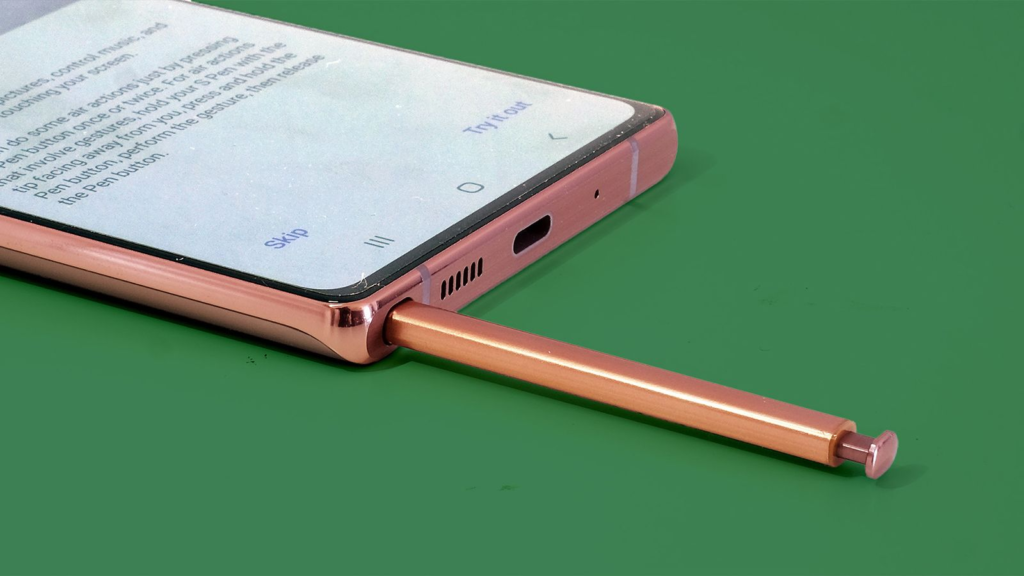
Samsung continues to set the standard for ultra-premium smartphones, and the Samsung Galaxy S26 Ultra is no exception. While competitor phones focus entirely on touch gestures, Samsung keeps a secret weapon tucked inside the bottom frame of its flagship phone: the S Pen.
For some people, the S Pen looks like a simple digital stylus. But for those who know how to use it, this small tool transforms the entire smartphone experience. It turns your phone into a digital notepad, a precise photo editor, a remote controller, and a high-precision tool for artificial intelligence.
If you recently picked up the S26 Ultra or you are curious about what it can actually do, this guide breaks down every single feature. From hidden shortcuts to smart AI tools, here is everything you need to know about the S Pen functionality on the Galaxy S26 Ultra.
What Makes the S26 Ultra S Pen Special?
The built-in stylus on the Galaxy S26 Ultra is built specifically for speed, precision, and ease of use. You do not need to connect it through Bluetooth settings or worry about separate battery charging for everyday writing. You push the bottom clicker, slide the pen out, and start using it immediately.
The screen offers thousands of pressure sensitivity levels. This means when you press down harder, your lines get thicker, just like a real ink pen or pencil on paper. The screen also detects the pen tip before it even touches the glass. This hover detection allows you to preview links, view photo thumbnails, and reveal extra controls without actually tapping the screen.
The $0 Secret To Launching Your Entire Online Empire
Why pay hundreds every month for separate software? Build funnels, send emails, and make sales with Systeme.io completely free.
Get Started For $0Free Forever • No Credit Card Needed • Beginner-Friendly
If you enjoy keeping up with modern mobile innovation, exploring technology and AI updates shows how software features and hardware come together in devices like this.
Essential Note-Taking and Writing Features
Writing on a glass screen used to feel slippery and unnatural, but software optimizations make taking notes on the Galaxy S26 Ultra feel fluid and responsive.
Screen Off Memo
One of the most useful features of the S Pen is Screen Off Memo. You do not need to unlock your phone, open an app, or type in a password to jot something down quickly.
Simply eject the S Pen while your screen is black and turned off. The screen immediately transforms into a dark notepad. You can write down a grocery list, phone number, or quick reminder right away. Once you slide the pen back in, your note automatically saves to Samsung Notes. You can also tap the pin icon to keep the note visible on your Always On Display so you never forget important tasks.
S Pen to Text
Typing on a virtual keyboard with your thumbs is fine, but sometimes you just want to write naturally. With the S Pen to Text feature enabled, you can use the stylus to write inside any text box across your entire phone.
You can write directly into web browser search bars, messaging apps, or settings search boxes. The device recognizes your handwriting in real time and turns it into clean, typed text. It even recognizes messy handwriting easily.
Quick Notes and Samsung Notes Integration
When your phone is already unlocked and you are inside another app, you can trigger a Quick Note in seconds. Press and hold the button on the side of the S Pen, then tap the screen twice with the tip. A pop-up note window appears over whatever app you are currently using.
Inside Samsung Notes, you also get neat tools like auto-fixing shapes. If you try to draw a circle, square, or line, holding the pen tip down at the end of the stroke automatically turns your wobbly line into a perfect geometric shape.
Galaxy AI Integration: Precision Meets Smart Software
The S Pen is not just for handwriting anymore. On the Galaxy S26 Ultra, the stylus acts as the main pointer for AI-driven productivity tools.
Circle to Search with Pixel-Perfect Accuracy
Circle to Search allows you to look up anything on your screen instantly. You hold down the Home button or navigation bar, draw a circle around an object, and Google finds matches across the internet.
Using your finger works okay, but using the S Pen offers pinpoint accuracy. You can circle tiny items in photo backgrounds, single words inside dense PDF documents, or small logos on clothing items without selecting the wrong thing.
AI Select and Smart Screenshot Cropping
Capturing what is on your screen is simple with AI Select. Instead of taking a screenshot of your entire screen and cropping it manually later, you open Air Command and tap AI Select.
You can draw a box or freehand outline around any image or text block. The phone isolates that specific section. From there, you can extract text from an image, pin the cutout to your screen as a reference, or convert video snippets into animated GIFs.
Creative Studio and AI Sketch to Image
For visual artists and casual doodlers, Creative Studio makes drawing fun. You do not need high-level artistic skills to create great visuals.
You can draw a basic sketch, like a flower, a car, or a house, and let the built-in AI transform it into artwork. You can select different styles like illustration, 3D cartoon, watercolor, or pop art. The software takes your handwritten pen strokes and builds a polished image in seconds.
Send, Spend & Hold Money Worldwide Without Hidden Fees
Transfer money internationally at the real exchange rate and hold 40+ currencies in one account.
Open a Wise AccountMid-market rate • Fast transfers • 40+ currencies
Note Assist and Transcript Assist
If you take long notes during meetings, classes, or research sessions, Note Assist does the heavy lifting for you. Once you write down your notes, AI can summarize long pages into key bullet points, fix spelling errors, and reformat messy lines into clean headings.
Transcript Assist lets you record audio while taking handwritten notes simultaneously. The device converts the spoken recording into written text on screen, connects your notes to the audio timeline, and helps you review meetings effortlessly.
Air Actions, Gestures, and Remote Controls
The S Pen features built-in motion sensors and wireless connectivity, turning it into a pocket remote control for your phone.
Remote Camera Shutter
Taking group photos or solo video shots can be tricky when you have to run back and forth to hit a timer button. The S Pen solves this completely.
Set your Galaxy S26 Ultra down on a flat surface or tripod, step back, and press the button on the S Pen to take a picture. Double-pressing the button flips the camera view between the front selfie lens and the main rear lenses. Holding the button down opens the Camera app instantly from anywhere.
Media and Presentation Controls
When you are listening to music, watching videos, or giving a slide presentation, the S Pen acts as a media controller.
- Press the S Pen button once to play or pause music and videos.
- Press the S Pen button twice to skip to the next track or slide.
- Flick the S Pen upward or downward in the air to turn media volume up or down.
- Wave the S Pen left or right to move between photos in your Gallery.
Air Command Customization
Air Command is the main shortcut menu that pops up when you remove the S Pen or click its button while hovering. You can customize this menu to include your most-used applications, custom tools, or specific feature toggles.
If you edit videos or manage online media, adding production tools to Air Command speeds up your daily work. Content creators who focus on digital growth often check out strategies like YouTube automation tutorials to streamline content workflows.
Clever S Pen Hacks for Everyday Convenience
Beyond full-scale drawing and document editing, several small tools inside the S Pen system make everyday tasks faster.
Hover to Translate Text
Reading news articles, foreign menus, or social posts in another language is straightforward. Select the Translate option from the Air Command menu, choose your target language, and hover the S Pen tip over any word or block of text on the screen. An instant pop-up window displays the translation without requiring you to copy and paste text into an external translator app.
The $0 Secret To Launching Your Entire Online Empire
Why pay hundreds every month for separate software? Build funnels, send emails, and make sales with Systeme.io completely free.
Get Started For $0Free Forever • No Credit Card Needed • Beginner-Friendly
Digital Magnify Glass
Small font on desktop-style websites or detailed photos can strain your eyes. The Magnify tool acts like a handheld magnifying glass. Select Magnify from Air Command and hover the pen tip over any screen area. The selected region zooms in up to 300% or 400%, letting you inspect fine details easily.
Write Directly on Calendar
Updating a digital calendar app can sometimes feel tedious with repetitive drop-down menus. The Write on Calendar feature allows you to handwrite notes directly onto monthly or weekly calendar views, just like a wall calendar. You can circle dates, draw arrows, cross out completed events, and save your annotations directly.
Solves Handwritten Math Equations
If you write down complex math equations inside Samsung Notes, you can enable Math Solver. The phone reads your handwritten math problem, calculates the answer automatically, and shows you the step-by-step solution.
Important S Pen Settings to Enable
To get the best performance out of your S Pen, open your Settings app, tap Advanced Features, and choose S Pen. Here are a few settings you should turn on right away:
- Warn if S Pen is left behind: Your phone alerts you with a pop-up sound and notification if you walk away while the pen is left out of its slot.
- Air View: Enables hover previews across supported apps like Gallery, Messages, and Calendar.
- Pentastic Support: For deep customization, install Samsung’s Pentastic module via Good Lock. It lets you change pen sounds, pointer icons, and set up custom double-tap gestures.
For official guides and technical device support, you can visit the official Samsung Support page to learn more.
Frequently Asked Questions
Does the Galaxy S26 Ultra S Pen need to be charged?
The core features like writing, drawing, tapping, and hovering do not require any battery charge. The basic stylus function works passively. Advanced wireless functions like Air Actions and remote camera controls use a small internal capacitor that recharges automatically whenever the pen is docked inside the phone slot.
Can I use the S26 Ultra S Pen on a regular Galaxy S26 or S26+?
No. The base Galaxy S26 and S26+ models do not have the specialized screen layer required to detect the S Pen, nor do they feature an internal storage slot. The S Pen functionality remains exclusive to the Ultra model in the phone lineup.
What should I do if I lose my S Pen?
If you misplace your stylus, you can replace it easily. Samsung sells official replacement S Pens on their store. To avoid losing it, make sure the setting “Warn if S Pen is left behind” stays turned on in your phone settings.
Can I write on the screen while wearing gloves?
Yes, the S Pen uses electromagnetic resonance technology built into the screen layer rather than finger capacitance. This allows you to write, draw, and navigate screens accurately even if you are wearing heavy winter gloves.
The S Pen on the Samsung Galaxy S26 Ultra remains a standout feature that sets the phone apart from every other flagship on the market. Whether you use it for rapid note-taking, editing photos with high precision, or using new Galaxy AI tools, taking the time to explore its features makes daily phone tasks easier and more enjoyable.
Want to learn more about tech news and daily guides? Visit our about page to see what we cover, or get in touch through our contact page. You can also follow us directly on social media through Instagram, Facebook, and X (formerly Twitter) to stay updated on the latest news.
