
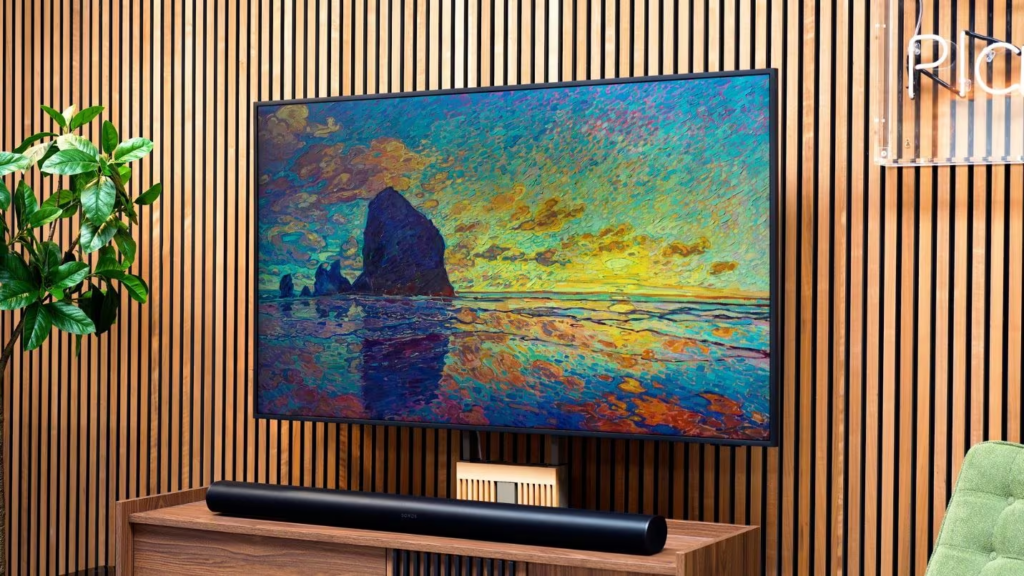
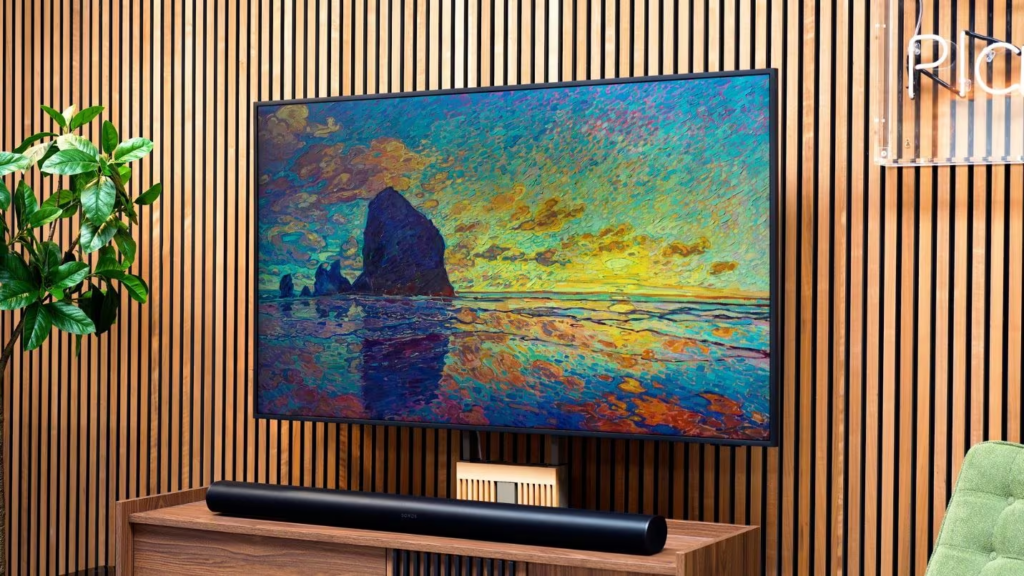
The first time you see a Samsung Frame TV in someone’s home, you might not realize it’s a television at all. It looks like a framed painting hanging on the wall. That is the whole point.
When you are watching a show, it works like any other high-end TV. But when you turn it off, it transforms into a digital art gallery, displaying beautiful paintings, photographs, or your own family photos. It never goes dark or becomes a big black rectangle on your wall.
This guide explains exactly what the Samsung Frame TV is and walks you through setting up Art Mode step by step.
What Is The Samsung Frame TV?
The Frame TV is Samsung’s lifestyle television designed to blend into your home like a piece of art rather than stand out like a piece of technology. It is available in sizes from 43 to 75 inches, with a super-slim profile that hugs the wall.
Several key features make it different from a standard TV:
Build Funnels, Email Lists & Sell Online With One Free Tool
Create funnels, send emails, and sell online using Systeme.io without paying for multiple tools.
Create Free AccountFree forever • No credit card • Beginner-friendly
- Matte Display: The screen has a special anti-glare finish that absorbs reflections, making the art look like real canvas or paper rather than a glossy screen.
- Customizable Bezels: You can swap the frame around the screen with different colors and finishes like brown wood, white, or gold to match your decor.
- One Invisible Connection: A single thin cable connects the TV to a separate box (the One Connect Box) that holds all the ports. This means no messy cables hanging down your wall.
- QLED Display: The screen uses Quantum Dot technology to produce over a billion colors, so both art and movies look vibrant and lifelike.
What Is Art Mode?
Art Mode is the feature that sets the Frame TV apart. When you are not actively watching television, the screen automatically switches to displaying artwork instead of going black.
With Art Mode turned on, you can:
- Display famous paintings from world-renowned artists
- Show your own personal photos
- Choose from over 3,000 curated artworks
- Adjust the brightness so the art looks natural in any room lighting
The screen brightness and color tone automatically adjust to the ambient lighting in your room, just like real art would. A built-in motion sensor detects when someone enters the room and turns Art Mode on, then saves energy by turning the screen off when no one is around.
How Much Power Does Art Mode Use?
Art Mode consumes roughly 50 to 100 watts, which is about 30% of what the TV uses when playing regular content. You can leave it running all day without worrying about your electricity bill.
How To Get Artwork For Your Frame TV
You have three main ways to fill your Frame TV with art.
1. Subscribe To The Samsung Art Store
The Samsung Art Store is a digital library containing over 3,000 pieces of artwork from more than 1,000 artists, including classics from top museums around the world.
Here is what the subscription costs:
- Monthly plan: $4.99 per month
- Yearly plan: $49.99 per year (saves you about $10)
- Free tier: 30 new artworks delivered to your TV every month at no cost, though you do not get full access to the entire library
How to subscribe directly on your TV:
- From the Home screen, press Left on your remote to open the left side menu
- Navigate to and select Art
- Scroll to the My Art Store section and select Membership
- Choose Monthly Plan or Annual Plan
- Follow the on-screen instructions to add your payment method
New subscribers are typically offered a free trial period before billing starts.
2. Upload Your Own Photos
You do not need a subscription at all. You can display your own photos for free.
Using the SmartThings app on your phone:
- Open the SmartThings app on your smartphone
- Select your Frame TV from the Devices tab
- Tap Art Mode, then tap Add Your Photos
- Select the photos you want to upload
- Tap Save on The Frame
- Choose which photo to display
Using a USB drive:
- Connect a USB drive containing your photos to the One Connect Box
- Make sure your TV is in Art Mode
- Navigate to and select My Collection
- Select your USB device, then select Save at the top of the screen
- Choose the images you want to import and select Save Selected
3. Download Free Art From Public Sources
You are not limited to what Samsung offers. You can find thousands of high-quality, royalty-free artworks online and transfer them to your TV via USB. Websites like the Metropolitan Museum of Art (over 400,000 public domain works) and Smithsonian Open Access (4.5 million images) offer free downloads.
Pro Tip: Use The Correct Image Size
To make your uploaded photos look their best, use images with these specifications:
- Resolution: 3840 x 2160 pixels (4K)
- Aspect Ratio: 16:9
- File Format: JPEG (recommended)
- File Size: Under 20MB
For 32-inch models, use 1920 x 1080 pixels instead.
If your image is the wrong size or shape, the TV will add borders or crop it. Getting the dimensions right means your art fills the entire screen with no awkward empty spaces.
How To Turn Art Mode On And Off
Switching between TV mode and Art Mode is simple:
- Press the Power button once on your Samsung OneRemote to switch from TV mode to Art Mode
- Press Power again to go back to TV mode
- Press and hold the Power button for about 3 seconds to turn the TV completely off with no art displayed
Once you have set up Art Mode the first time, your TV will remember your settings and automatically switch to art when you are not watching.
How To Customize Your Art Display
Once you have artwork loaded onto your Frame TV, you can customize exactly how it looks.
Add A Mat
Just like a real framed picture, you can add a mat around your art for a more authentic gallery look.
- Navigate to the artwork you want to display
- Press Up on your remote
- Select Matte
- Browse different mat styles using Left and Right on the remote
- Choose a color for the mat
- Press Select to save
You can choose from different mat thicknesses and 16 different color palettes to match your decor and the artwork itself.
Adjust Brightness For Different Rooms
Art Mode automatically adjusts brightness based on the room’s lighting, but you can also set it manually:
- Open the SmartThings app
- Select your Frame TV
- Tap the Art Mode button
- Tap Settings
- Adjust the Brightness slider to your preference
If your room has mixed lighting (like a window on one side and a lamp on the other), start with the automatic setting and adjust only if something looks off.
Motion Sensor Tips
The Frame TV’s motion sensor detects when people are in the room and turns Art Mode on accordingly. A few things to know:
- Do not block the sensor at the front of the TV. The sensor also controls brightness and color adjustments
- Sensor performance varies depending on room installation and lighting conditions
- If the room is too dark or bright, the screen brightness may be limited or the sensor may not work normally
- If installed too high or low, the sensor may not work properly
- The sensor may also detect motion from pets or cars moving outside
If Art Mode keeps turning off when you are still in the room, check sensor placement and clean any dust off the front of the TV.
Frequently Asked Questions
Do I need a subscription to use Art Mode?
No. You can display your own photos for free using the SmartThings app or a USB drive. The subscription is only needed if you want unlimited access to Samsung’s curated art library.
Can I display multiple photos as a slideshow?
Yes. In Art Mode settings, you can select multiple images and set them to rotate on a schedule, like a new piece every hour or every day.
Build Funnels, Email Lists & Sell Online With One Free Tool
Create funnels, send emails, and sell online using Systeme.io without paying for multiple tools.
Create Free AccountFree forever • No credit card • Beginner-friendly
Does the TV use more electricity in Art Mode?
Art Mode uses about 30% of the power that regular TV mode uses, so it is actually quite efficient.
Can I turn Art Mode off completely?
No. Art Mode cannot be permanently disabled. The TV is designed to always display something when not in use. However, you can hold down the Power button to turn the screen completely off.
What is the difference between The Frame and The Frame Pro?
The Frame Pro (a newer model) offers enhanced museum-quality display features, including more precise control over brightness, warmth, and color tone adjustments for both Art Store pieces and personal photos. It is designed for users who want the absolute best art display quality.
Can I use my Frame TV as a regular TV?
Yes. When you want to watch something, just press the Home button and use it like any other smart TV. All your streaming apps like Netflix and YouTube work normally.
Conclusion
The Samsung Frame TV solves a problem you might not have realized you had. A regular TV is a black void on your wall when it is off. The Frame TV turns that void into something beautiful.
You can keep it simple with the free monthly artworks, subscribe to the full Art Store for unlimited access, or upload your own photos and art for free. Either way, Art Mode means your TV always has a purpose, even when you are not watching it.
The setup takes maybe fifteen minutes. After that, you just enjoy having a changing gallery on your wall.
What kind of art would you want to display on your Frame TV—classic paintings, modern abstracts, or your own family photos? Drop a comment below.
