
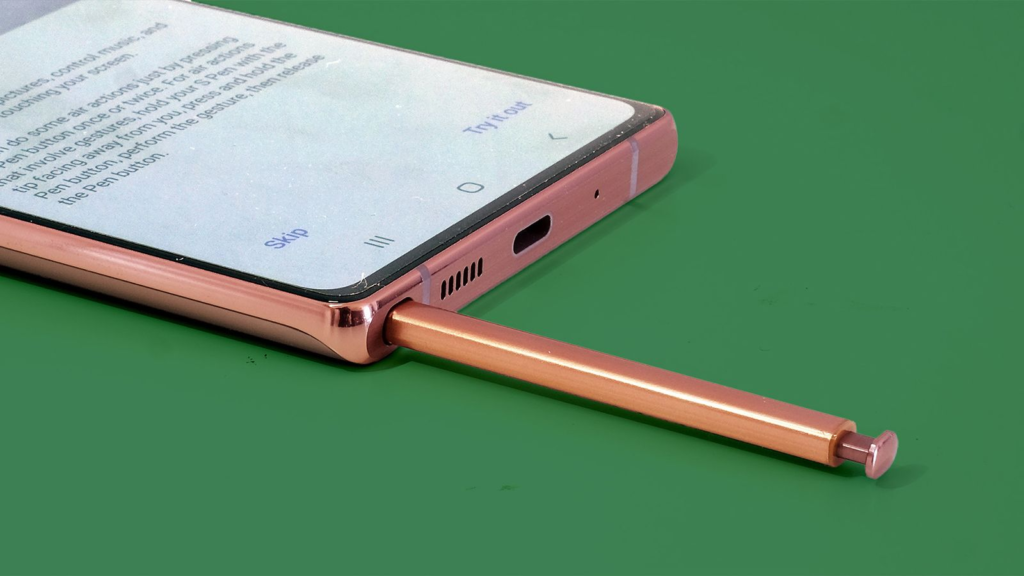
Your Samsung phone turns on. You see the glowing Samsung logo. You wait for your home screen to appear, but instead, the screen goes black. A second later, the logo pops up again. It keeps doing this over and over.
This loop is one of the most frustrating things that can happen to a smartphone. It makes your device completely unusable and cuts you off from your messages, photos, and daily tasks.
A boot loop looks like a total hardware failure, but it is usually just a software glitch. The phone’s brain is simply caught in a loop because it cannot find a specific file it needs to start up fully.
You can fix this issue at home. Let’s look at exactly why this happens and go through the steps to get your Samsung phone working normally again.
What Causes a Samsung Boot Loop?
Before fixing the problem, it helps to understand why your phone is stuck. When you turn on your phone, it runs a quick checklist of system files to make sure everything is safe and ready to run. If something disrupts that checklist, the phone panics, shuts down, and tries again.
The $0 Secret To Launching Your Entire Online Empire
Why pay hundreds every month for separate software? Build funnels, send emails, and make sales with Systeme.io completely free.
Get Started For $0Free Forever • No Credit Card Needed • Beginner-Friendly
The most common causes include:
- An Unfinished Software Update: If your phone ran out of battery or lost internet connection while installing a system update, the core software might be incomplete.
- Corrupted Cache Files: The system stores temporary files to help apps load faster. If these files get corrupted, they can block the boot process.
- A Rogue App: A newly installed application might have a critical bug that crashes the phone the moment the system tries to load it background services.
- Hardware Issues: A stuck power button or a severely degraded battery can cause the phone to constantly cut power and restart.
Step-by-Step Guide to Fix Your Samsung Phone
We will start with the easiest, safest methods that do not risk losing your data. Work your way down the list until your phone boots up normally.
1. Force a Hard Restart
The simplest fix is to cut the power forcefully. When a phone is looping, the screen is on but the internal system is frozen. A standard press of the power button will not do anything.
To force a hard restart:
- Press and hold the Volume Down button and the Power (or Side) button at the same time.
- Keep holding both buttons down for at least 10 to 15 seconds.
- Release the buttons when you feel the phone vibrate and see the Samsung logo appear.
This process forces the phone’s motherboard to completely shut off power for a split second. It clears out the temporary memory and gives the phone a fresh chance to boot correctly.
2. Remove the SIM and SD Cards
Sometimes, the issue is not your phone at all. It might be a physical card inside it. If a MicroSD card becomes corrupted, the phone will freeze while trying to scan the files during startup. A faulty SIM card can also cause network errors that crash the boot process.
- Use a SIM ejector tool or a paperclip to pop open the tray on the side or top of your phone.
- Remove both the SIM card and the SD card.
- Leave the tray out and try to turn the phone on normally.
If your phone boots up successfully without the cards, your phone is fine. Try inserting just the SIM card back in. If it still works, your SD card is corrupted and needs to be replaced or formatted on a computer.
3. Boot Into Safe Mode
If a third-party app is causing the crash, you need a way to start the phone without running that app. Safe Mode allows you to do exactly that. It boots up the phone using only the original software that came in the box.
To enter Safe Mode during a boot loop:
- Wait for the Samsung logo to appear on the screen during a restart.
- As soon as you see the logo, press and hold the Volume Down button.
- Keep holding it until the phone finishes turning on.
- If successful, you will see the words Safe Mode written at the bottom of the screen.
Once you are in Safe Mode, navigate to your settings and uninstall any apps you downloaded right before the boot loop started. After deleting them, restart your phone normally to see if the issue is solved.
4. Clear the Cache Partition
Every Samsung phone has a hidden storage area called the cache partition. It holds temporary system files. Clearing this partition does not delete your photos, videos, or personal data. It simply wipes away old temporary files that might be corrupted after a software update.
To clear the cache, you must enter Recovery Mode.
Important Note for Modern Samsung Phones: If you have a newer Samsung model (like the Galaxy S20, S21, S22, S23, S24, or newer), you must plug your phone into a computer or a pair of USB-C headphones via a USB cable to enter Recovery Mode. It will not work if the phone is unplugged.
- Turn off your phone completely. If it is looping, wait for the screen to go black right before the logo appears, then quickly hold the buttons.
- Press and hold the Volume Up button and the Power button at the same time (while connected to a computer if it is a newer model).
- Release the buttons when the Android Recovery screen appears. This screen looks old-fashioned with blue and yellow text on a black background.
- Use the Volume Down button to highlight the option that says Wipe cache partition.
- Press the Power button to select it.
- Use the Volume buttons to highlight Yes and confirm with the Power button.
- Once the process is done, highlight Reboot system now and press the Power button.
5. Factory Reset via Recovery Mode (The Last Resort)
If nothing else works, the main operating system files are likely deeply corrupted. The only way to fix this is to wipe the phone completely and reinstall the software fresh.
A factory reset will delete everything on your phone, including photos, apps, and messages. However, if your data was previously backed up to your Samsung Cloud or Google Account, you can restore it later.
Send, Spend & Hold Money Worldwide Without Hidden Fees
Transfer money internationally at the real exchange rate and hold 40+ currencies in one account.
Open a Wise AccountMid-market rate • Fast transfers • 40+ currencies
- Enter Recovery Mode using the exact same steps outlined in Step 4.
- Use the Volume Down button to scroll down to Wipe data/factory reset.
- Press the Power button to select it.
- Scroll down to select Factory data reset and confirm with the Power button.
- Wait for the wiping process to finish. It may take a few minutes.
- Select Reboot system now to start your phone.
The first boot up after a factory reset takes much longer than usual. Leave the phone alone for 5 to 10 minutes while it sets up the fresh operating system.
Check for Hardware Problems
If your phone still loops after a factory reset, or if you cannot even get into Recovery Mode, you are likely dealing with a physical hardware failure.
Look closely at your Power button. Does it click normally, or does it feel mushy and stuck? If the button is jammed inside the phone housing, it acts as if you are holding it down constantly, causing a perpetual restart loop. Try tapping the side of the phone firmly against your hand to see if you can dislodge a stuck button.
Alternatively, an aging or damaged battery might not be able to deliver enough steady power to push the phone past the startup screen. If you suspect hardware failure, your best option is to visit an authorized Samsung repair center.
Frequently Asked Questions
Will a boot loop damage my phone permanently?
No. A boot loop is a software state, not a physical disease. It will drain your battery quickly and cause the phone to get warm, but it will not permanently break the internal parts of the phone.
Can I save my data if my phone won’t boot up?
If you can get the phone into Safe Mode, you can plug it into a computer and copy your files over. If you cannot get past the boot loop and must do a factory reset, any data that was not backed up to the cloud beforehand will be lost.
Why does my Samsung phone need to be plugged into a computer to enter Recovery Mode?
Samsung updated its software security to prevent accidental button presses from wiping phones in people’s pockets. The system now requires a data connection (like a USB link to a PC) to prove a user is intentionally trying to manage the system backend.
A boot loop can feel like a disaster, but most of the time, a simple cache wipe or an app removal in Safe Mode will get your device right back on track.
Have you ever managed to save a phone from a boot loop using one of these steps, or did you have to resort to a full factory reset? Let me know your experiences in the comments below.
