
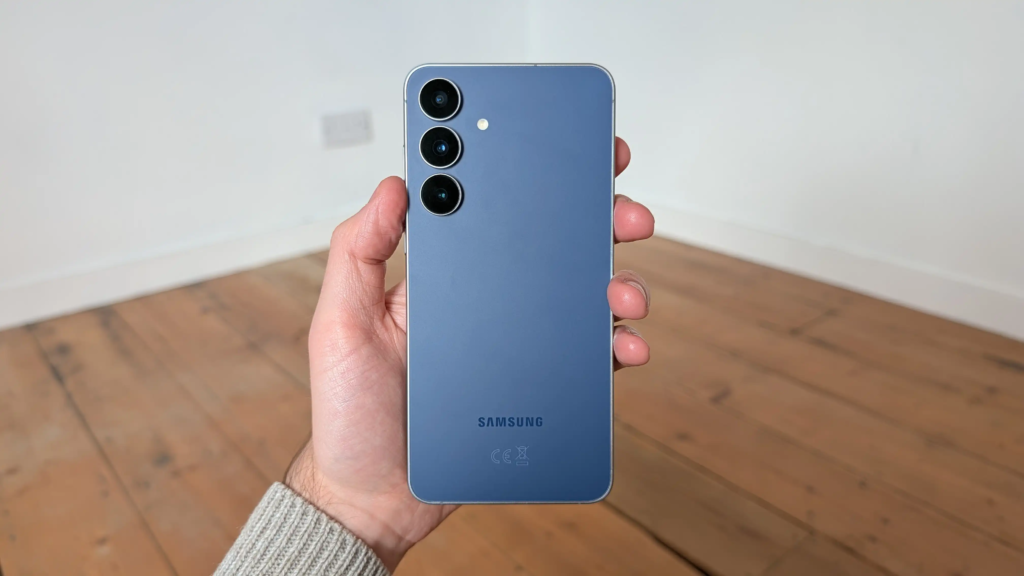
Getting a new phone is exciting. Moving all your stuff over? Not so much. Contacts, photos, messages, apps, settings—it is a lot to think about.
Samsung Smart Switch solves that problem. It is the official tool from Samsung that moves everything from your old phone to your new Galaxy device. It works with Android phones, iPhones, and even backups stored on your computer.
The best part? You do not need to be a tech expert to use it. Here is exactly how.
What Exactly Does Smart Switch Transfer?
Before jumping into the steps, know what moves over. Smart Switch transfers a lot, but not everything.
Personal content: Contacts, calendar events, messages, call logs, notes, bookmarks, alarms, and even Samsung Pass data.
Build Funnels, Email Lists & Sell Online With One Free Tool
Create funnels, send emails, and sell online using Systeme.io without paying for multiple tools.
Create Free AccountFree forever • No credit card • Beginner-friendly
App data: Photos, videos, music, documents, and applications. One catch though—only DRM-free music and videos transfer over. If your music has digital rights protection, it stays behind.
Settings and more: Wallpapers, lock screen preferences, Wi-Fi passwords, email settings, and home screen layouts.
There are limitations. Contacts saved directly on your SIM card do not transfer, and some app data from third-party apps may not come across. Also, if you are moving from an iPhone, apps themselves do not transfer—only a list of recommended apps you can download again from Google Play.
Now let us get into the actual process.
Three Ways To Transfer Your Data
Smart Switch gives you three main options. Pick the one that fits your situation.
1. Wireless Transfer (No Cables Needed)
This is the simplest method. No cables, no computer. Just two phones and Wi-Fi.
Before you start: Charge both phones above 50%. Plug them into chargers if you can. Place them within 4 inches of each other. Make sure Smart Switch is installed on both devices. On most Galaxy phones, it is already there.
Step-by-step:
- On your new Galaxy phone, go to Settings > Accounts and backup > Smart Switch. You can also find it in the Samsung folder on your apps screen.
- Tap Receive data and select the type of old device you are using (Galaxy/Android or iPhone/iPad).
- On your old phone, open Smart Switch and tap Send data. Choose Wireless.
- Complete the connection by tapping Connect on the old device. Smart Switch will scan your old phone for content.
- Choose what you want to transfer. You can pick Everything, Just accounts, calls, contacts, and messages, or Custom to select specific items.
- Tap Transfer and wait. An estimate of the transfer time will appear on screen.
- When finished, tap Done on both phones.
Wireless transfer works well for most people. But if you have a lot of photos and videos, the next method is faster.
2. USB Cable Transfer (Faster For Large Files)
A cable connection is significantly quicker than wireless, especially for large amounts of data. Samsung’s own testing shows transferring 15.5GB of data takes about 4 minutes with a USB 3.0 cable versus 7 minutes wirelessly.
What you need: A USB-C to USB-C cable. If your new phone came with one in the box, use that. For older phones with micro-USB ports, you may need an adapter.
Step-by-step:
- Open Smart Switch on both phones.
- Connect the two phones using the USB cable.
- On the new phone, tap Receive data.
- On the old phone, tap Send data and select Cable.
- Choose the data you want to transfer and tap Transfer.
- Wait for the process to complete. Do not disconnect the cable until it finishes.
A quick note on cables: Not all USB cables transfer data. Some are only for charging. If your phone is not being detected, try a different cable or a different USB port.
3. PC Or Mac Backup And Restore
This method is great if you want to create a permanent backup or if your old phone is not working properly.
Step-by-step:
- Download and install Smart Switch on your Windows PC or Mac. You can get it from Samsung’s website.
- Connect your old phone to the computer with a USB cable.
- Open Smart Switch on the computer and select Backup.
- Wait for the backup to complete. You can choose to encrypt the backup with a PIN for extra security.
- Disconnect your old phone and connect your new Galaxy phone.
- Open Smart Switch on the computer and select Restore.
- Choose the backup you just created and restore it to your new phone.
Mac users: If you have Android File Transfer installed on your Mac, uninstall it first. Smart Switch will not work properly with both installed.
What about iPhones?
Moving from iPhone to Samsung works too. Smart Switch can pull data directly from your iCloud backup.
Here is how:
- On your new Galaxy phone, open Smart Switch and tap Receive data.
- Select iPhone/iPad and then tap Get data from iCloud at the bottom of the screen.
- Enter your Apple ID and password.
- Enter the verification code sent to your iPhone.
- Choose what you want to transfer and wait.
Important: Make sure your iCloud backup is complete before starting this process. Also, only music purchased from iTunes after 2009 will transfer. Older music has DRM protection and cannot move over.
Quick Setup With QR Code
If you are setting up a brand new Galaxy phone for the first time, you can use the QR code quick setup feature.
When you turn on your new phone, the setup wizard will show a QR code. Scan it with your old phone, and Smart Switch will start transferring your Wi-Fi network, accounts, and data automatically.
This only works during the initial setup. If you have already set up your new phone, you will need to use one of the three methods above.
Tips For a Smooth Transfer
These small steps make a big difference.
Charge both phones fully.
The transfer can take a while, and you do not want a dead battery in the middle.
Keep both screens on.
Do not let the phones go to sleep during the transfer.
Do not use the phones.
Leave them alone while the data is moving.
Disable battery saver.
Power-saving modes can interfere with the transfer.
Build Funnels, Email Lists & Sell Online With One Free Tool
Create funnels, send emails, and sell online using Systeme.io without paying for multiple tools.
Create Free AccountFree forever • No credit card • Beginner-friendly
Make sure both phones are updated.
Running the latest software reduces the chance of issues.
Troubleshooting Common Problems
Sometimes things go wrong. Here is what to do.
Transfer gets stuck or freezes
Restart both devices and try again.
Phone not detected by computer
Check your USB cable. Try a different port or a different cable. Make sure you have allowed MTP connection on your phone when the notification appears.
App icons show as grey after transfer
The apps may still be installing in the background. Check your notifications. If the grey icon remains, uninstall Smart Switch and reinstall it.
Smart Switch keeps asking for a backup password
Your old phone may have a Mobile Device Management app installed. These apps restrict access. Try uninstalling the MDM app before using Smart Switch.
Transfer does not complete
Clear the Smart Switch cache. Go to Settings > Apps > Smart Switch > Storage > Clear cache.
A Few Things Smart Switch Cannot Do
Be realistic about what Smart Switch handles.
It cannot transfer data to non-Samsung devices. It only works when moving to a Galaxy phone or tablet.
It does not back up emails by default. If you need emails backed up, enable encryption in the PC version of Smart Switch.
Encrypted SD card data can only be restored on the device it was encrypted on. If you are moving to a new phone, decrypt the data first.
Should You Use Smart Switch Or Google Backup?
Both have their place. Google Backup automatically syncs your data to the cloud, but you only get 15GB of free storage. It also does not restore app settings and progress the same way Smart Switch does.
Smart Switch transfers everything offline, does not use your cloud storage, and works even without an internet connection. For a complete move to a new Galaxy phone, Smart Switch is the better choice.
Final Thoughts
Moving to a new phone does not have to be painful. Smart Switch handles the heavy lifting so you can focus on enjoying your new device. Pick the method that works for you—wireless for convenience, USB cable for speed, or PC backup for permanence.
The key is preparation. Charge your phones, use a good cable, and give the process time. Most transfers complete without issues.
What is the largest amount of data you have ever transferred to a new phone? Share your experience in the comments below.
