
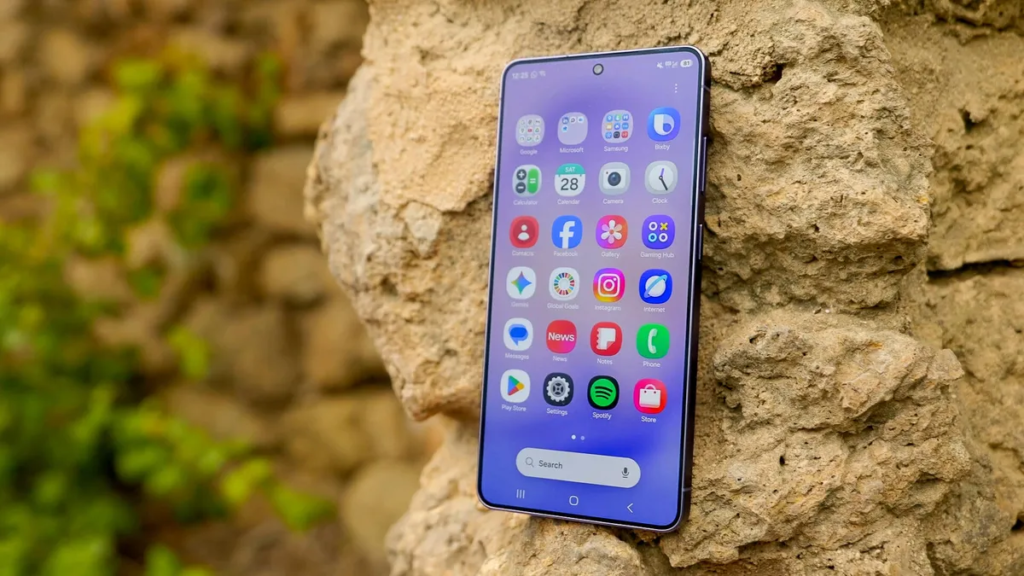
The Samsung Galaxy S26 has incredible video capabilities, but the default settings are holding you back. Samsung prioritizes convenience out of the box, which is fine for quick clips. But if you want footage that looks cinematic rather than just phone footage, you need to change a few things.
This guide walks through exactly which settings to change and why they matter. No fluff, just direct steps that actually improve your videos.
Choose The Right Mode For Your Needs
The Galaxy S26 has multiple video modes, and picking the right one is your first decision.
Standard Video mode is what you see when you open the camera and swipe to Video. This mode works well for everyday recording. Nightography is built right into it, so the phone automatically optimizes exposure and noise reduction when it detects low light. Auto FPS is worth enabling in the Video settings too. It lets the phone lower the frame rate in dim conditions to bring in more light per frame.
Pro Video mode is where the magic happens for serious shooters. Samsung hides it under the More tab by default. Open the Camera app, tap More, and drag Pro Video into your main mode selector so it is always one tap away. Then go into Settings > Settings to Keep and toggle Camera Mode on. This prevents the app from resetting to Photo mode every time you reopen it.
Build Funnels, Email Lists & Sell Online With One Free Tool
Create funnels, send emails, and sell online using Systeme.io without paying for multiple tools.
Create Free AccountFree forever • No credit card • Beginner-friendly
Pick Your Frame Rate And Resolution
This is where most people get it wrong.
For cinematic footage: Set your resolution to UHD 4K and your frame rate to 24fps. Yes, the S26 can record 8K at 30fps, but 4K consistently delivers a better image. It benefits from pixel binning, which improves dynamic range and reduces noise. The files are also much smaller and easier to work with.
For slow motion: Use 4K at 60fps or 120fps. The S26 Ultra supports 4K at up to 120fps in Pro Video mode. This gives you smooth slow-motion playback without sacrificing quality.
For action or vlogging: 4K at 60fps gives you smooth footage that still looks professional.
The 180-degree shutter rule: If you want that cinematic motion blur where movement looks natural and not choppy, set your shutter speed to double your frame rate. At 24fps, use 1/50 shutter speed. At 60fps, use 1/120.
Audio Settings That Actually Matter
Video quality is not just about what you see. Bad audio ruins good footage.
Zoom-in Mic enhances audio as you zoom while filming. Enable it by opening the Camera app, tapping the Quick Controls icon (the four dots), tapping Settings, and turning on Zoom-in Mic under Audio options.
Pro Video mode offers additional audio controls. You can control which microphone is recording and even adjust sound input direction.
Super Steady: Your Built-In Gimbal
The S26 series introduced Super Steady with Horizontal Lock, and it is a game changer for recording on the move.
This feature stabilizes your footage, reducing shakiness and correcting for axis shifts while you record. You can rotate your phone in any direction, even upside down, and it will still maintain the original frame you started with. The phone uses gyro and acceleration sensors to recognize gravity and keep your shots level.
How to enable it: Open the Camera app, switch to Video mode, tap the Quick Controls icon, enable Super Steady, and then tap Horizontal Lock. Just keep in mind that it works best in good lighting conditions.
Advanced Professional Video (APV): The Pro Secret
The Galaxy S26 Ultra is the first Galaxy device to support APV, Samsung’s Advanced Professional Video codec developed in collaboration with Qualcomm. This is a big deal for video quality.
APV enables high-quality video files that use your device storage more efficiently. It supports up to 8K resolution at 30 frames per second and maintains video quality even after repeated edits. Samsung says it reduces storage space by about 10 percent compared to similar formats while keeping the same visual quality.
How to enable APV:
- Open the Camera app and tap VIDEO mode
- Tap the four dots to access Quick controls
- Tap the Settings icon
- Tap Video format
- Tap APV and switch it on
- Choose your preferred format: APV HDR or APV Log
- Select file compression: APV 422 HQ (high-quality) or APV 422 LQ (optimized for storage)
Samsung Log: Capture More Flexibility
If your goal is maximum image quality, switching to Samsung Log is the single biggest upgrade you can make.
By default, Samsung records in HDR, which bakes in contrast, sharpening, and color decisions that limit your flexibility later.
Samsung Log captures more dynamic range and more color information. The image will look flat and desaturated, but that is exactly what you want. You are recording a digital negative that can be shaped in post-production.
To enable Log: In Pro Video mode, go to Settings and select Samsung Log under the color profile options. You can also tap LUT and select Standard to apply a preview while still recording Log underneath.
Bonus Tips For Better Video
External storage: Recording 4K and 8K video takes up massive space. You can record video straight to a USB-C drive while filming. Enable this in Camera Settings > Camera Assistant > Save videos to external storage. A portable SSD like the Samsung T7 or T9 works great.
Capture while recording: You can tap Capture while recording an 8K video to save a high-resolution photo. This is useful for grabbing stills from your footage.
Night video: The S26’s main 200MP sensor has a wider f/1.4 aperture that captures up to 47 percent more light than previous models. Nightography is built into Video mode and applies automatically. You do not need to enable anything manually.
Quick Settings Summary
| Setting | Recommendation |
|---|---|
| Mode | Pro Video for control, standard Video for quick clips |
| Resolution | 4K for best quality, 8K only when needed |
| Frame rate | 24fps for cinematic, 60fps for action |
| Shutter speed | Double your frame rate (1/50 for 24fps) |
| Color | Samsung Log for maximum flexibility |
| Codec | APV for pro-grade quality |
| Stabilization | Super Steady with Horizontal Lock for movement |
| Audio | Zoom-in Mic enabled |
FAQ
Do I need to use Pro Video mode every time?
No. Standard Video mode works great for everyday recording. Use Pro Video when you want manual control and the highest possible quality.
Is 8K worth using?
Not usually. 4K delivers better image quality thanks to pixel binning, smaller file sizes, and smoother editing. Use 8K only when you absolutely need the extra resolution for cropping or large-screen playback.
What is the difference between APV HDR and APV Log?
APV HDR records with high dynamic range baked in, ready for playback. APV Log records a flat image that gives you maximum flexibility when color grading later.
Does Super Steady work in low light?
It works best in good lighting. In low light, the stabilization might introduce some noise. Consider using a tripod or steady surface for night shots.
Can I record video directly to an external drive?
Yes. Enable saving videos to external storage in Camera Assistant and connect a USB-C drive.
Final Thoughts
The Samsung Galaxy S26 is capable of professional-grade video, but the default settings do not show you what it can really do. Switch to Pro Video mode. Use 4K at 24fps with the 180-degree shutter rule. Enable Samsung Log and APV. Turn on Super Steady for moving shots.
Build Funnels, Email Lists & Sell Online With One Free Tool
Create funnels, send emails, and sell online using Systeme.io without paying for multiple tools.
Create Free AccountFree forever • No credit card • Beginner-friendly
These changes take your footage from phone-quality to something that looks like it came from a proper camera.
What type of videos are you planning to shoot with your Galaxy S26? Drop your answer in the comments below.
