
When I first started building online funnels for clients back in 2018, one of the biggest hurdles was making everything look legitimate. You can have the most brilliant offer in the world, but if your URL looks like yoursite.systeme.io, it hurts trust immediately.
I learned this the hard way when a client lost a sale because a customer thought the “systeme.io” in the link looked spammy. That was the day I realized: your domain name is your digital handshake. If it looks cheap, people assume your product is cheap.
The good news is that connecting a custom domain to Systeme.io is actually very straightforward. It sounds technical—DNS records, CNAME, propagation—but I promise it is just a matter of copying and pasting a few lines of code.
I have done this for dozens of my students and clients, using registrars like GoDaddy, Namecheap, and Hostinger.
In this guide, I will walk you through the exact process I use to turn that free Systeme.io subdomain into a professional, branded web address.
The $0 Secret To Launching Your Entire Online Empire
Why pay hundreds every month for separate software? Build funnels, send emails, and make sales with Systeme.io completely free.
Get Started For $0Free Forever • No Credit Card Needed • Beginner-Friendly
Why you should use a custom domain
Before we get into the clicking and typing, let’s talk about the why.
When you sign up for Systeme.io, they give you a free subdomain. It usually looks something like yourbrand.systeme.io. That is fine for testing things out. But if you want to build a real business, you need your own domain.
A custom domain—something like yourbusiness.com—does three important things for you.
First, it builds trust. People are trained to look for the padlock icon and a clean URL. A messy link makes them nervous.
Second, it helps with branding. Every time someone sees your web address, they are seeing your business name. That is free advertising.
Third, it looks professional. If you are sending people to a sales page or a course, you want them to feel like they are dealing with a serious operation.
I have seen conversion rates jump by 15 to 20 percent just from switching to a custom domain. It is one of those small changes that makes a surprisingly big difference.
What you need before you start
You only need two things to make this work.
One, an active Systeme.io account. If you are on the free plan, that is perfectly fine.
Systeme.io allows custom domain connections even on their free tier.
Two, a domain name that you have already purchased. You can buy domains from places like GoDaddy, Namecheap, Hostinger, or Google Domains. I personally prefer Namecheap for their clean interface and reasonable prices, but any registrar will work.
If you do not have a domain yet, go buy one before you continue. It usually costs around ten to fifteen dollars per year. That is a small price for a professional look.
Step-by-step: Connecting your domain to Systeme.io
Let me break this down into simple steps. I will use clear language and avoid technical jargon as much as possible.
1. Add your domain inside Systeme.io
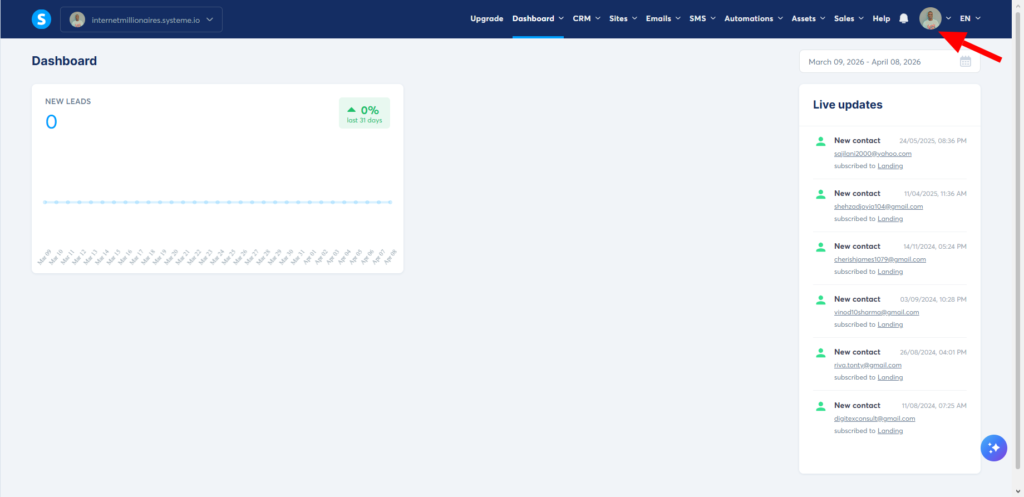
First, log into your Systeme.io account.
Click on your profile picture in the top right corner. A menu will drop down. Select Settings from that menu.
Send, Spend & Hold Money Worldwide Without Hidden Fees
Transfer money internationally at the real exchange rate and hold 40+ currencies in one account.
Open a Wise AccountMid-market rate • Fast transfers • 40+ currencies
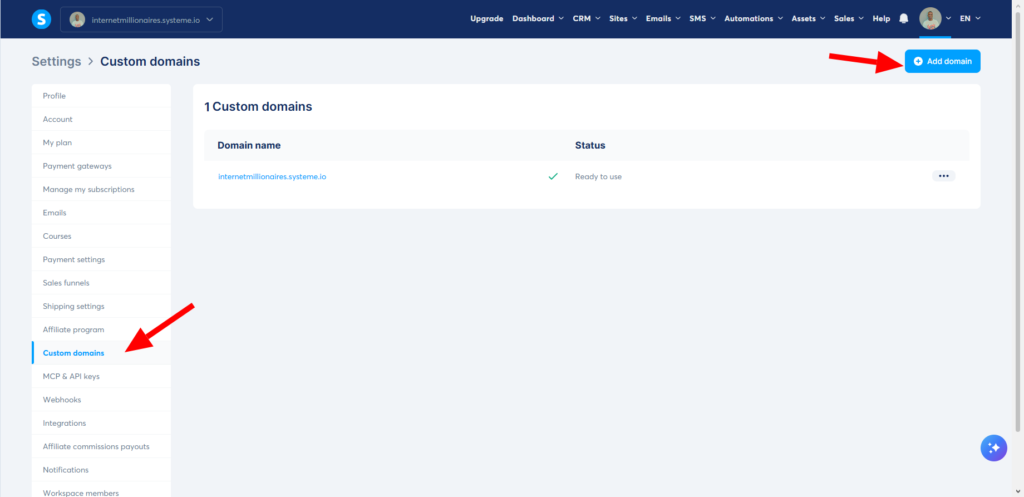
Once you are in the Settings area, look for Custom Domains in the left sidebar. Click on it.
You will see a blue button that says Add Domain. Click that button.
A popup window will appear. This is where you type in your domain name. Here is a very important tip: always include the www prefix. So instead of typing yourbusiness.com, type www.yourbusiness.com.
Click Save.
Once you save, Systeme.io will generate a popup with two DNS records. These are called CNAME records. Do not close this popup. You will need to copy these values exactly as they appear.
2. Add the DNS records at your domain registrar
Now you need to log into wherever you bought your domain. This could be GoDaddy, Namecheap, Hostinger, or another registrar.
Look for DNS settings or DNS management. Every registrar calls it something slightly different, but it is always there. If you cannot find it, search their help section for manage DNS records.
Once you find your DNS zone, you are going to add two new records. Both will be CNAME type.
The first CNAME record usually looks like this:
Name or Host: www
Value or Target: something like dekiiavicthi9.cloudfront.net
The $0 Secret To Launching Your Entire Online Empire
Why pay hundreds every month for separate software? Build funnels, send emails, and make sales with Systeme.io completely free.
Get Started For $0Free Forever • No Credit Card Needed • Beginner-Friendly
The second CNAME record is a long, random-looking string of letters and numbers. Systeme.io uses this to verify ownership and generate an SSL certificate for you. Copy the exact name and value from the popup.
Add both records exactly as shown. Be careful with dots at the end of the values. Some registrars want the dot included. Others do not. If you are unsure, try without the dot first. You can always go back and fix it.
3. Wait for DNS propagation
This is the part where patience is required.
After you save the records, nothing happens instantly. DNS changes need to spread across the internet. This process is called propagation. It can take anywhere from a few minutes to 48 hours.
In my experience, most connections happen within an hour. But I have waited almost two full days before. Do not panic if it does not work right away.
You can check the status by going back to Systeme.io, clicking Custom Domains, and looking at the status of your domain. It will say Pending, then eventually change to Ready to use.
4. Assign your domain to your funnel or website
Once the status says Ready to use, you are almost done.
Go to the funnel, blog, or course where you want to use your custom domain. In the settings for that page, you will find an option to choose your domain. Select your new custom domain from the dropdown menu.
Save your changes, and your page will now load from your professional web address.
Common issues and how to fix them
Even when you follow every step correctly, things can go wrong. Let me share the most common problems I have seen and how to solve them.
CAA record errors
This one trips up a lot of people, especially if you use Hostinger.
If you see an error message about CAA records, it means your domain registrar is blocking Systeme.io from issuing an SSL certificate. The fix is to add ten specific CAA records to your DNS zone.
I know that sounds like a lot, but it is just copy and paste. Systeme.io has detailed instructions for this in their help center. Contact their support if you need the exact list.
The domain stays pending forever
If your domain status never changes from Pending, double-check that you copied the CNAME values exactly. One wrong letter will break the connection.
Also check if your registrar uses a default A record that might be conflicting. Some registrars automatically create A records when you buy a domain. You may need to delete or edit those.
The SSL certificate does not work
Sometimes the domain connects but the padlock icon does not appear. That usually means the SSL certificate is still generating.
Give it another hour. If it still does not work, remove the domain from Systeme.io and add it again. That often triggers a new SSL attempt.
Understanding Systeme.io pricing for custom domains
Systeme.io keeps their pricing very simple, which I appreciate. There are no hidden fees or surprise charges.
The free plan includes one custom domain. That is right. You can connect your own domain without paying anything. This is perfect for testing the waters or launching your first project.
The paid plans start at $17 per month. They include unlimited custom domains, plus many other features like advanced automation and higher contact limits.
I always tell beginners to start with the free plan. Use your one custom domain. Build your first funnel. Send your first emails. Only upgrade when you actually need the extra features.
Systeme.io also offers a free DNS setup service. If you are not comfortable editing DNS records yourself, their support team will do it for you at no charge.
You just need to give them access to your domain registrar account. I have used this service for clients who found the technical steps overwhelming. It works well.
Where you can use your custom domain
Once your domain is connected, you can use it almost everywhere inside Systeme.io.
Sales funnels can load from your custom domain. Your blog will show your web address instead of the Systeme.io subdomain. Online courses and membership areas will look branded. Community pages will feel like part of your own website.
The only limitation is that you cannot use a custom domain for your affiliate links unless you are on a specific agency plan. But for most business owners, that is not an issue.
Frequently asked questions
Can I use a subdomain instead of a root domain?
Yes. You can connect something like offers.yourbusiness.com instead of the main domain. The process is almost identical. Systeme.io has a separate guide for subdomains in their help center.
How many custom domains can I add?
On the free plan, you get one. On paid plans, you can add as many as you need.
Will my old website stop working?
Yes. Once you point your domain to Systeme.io, any existing website on that domain will no longer be accessible. Make sure you have backed up anything you need before making the switch.
What if I change my mind later?
You can always remove the domain from Systeme.io and point it back to your old hosting provider. The DNS changes will propagate again, and your old site will come back.
Does Systeme.io provide free SSL certificates?
Yes. Systeme.io automatically generates a free SSL certificate for every custom domain you connect. You do not need to buy one separately.
Final thoughts
Connecting a domain to Systeme.io is one of those tasks that feels intimidating until you actually do it. Once you have done it once, you will wonder why you were ever worried.
The key is to take it step by step. Add the domain in Systeme.io. Copy the CNAME records. Paste them at your domain registrar. Wait for propagation. Assign the domain to your pages.
That is it.
I have helped complete beginners with zero technical experience get this done in under fifteen minutes. If they can do it, you can do it.
Your business deserves a professional web address. It is one of the smallest investments you can make with one of the biggest returns in trust and credibility.
Have you connected a domain to Systeme.io before, or are you trying it for the first time? I would love to hear about your experience or any questions you run into along the way. Drop a comment below and let me know.
