
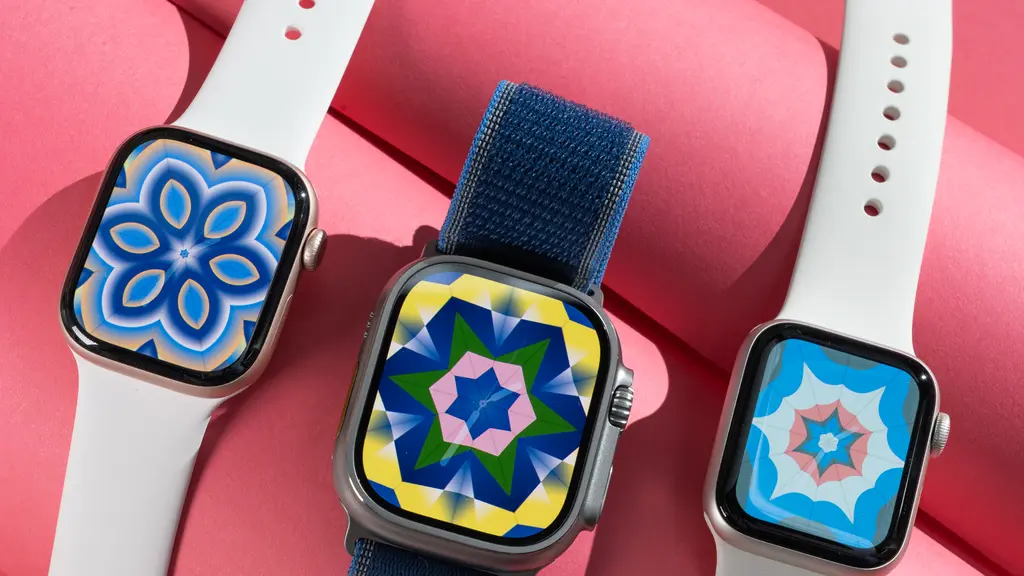
Keeping your Apple Watch updated with the latest version of watchOS is one of the easiest ways to ensure your device runs smoothly, stays secure, and gains access to new features. Apple regularly releases software updates that fix pesky bugs, improve battery efficiency, introduce new watch faces, and upgrade health and fitness tracking capabilities. If you have noticed that your watch is running a bit slow or you simply want to try out the newest tools Apple has cooked up, updating your software is the right move.
Updating a smartwatch might feel a little intimidating if you have never done it before, especially because the process relies on both your iPhone and your watch working together. However, Apple has streamlined the whole experience over the years. You can install the newest update using your paired iPhone or download it straight from the watch face on your wrist.
This guide walks you through every single step required to update your Apple Watch to the latest watchOS version. You will also learn about key preparation steps, how to fix common update errors, and how to set up automatic updates so you never have to worry about missing an important patch again.
Why Keeping Your Apple Watch Updated Matters
Software updates are far more than routine prompts that pop up on your screen. Running outdated software on your wrist can cause lag, drain your battery faster, and prevent your smartwatch from syncing properly with your iPhone.
Here is why keeping watchOS updated should be high on your tech maintenance list:
The $0 Secret To Launching Your Entire Online Empire
Why pay hundreds every month for separate software? Build funnels, send emails, and make sales with Systeme.io completely free.
Get Started For $0Free Forever • No Credit Card Needed • Beginner-Friendly
- Enhanced Security: Apple frequently patches system vulnerabilities in watchOS updates. Keeping your watch current protects your personal health data, messages, and passcode information from security risks.
- New Features and Watch Faces: Major watchOS updates bring exciting additions like new workout modes, improved sleep metrics, redesigned app layouts, and customizable watch faces.
- Bug Fixes and Stability: If an app keeps crashing or your screen freezes unexpectedly, an OS update usually contains stability fixes designed to solve those exact issues.
- Better Battery Optimization: Software updates often tweak background processing to help your Apple Watch battery last longer throughout the day.
- iPhone Compatibility: As iOS updates roll out to your iPhone, your Apple Watch needs the latest watchOS version to stay in perfect sync for notifications, health data, and app management.
If you enjoy reading about smart gadgets, modern software, and modern digital trends, check out our Technology & AI section for more in-depth coverage on the latest devices.
What to Do Before You Start the Update
Before jumping straight into the update process, taking a few minutes to prepare your hardware will save you from common errors like failed downloads or stalled installations. Skipping these basic requirements is the number one reason update installations stall mid-way.
1. Update Your iPhone First
Your Apple Watch relies heavily on your paired iPhone. In almost all cases, your iPhone must be running the latest available version of iOS before your watch can upgrade to the newest watchOS version. Open your iPhone Settings, go to General, then tap Software Update to verify that your phone is fully updated.
2. Connect Your iPhone to Wi-Fi
Your iPhone needs a stable Wi-Fi connection to download the watchOS software package from Apple servers. Cellular data is generally not recommended for downloading watch software updates because the installation file can be quite large.
3. Charge Your Apple Watch
Your Apple Watch must have at least 50% battery charge before the installation process can begin. Even if your watch has 90% battery, Apple requires the watch to stay connected to its magnetic charger throughout the entire installation process.
4. Keep the Devices Close Together
Place your iPhone right next to your Apple Watch while it is charging. The two devices communicate via Bluetooth and Wi-Fi during the transfer, so keeping them within close proximity prevents connection dropped signals.
5. Check Available Storage Space
Older Apple Watch models sometimes run low on internal storage space due to saved music, podcasts, photos, or cached app data. Check your watch storage by going to Settings > General > Storage on your watch. If space is tight, delete a few unused apps or synced playlists before starting.
How to Update Your Apple Watch Using Your iPhone (Recommended)
Updating via your paired iPhone is the standard and most reliable method for most users. The phone handles the heavy downloading, while your watch focuses on processing the installation.
Here is the simple step-by-step process:
- Connect your iPhone to a strong Wi-Fi network and turn on Bluetooth.
- Place your Apple Watch on its charger and make sure it has charged to at least 50%.
- Open the Watch app on your iPhone.
- Tap the My Watch tab at the bottom of the screen.
- Tap General, then tap Software Update.
- If an update is available, you will see details about the watchOS version. Tap Download and Install (or Install if the file has already downloaded in the background).
- Enter your iPhone passcode or Apple Watch passcode when prompted.
- Read and accept Apple’s Terms and Conditions.
- A progress wheel will appear on your Apple Watch screen. Leave your watch on the charger until the process finishes completely.
Important Note: The update process can take anywhere from 15 minutes to over an hour depending on your internet connection speed and the size of the update. Do not restart your iPhone or Apple Watch, and do not remove your watch from its charger until you see the standard watch face reappear.
How to Update Directly on Your Apple Watch
If your Apple Watch is running watchOS 6 or later, you do not even need to pick up your iPhone to complete the update. You can download and install new software updates directly from the Settings menu on the watch itself.
Here is how to complete an on-device update:
- Connect your Apple Watch to Wi-Fi by going to Settings > Wi-Fi on your watch.
- Place your watch on its magnetic charger and ensure its battery is at 50% or higher.
- Press the Digital Crown to view all your apps, then open the Settings app.
- Tap General.
- Tap Software Update.
- The watch will search for available updates. If an update is ready, tap Install.
- Follow the on-screen instructions, entering your device passcode if prompted.
- Leave the watch resting on its charger while the progress wheel fills up.
This direct method is great if you want to kick off an update while your iPhone is in another room, though your watch must remain connected to Wi-Fi throughout the entire installation. For more general tech tutorials, feel free to visit our YouTube Automation section to see how online content creators leverage smart tools and automation systems.
How to Enable Automatic watchOS Updates
If you prefer not to check for updates manually every few weeks, you can set your Apple Watch to update automatically overnight. When an update becomes available, your iPhone will notify you, download the software package in the background, and install it while you sleep.
To turn on automatic updates:
Send, Spend & Hold Money Worldwide Without Hidden Fees
Transfer money internationally at the real exchange rate and hold 40+ currencies in one account.
Open a Wise AccountMid-market rate • Fast transfers • 40+ currencies
- Open the Watch app on your iPhone.
- Tap the My Watch tab.
- Select General, then tap Software Update.
- Tap Automatic Updates at the top of the menu.
- Toggle on Automatic Updates.
For automatic updates to work properly overnight, your iPhone must be connected to Wi-Fi, your Apple Watch must be resting on its charger, and both devices must be placed within Bluetooth range of each other.
Troubleshooting Apple Watch Update Errors
Sometimes, despite doing everything right, an update gets stuck or fails to install. If you encounter error messages or spinning loading icons that never seem to finish, try these simple troubleshooting tips.
Error: “Unable to Verify Update”
If your watch displays a message saying it cannot verify the software update, it usually means your internet connection dropped momentarily or the downloaded setup file got corrupted.
- Fix 1: Restart both your iPhone and your Apple Watch, then attempt the update again.
- Fix 2: Open the Watch app on your iPhone, go to General > Storage, find the watchOS update file, and delete it. After deleting the file, go back to Software Update and redownload it from scratch.
Error: “Storage Full” or “Not Enough Space”
If your watch does not have enough internal space to unpack the update file, the installation will pause.
- Fix 1: Remove downloaded music tracks, audiobooks, or podcasts synced to your watch.
- Fix 2: Delete non-essential third-party apps through the Watch app on your iPhone.
- Fix 3: If space is still severely limited, unpair your Apple Watch from your iPhone. Unpairing creates a full backup of your watch data. When you set up the watch again, restore it from the backup, and it will automatically prompt you to install the latest watchOS version.
The Progress Bar Stops Moving
Watch updates can take a surprisingly long time, especially major annual watchOS upgrades. It is completely normal for the progress wheel on your watch face to appear frozen for several minutes.
However, if nothing has changed after more than an hour:
- Confirm that your iPhone is still connected to strong Wi-Fi.
- Verify that your Apple Watch has not slipped off its magnetic charging puck.
- Avoid hard-restarting your devices while an active installation is taking place, as forcing a shutdown mid-installation can corrupt your watch’s system files. If you need official troubleshooting guidance directly from Apple, visit the Apple Support Guide for detailed technical advice.
Best Practices for Maintaining Your Apple Watch
Updating software is just one part of keeping your Apple Watch in top shape. To keep your device performing at its best year-round, follow these simple maintenance habits:
- Keep Your iPhone Updated Regularly: Always update your iPhone’s operating system as soon as new iOS releases come out. A fully updated iPhone ensures seamless Bluetooth syncing, location accuracy, and app performance on your watch.
- Clean the Charging Port and Back Glass: Dust and sweat buildup on the back of your watch can interfere with heart rate sensors and impede magnetic charging. Wipe the back of your watch with a clean microfiber cloth regularly.
- Manage Background Refresh: Turn off background app refresh for apps you rarely use on your wrist by going to Settings > General > Background App Refresh. This preserves battery life and speeds up daily performance.
- Restart Your Watch Periodically: Giving your Apple Watch a quick reboot once every couple of weeks clears out temporary cached files and keeps the system running fast.
Frequently Asked Questions (FAQs)
How long does an Apple Watch update usually take?
An update can take anywhere from 20 minutes to over an hour. The total time depends on your Wi-Fi download speed, your specific Apple Watch model, and whether it is a minor bug fix or a major watchOS system upgrade.
Can I update my Apple Watch without an iPhone?
No, you need a paired iPhone running compatible iOS software to manage and update your Apple Watch. While you can initiate downloads directly from the watch’s Settings menu, the watch still relies on its paired iPhone’s registered system network.
What happens if I remove my Apple Watch from the charger while updating?
Removing your Apple Watch from its charger during an active installation can cause the update to fail or freeze. In worst-case scenarios, interrupting system installation can force the watch into recovery mode, requiring a full system restore.
The $0 Secret To Launching Your Entire Online Empire
Why pay hundreds every month for separate software? Build funnels, send emails, and make sales with Systeme.io completely free.
Get Started For $0Free Forever • No Credit Card Needed • Beginner-Friendly
Why is my Apple Watch update taking so long to download?
Slow downloads are usually caused by weak Wi-Fi signals or network congestion on Apple’s servers right after a new software update is released. Make sure your phone and watch are right next to your wireless router for the fastest speed.
Will I lose any personal data when I update watchOS?
No, updating watchOS does not erase your personal data, health statistics, app settings, or watch face configurations. All your health metrics and workout history remain safely stored in your iPhone Health app and iCloud.
Do I need to update my Apple Watch if everything is working fine?
While your watch will continue working on older software, skipping updates leaves your device vulnerable to security flaws and deprives you of bug fixes, app enhancements, and performance upgrades. Keeping your software up to date ensures your watch lasts longer.
Updating your Apple Watch is a simple chore that pays off in smoother performance, extended battery life, and fresh digital features. Whether you prefer kicking off updates manually through the Watch app on your iPhone or letting your device handle everything automatically overnight, staying current keeps your wearable tech running at its absolute best.
If you want to learn more about tech guides, digital trends, or what we do, take a look at our About Us page or get in touch directly through our Contact Page. Be sure to follow our community on Instagram, join our group on Facebook, and connect with us on X (Twitter) to stay updated on all things trending!
