
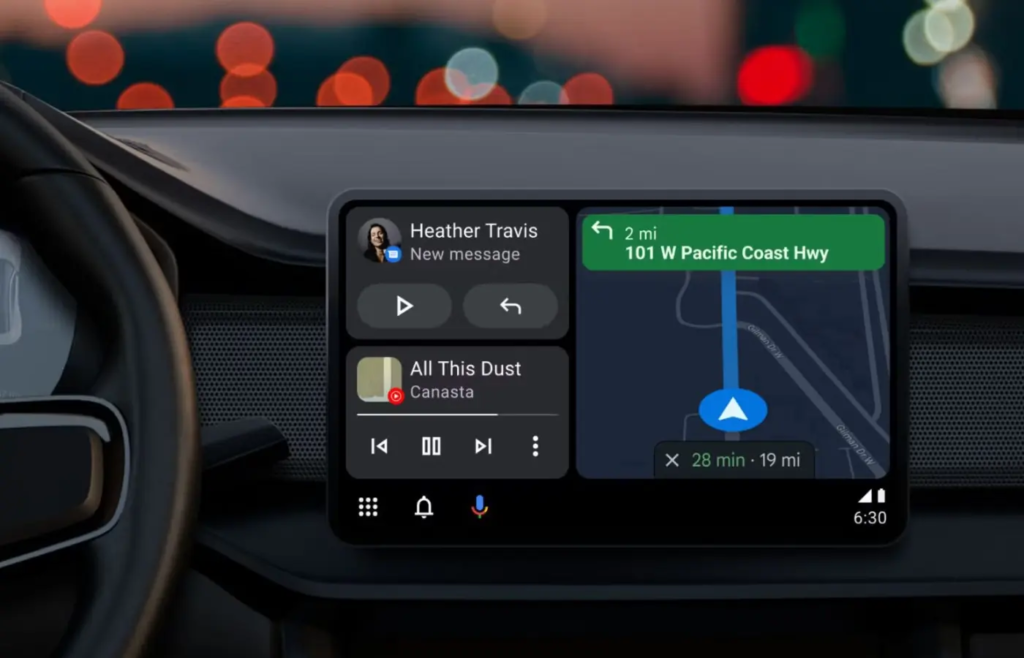
Google is finally rolling out a live speedometer in Google Maps for Android Auto. Drivers who rely on Google’s dashboard display have waited years for this feature, making it one of the most requested updates in recent memory.
If you have ever used Google Maps directly on your phone screen, you already know how handy the speedometer feature is. It shows how fast you are driving right next to the official speed limit for the road you are on. If you happen to press down on the gas pedal a little too hard, the display changes color to give you a quick visual warning.
For reasons that kept drivers scratching their heads, that live speed reading was completely missing when you plugged your phone into your car dashboard. Android Auto showed the speed limit sign, but it refused to display your actual speed. You had to look down at your car dash or glance at your phone screen to check your speed.
That frustrating gap is officially closing. Google has begun expanding this feature across Android Auto displays worldwide. At WhatsBuzzn, we keep a close eye on trending tech updates, and this practical tweak is going to make daily commutes a whole lot easier for millions of drivers.
The Long Wait for a Basic Feature
The journey to bring a live speedometer to Android Auto was surprisingly long. Google Maps on mobile devices introduced a live speedometer back in 2019. It was a huge hit because it gave drivers an instant way to see if they were staying within local speed limits.
The $0 Secret To Launching Your Entire Online Empire
Why pay hundreds every month for separate software? Build funnels, send emails, and make sales with Systeme.io completely free.
Get Started For $0Free Forever • No Credit Card Needed • Beginner-Friendly
Curiously, when drivers connected their phones to their cars using Android Auto, the feature vanished. The dashboard interface showed your route, turn-by-turn directions, and the posted speed limit sign, but it left out your real-time vehicle speed.
To make matters stranger, Google-owned navigation app Waze supported a live speedometer on Android Auto for years. Even Apple CarPlay received Google Maps speedometer support back in mid-2024. Android users were left wondering why Google’s own car operating system was the last platform to get a feature that was already built into the main Google Maps mobile app.
Reports from outlets like Android Authority highlight that early sightings of the speedometer on Android Auto began popping up on online forums like Reddit, where users running recent beta builds started noticing the speedometer icon right beside the speed limit indicator. Now, as detailed by tech reporters at Gadget Hacks, the rollout is moving beyond initial test groups to hit standard app builds.
How the Live Speedometer Works on Your Car Screen
The implementation on Android Auto keeps things clean, simple, and distraction-free. You do not have to squint or search through complex menus to find your speed while you are on the road.
When you start navigating to a destination, a small floating circle appears on the corner of your navigation screen. Inside that circle, you will see a clear numerical reading of your current speed in miles per hour or kilometers per hour, depending on your region settings.
Right next to your live speed, Google Maps displays the posted speed limit sign for the road you are currently driving on. This side-by-side view makes it effortless to compare your current driving pace against local traffic laws without taking your eyes off the main display for more than a fraction of a second.
The visual feedback system is designed to keep you safe without annoying audio chimes. Here is how the display changes based on your driving pace:
- Normal Driving Speed: When you drive within the legal speed limit, the speedometer icon matches the standard neutral colors of the Google Maps theme.
- Approaching the Limit: As your speed gets close to or slightly exceeds the posted speed limit, the speedometer icon turns a warm yellow color to give you a soft warning.
- Exceeding the Limit: If you drive significantly over the posted speed limit, the icon changes to a bold red shade. This visual alert reminds you to ease off the accelerator pedal immediately.
When you drive without an active navigation route set, the speedometer icon remains on the screen to track your movement. It sits unobtrusively on the dashboard, giving you a continuous check on your pace even during familiar neighborhood drives.
Step-by-Step: How to Enable the Speedometer in Google Maps
Because this feature relies on settings inside the Google Maps phone app rather than the Android Auto car interface, turning it on takes less than a minute. If you want to check if the feature is ready on your account, follow these simple steps on your smartphone before plugging into your car.
Step 1: Open Google Maps on Your Smartphone
Unlock your mobile phone and launch the Google Maps app. Make sure your phone is disconnected from your car’s USB cable or wireless Android Auto adapter while adjusting these settings.
Step 2: Go to Your Account Settings
Tap your profile picture or account initial in the top-right corner of the search bar. In the pop-up menu that appears, scroll down and tap on Settings.
Step 3: Access Navigation Settings
Inside the Settings menu, look for the section labeled Navigation settings (or Navigation on some versions) and tap it.
Step 4: Locate Driving Options
Scroll down through the navigation options until you find the Driving options section. You should see two key toggles here:
- Speed limits: Shows the official speed limit of the road.
- Speedometer: Shows your live vehicle speed calculated via GPS.
Step 5: Toggle Both Switches On
Make sure both the Speed limits and Speedometer toggles are switched to the ON position. The switch turns blue when activated.
Step 6: Connect to Your Car
Plug your phone back into your car’s USB port or establish a wireless connection with Android Auto. Launch Google Maps on your vehicle’s head unit and start driving or set a destination. Your live speed should now appear on the dashboard display.
Send, Spend & Hold Money Worldwide Without Hidden Fees
Transfer money internationally at the real exchange rate and hold 40+ currencies in one account.
Open a Wise AccountMid-market rate • Fast transfers • 40+ currencies
What to Do If You Do Not See It Yet
If you completed all these steps and the speedometer still does not appear on your car display, do not worry. Google uses server-side rollouts for major updates, which means features are turned on gradually across different regions and user accounts.
To give your phone the best chance of receiving the feature early:
- Visit the Google Play Store and ensure Google Maps and Android Auto are updated to their latest versions.
- Toggle the Speedometer setting OFF, restart your smartphone, and turn the Speedometer setting back ON.
- Consider joining the Google Maps Beta program on the Google Play Store if you want early access to upcoming features.
GPS Speed vs. Your Car Dashboard Speedometer: What You Need to Know
Once you start using the live speedometer in Google Maps, you might notice a small difference between the speed shown on your phone screen and the speed shown on your car’s physical instrument cluster. It is completely normal for these two numbers to differ by two to four miles per hour.
Understanding why this happens can help you decide which display to rely on while driving.
How Your Car Calculates Speed
Your car’s built-in speedometer measures speed by counting how fast your tires are rotating. Vehicle manufacturers program this system based on factory-standard tire sizes.
However, car manufacturers intentionally calibrate physical speedometers to read slightly higher than your actual speed. They do this to ensure drivers never accidentally exceed speed limits due to small mechanical variations or changes in tire tread. Additionally, changing your tires, altering tire pressure, or installing larger wheels can change the wheel’s circumference and affect the accuracy of your car’s analog or digital dash display.
How Google Maps Calculates Speed
Google Maps calculates your speed using satellite GPS signals. The app tracks your exact location over precise time intervals to determine how fast your vehicle is traveling over distance.
Under normal driving conditions on flat, open roads with a strong GPS signal, satellite-derived speed measurements are often more accurate than factory car speedometers.
When GPS Accuracy Drops
While GPS speed tracking is impressively accurate, it relies on a clear line of sight to navigation satellites. You might experience temporary inaccuracies or delays in speed updates under certain conditions:
- Driving through long tunnels or underground parking garages.
- Navigating deep urban canyons surrounded by high-rise skyscrapers.
- Traveling through dense mountain passes or thick forest canopies.
- Driving during extreme weather or areas with degraded signal.
Because of these environmental limitations, your car’s physical speedometer remains your primary legal gauge. Think of the Google Maps speedometer as a helpful secondary tool to keep you aware of posted speed limits and assist your driving choices.
The $0 Secret To Launching Your Entire Online Empire
Why pay hundreds every month for separate software? Build funnels, send emails, and make sales with Systeme.io completely free.
Get Started For $0Free Forever • No Credit Card Needed • Beginner-Friendly
Why Did Google Take So Long to Bring This to Android Auto?
Many drivers have questioned why Google delayed bringing such a basic, highly requested feature to Android Auto. While Google has not released an official statement detailing the delay, several technical and structural factors explain the timeline.
First, developing software for embedded automotive displays involves stricter safety regulations than developing mobile phone apps. Car dashboard interfaces must comply with strict distraction standards set by transport authorities worldwide. Every visual element added to a car screen must undergo testing to ensure it does not draw the driver’s eyes away from the road for too long.
Second, Android Auto runs across thousands of different vehicle models, head units, and screen resolutions. Ensuring that floating UI elements like speedometers scale properly across small budget touchscreens, wide ultrawide monitors, and portrait-oriented displays requires extensive testing across various hardware configurations.
Finally, Google has been busy restructuring its entire automotive strategy. Over the past year, Google has been pushing major updates to its car ecosystem, including richer lane guidance, refreshed media controls, and expanding smart features in our Technology & AI coverage. The speedometer rollout fits into this broader effort to modernize Android Auto and create feature parity across all platforms.
If you enjoy keeping up with how modern digital platforms evolve and monetize their content, check out our insights on YouTube Automation, where we break down digital growth strategies for content creators.
Google Maps vs. Waze vs. Apple CarPlay: Feature Comparison
To understand how Google Maps on Android Auto stacks up against the competition, it helps to see how other major navigation platforms handle live speed tracking and speed limit alerts.
Waze on Android Auto
Waze, which Google acquired over a decade ago, was the pioneer of live speed displays on car screens. Waze displays your current speed alongside prominent speed limit badges and offers customizable audio alerts when you exceed set thresholds. Waze is popular among drivers who prefer community-driven traffic reports, hazard warnings, and police activity alerts. However, its visual interface can feel cluttered compared to the clean layout of Google Maps.
Apple CarPlay with Google Maps
Apple CarPlay users running Google Maps actually received the live speedometer feature before Android Auto users did. The layout on CarPlay closely mirrors what Android Auto users are seeing now: a clean floating circle showing live GPS speed beside the speed limit. CarPlay users appreciate the smooth animations and integration, though customizability remains tied directly to the Google Maps mobile app settings.
Apple Maps on CarPlay
Apple Maps provides clean, beautifully integrated turn-by-turn navigation on CarPlay, along with clear speed limit indicators on most major roads. However, Apple Maps does not include a permanent live speedometer readout on the navigation screen. Drivers who prefer seeing their precise numerical speed directly on the map screen often switch to Google Maps or Waze for this specific functionality.
Google Maps on Android Auto
With this latest update, Google Maps on Android Auto combines the best of both worlds. You get the world-class routing algorithms, comprehensive business listings, and satellite view options of Google Maps, now paired with real-time GPS speed tracking and color-coded speed warnings. It offers a balanced, clutter-free layout that delivers crucial information without overwhelming the dashboard.
Helpful Tips for Getting the Most Out of Google Maps Speedometer
To get the best experience from the new speedometer feature on Android Auto, consider these practical tips for daily driving:
- Keep Your Mobile App Updated: Server-side features rely heavily on up-to-date app architecture. Set your Google Play Store to update Google Maps automatically over Wi-Fi so you do not miss performance patches.
- Keep Your Phone Placed Safely: Even though Android Auto displays map graphics on your car screen, your phone’s internal GPS hardware does the heavy lifting. Place your phone in a phone mount or on a center console tray with good signal exposure rather than stuffing it into a metal glove box or sealed bag.
- Customize Navigation Audio Warnings: If you prefer quiet drives, review your audio settings in Google Maps. You can configure the app to play audio warnings only for critical traffic alerts while keeping speed limit color changes purely visual.
- Combine with Satellite View with Care: If you like using satellite imagery on your Android Auto screen, keep in mind that rich graphics use more system memory and data. On older phones, sticking to standard vector map view ensures smooth speedometer animation without lag.
Frequently Asked Questions (FAQs)
Why can I not see the speedometer on my Android Auto screen yet?
Google rolls out updates in waves using server-side toggles. Even if your Google Maps app is updated to the latest version, Google must activate the feature for your specific Google account. Make sure the Speedometer toggle is turned on in your phone’s Google Maps Navigation settings, keep your app updated, and check back over the coming days.
Is the Google Maps speedometer legal to use while driving?
Yes, using a live speedometer inside your navigation display is legal. In fact, visual speed limit indicators and color-coded warnings are designed to encourage safer driving habits by keeping you informed of local traffic rules. However, you should always rely on your car’s physical dashboard speedometer as your primary legal measurement.
Does the Google Maps speedometer work offline without an active internet connection?
The live speedometer relies on your phone’s built-in hardware GPS sensor, which works independently of cellular data. As long as your phone has a clear connection to GPS satellites, the speedometer will calculate your speed. However, speed limit indicators require map data, so you should download offline maps in Google Maps if you plan to travel through areas without mobile data coverage.
How accurate is the live speedometer compared to my car dash?
Under clear sky conditions, the GPS-based speedometer in Google Maps is extremely accurate, often within one mile per hour of your actual ground speed. Physical car speedometers are typically calibrated by manufacturers to read slightly higher than your actual speed to prevent accidental speeding.
Can I turn off the speedometer if I find it distracting?
Yes. If you prefer a cleaner navigation screen without the speedometer circle, open Google Maps on your smartphone, go to Settings > Navigation settings, and toggle the Speedometer switch to OFF. The live speed readout will disappear from both your phone screen and your Android Auto car display.
Getting a live speedometer on Android Auto has been a long time coming, but the execution is smooth, reliable, and genuinely useful for daily driving. By combining clear speed limit markers with real-time GPS velocity updates, Google Maps makes staying safe and avoiding unexpected speeding tickets much easier.
If you love staying updated on tech trends, viral news, and practical digital guides, stick around and explore more articles across WhatsBuzzn. Have questions or feedback about this update? Feel free to reach out directly through our Contact Page.
Do not forget to join our growing community on social media for daily updates and trending tech stories. Follow us on Instagram, like our page on Facebook, and join the conversation on X (formerly Twitter). Safe driving out there!
What is your favorite feature on Android Auto right now? Let us know your thoughts!
