
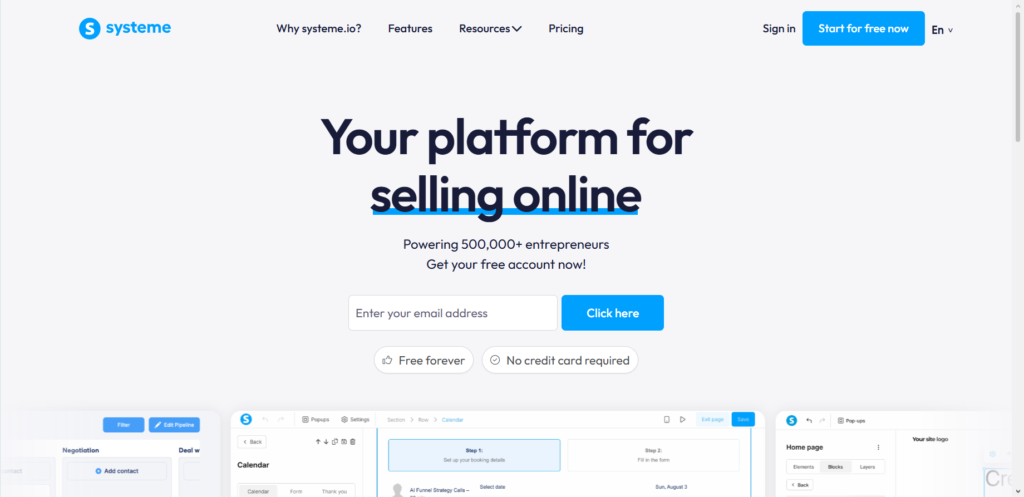
Building a modern website used to mean hiring an expensive developer or spending weeks learning complicated code. Modern all-in-one software tools changed all of that. You can now launch a clean, functional site in just a few hours without touching a single line of technical code.
Systeme.io is one of the simplest platforms for making a website. It combines site design, email marketing, sales pages, and online courses into a single user-friendly dashboard. If you want a straightforward site that grows your online business without monthly plugin costs, this framework gets the job done.
This guide walks you through every action needed to build your website on Systeme.io from a blank canvas to a fully working live site.
Why Choose Systeme.io for Your Website?
Many beginners feel stuck choosing between WordPress, Wix, or custom tools. Systeme.io simplifies things by storing all your online assets under one roof.
When someone visits your website and fills out a contact form, their information goes right into your built-in email database. You do not need to install extra software, set up complicated web webhooks, or pay for separate host providers.
The $0 Secret To Launching Your Entire Online Empire
Why pay hundreds every month for separate software? Build funnels, send emails, and make sales with Systeme.io completely free.
Get Started For $0Free Forever • No Credit Card Needed • Beginner-Friendly
Here are the main benefits of using this tool:
- The basic account options are free, letting you build and launch your site without paying anything upfront.
- The visual drag-and-drop builder lets you click on elements to edit text, move images, or swap colors instantly.
- Your pages load fast because web hosting is managed internally by the platform.
- You can run email lists, digital downloads, and checkout pages right beside your homepage.
If you like exploring new software strategies, check out our technology and AI guides to see how modern digital tools make running an online presence much easier.
Step 1: Setting Up Your Free Systeme.io Account
Getting started takes less than two minutes. Go to the official Systeme.io website and enter your best email address.
Click the sign-up button and check your email inbox. You will receive an activation link. Click that link, choose a password, and log directly into your dashboard.
Once inside your main screen, spend a moment looking around. The main menu at the top has tabs for Contacts, Funnels, Emails, Blogs, Products, and Sites.
To start creating your site, click on Sites or Blogs near the top navigation bar. Both options allow you to build complete multi-page websites. Click the Create button on the upper right corner of the page.
A pop-up box will appear asking for a few starting details:
- Name: Type a clear name for your internal organization, like “My Brand Site”.
- Domain: Pick your default system sub-domain or select a custom domain if you already connected one.
- URL Path: Type the main web location path for your home section.
- Language: Pick the main language your audience speaks.
Step 2: Choosing Your Setup (Template vs. Blank Canvas)
After saving your basic details, the dashboard asks how you want to start building. You have two options:
- Choose a pre-made template: Pick from a library of designed pages and replace the placeholder text with your own content.
- Build from scratch: Start with an empty white page and add every section, row, and element manually.
If you are brand new to web design, starting with a template helps you see proper page layouts. If you want total control over every design detail, building from scratch gives you a fresh start.
Select your choice and click Save. This brings you directly into the main website workspace.
Step 3: Setting Up Global Styles for a Consistent Look
Before adding paragraphs and pictures to your homepage, set your site’s global styles. Global styles dictate default fonts, button shapes, and standard brand colors across every page.
Setting these defaults early saves hours later on. You will not need to manually change font sizes or button colors on every single page you publish.
Inside the site editor, look at the left sidebar menu and click on the Style tab. Here is what you should configure:
Primary and Secondary Colors
Pick two or three core colors for your brand. Use your primary color for key elements like headers and main action buttons. Use secondary colors for background panels, highlight text, or subtle borders.
Typography Rules
Select two readable fonts. Choose one font for your primary section titles (H1, H2, H3) and a clean, legible font for your normal body text. Stick to common fonts so your text displays properly on smartphones and desktop screens.
Send, Spend & Hold Money Worldwide Without Hidden Fees
Transfer money internationally at the real exchange rate and hold 40+ currencies in one account.
Open a Wise AccountMid-market rate • Fast transfers • 40+ currencies
Button Defaults
Adjust the standard border radius, padding size, and hover colors for your site buttons. When every button on your website shares the same style, your site looks much more professional.
Step 4: Building Your Key Pages
Every good website relies on a clean structure. A standard website usually needs four core pages: a Homepage, an About page, a Contact page, and a Content or Blog section.
Click the Pages tab in the top left editor menu to view your existing pages or add new ones.
Designing the Homepage
Your homepage is the front entrance to your brand. Visitors should understand what you offer within five seconds of opening the page.
- Hero Section: Place a large bold headline at the very top explaining your core offer. Add a subheadline with more detail, followed by a primary call-to-action button like “Get Started” or “Learn More”.
- Benefit Blocks: Use two or three columns to outline what problems you solve for your readers or customers. Use short paragraphs and small icons or images to make this section quick to read.
- Social Proof: Add short quotes from happy customers, client logos, or community feedback to build immediate trust.
- Lead Capture Section: Place a clean email sign-up box so visitors can subscribe to your newsletter or download a free guide.
Designing the About Page
Your About page helps people connect with the human behind the business. Talk about why you started your business, what values you focus on, and who you help. Keep your sentences direct and friendly.
If you want to read more background information on how content platforms structure their mission statements, feel free to visit our about page for inspiration.
Designing the Contact Page
Make it simple for visitors to message you. Drag a pre-built contact form element onto the canvas.
Configure the form fields to collect a visitor’s name, email address, and message. Systeme.io automatically processes form submissions so you can view them directly inside your contact dashboard.
You can also include direct contact details, business operating hours, or links to your main social channels on this page. To see an example of a simple communication page layout, check out our contact page.
Adding a Blog or Content Feed
Publishing articles regularly brings organic visitor traffic to your site. Systeme.io includes a built-in blogging system.
The $0 Secret To Launching Your Entire Online Empire
Why pay hundreds every month for separate software? Build funnels, send emails, and make sales with Systeme.io completely free.
Get Started For $0Free Forever • No Credit Card Needed • Beginner-Friendly
You can set up categories, draft posts, set featured images, and write regular articles. For instance, if you produce online media, video guides, or content strategy pieces, you can organize them into specific topic groups.
Many creators use automated video strategies alongside their websites to drive traffic. Explore our YouTube automation category to learn how content creators organize video workflows to pull steady traffic back to their websites.
Step 5: Editing Headers, Footers, and Navigation Menus
Your website header and footer stay visible across almost every page on your site. They give visitors a familiar map to move around your content easily.
Setting Up the Header
Click on the Header section inside the editor to customize top navigation links.
- Upload your custom brand logo on the left side of the row.
- Add links for main pages like Home, About, Blog, and Contact.
- Enable the search icon switch if you want readers to quickly look up content across your site.
- Add an action button on the far right end, such as “Contact Us” or “Buy Now”.
Setting Up the Footer
Scroll down to the bottom of your workspace to edit the main footer.
Include copyright text, privacy policy links, term agreements, and quick shortcuts to major pages. It is also a good spot to link to active social channels where your brand hangs out online.
Step 6: Connecting Your Custom Domain Name
When you first sign up, your website domain looks like yourname.systeme.io. While this works for testing, using your own custom web address like yourdomain.com looks far more professional.
Connecting a custom domain is simple:
- Purchase a domain name from any domain registrar.
- Log into your Systeme.io dashboard, click your profile icon, and go to Settings > Custom Domains.
- Click Add Domain and enter your root address.
- The system will give you two custom CNAME records.
- Open your domain seller’s DNS manager, paste those two CNAME records into your DNS settings, and save changes.
- Return to your dashboard and verify the settings.
DNS changes can take anywhere from a few minutes to a few hours to process completely. Once verified, set your custom web domain as the default address for your site.
Step 7: Mobile Optimization and SEO
More than half of all global web traffic happens on mobile devices. If your website looks messy on a smartphone, visitors will leave immediately.
Optimizing for Mobile Views
At the bottom left corner of the editor, click the mobile device icon to switch views.
Review every section carefully. Check if text sizes are readable on small screens, verify that buttons are big enough to tap with a thumb, and make sure images do not overflow outside the screen margins.
Systeme.io lets you adjust font sizes, margins, and section padding specifically for mobile without changing how things look on desktop screens.
Setting Up Basic SEO Settings
Search Engine Optimization (SEO) helps search engines understand what your website is about.
Click on Page Settings for each individual page you create. Fill out the following fields:
- Page Title: Write a clear title containing your main keyword (under 60 characters).
- Page Description: Summarize what the page offers in two short sentences (under 160 characters).
- Social Image: Upload a preview image that shows up whenever someone shares your page on messaging apps or social networks.
Step 8: Pre-Launch Checklist
Before sharing your new site with the world, run through a quick quality check:
- Test all links in your navigation menu, header, and footer to make sure they open the right pages.
- Submit a test form on your Contact page to confirm email notifications land in your inbox.
- Open your website on both a phone and desktop computer to check layout alignment.
- Check for typos or grammar mistakes in your body text.
- Ensure all images load quickly and do not take too long to download.
Once everything passes review, hit the publish toggle button to make your website live.
Frequently Asked Questions
Is Systeme.io really completely free to use?
Yes, Systeme.io has a free plan that includes website creation, up to 2,000 email contacts, sales funnels, and online courses. You do not need to enter credit card details to sign up. Paid upgrades are available if your business grows past the free limits.
Do I need to learn coding to build a site here?
No coding skills are required. Everything is designed with visual blocks. You drag elements onto your page, click text to edit sentences, and pick colors using basic visual menus.
Can I connect a custom domain name on the free account?
Yes, the free account lets you link one custom domain name so your website displays your own professional web address instead of a sub-domain.
How does Systeme.io compare to WordPress or Wix?
WordPress offers thousands of external plugins but requires managing hosting, software updates, and complex security fixes. Wix provides visual page designs but charges separately for advanced email features. Systeme.io puts your website, email marketing, courses, and sales pages in one simple tool with zero plugin setup required.
Can I sell digital or physical products directly on my website?
Yes, you can create checkout pages, list digital files or physical goods, accept card payments, and manage orders without installing extra shopping cart software.
Summary and Next Steps
Building a website does not need to be complicated or expensive. By choosing a simple all-in-one platform like Systeme.io, you can design pages, build a brand identity, and set up visitor contact forms in a single afternoon.
Focus on clean layouts, clear headlines, and easy site navigation. As your brand grows, you can expand your website by adding new blog posts, setting up automated sales sequences, and building custom digital products.
Stay connected with us for more guides, software walkthroughs, and trending tech updates. Follow our social channels on Instagram, check our page on Facebook, and join our discussions on X (formerly Twitter) to keep up with the latest digital strategy tips!
