
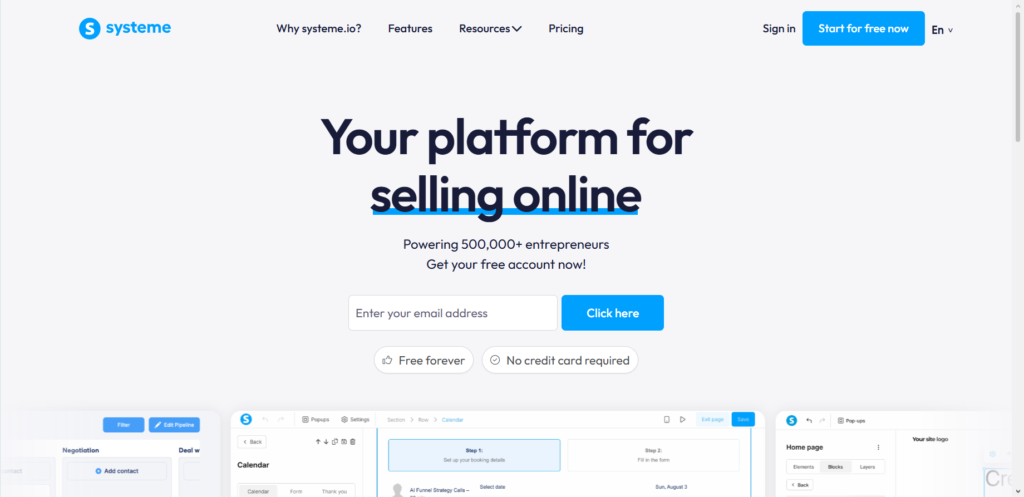
When I first started helping clients piece together their marketing tech stack, I saw the same confusion again and again. People loved Systeme.io for its all-in-one simplicity—email, funnels, courses, all in one place. But they also loved WordPress for its flexibility and design control.
The question was always: Do I have to pick one?
The answer is no. You can actually use both together, and when you do, you get the best of both worlds.
I have spent over six years helping entrepreneurs and small business owners build sustainable online income, and one of the most common bottlenecks I see is people forcing themselves into one platform when a simple integration would solve everything. So let me walk you through exactly how to connect Systeme.io with WordPress, step by step.
Why Bother Connecting Systeme.io and WordPress?
Before we get into the how, let me explain the why.
The $0 Secret To Launching Your Entire Online Empire
Why pay hundreds every month for separate software? Build funnels, send emails, and make sales with Systeme.io completely free.
Get Started For $0Free Forever • No Credit Card Needed • Beginner-Friendly
Systeme.io handles your backend marketing tasks beautifully. Email automation, sales funnels, membership sites, affiliate management—it does all of that without needing a dozen different subscriptions. WordPress, on the other hand, gives you complete control over your website’s design, layout, and content.
When you connect them, you can keep your WordPress site as your main hub while using Systeme.io to capture leads, sell products, and manage your audience. I have used this setup for multiple client projects, and it works seamlessly once you get it right.
Method One: Embedding a Systeme.io Form on Your WordPress Site
This is usually the first thing people want to do. You have a beautiful WordPress site, and you want to add a signup form that sends data straight to Systeme.io. Here is how you do it.
Step One: Create Your Form in Systeme.io
Log into your Systeme.io account and navigate to your sales funnel. You will need to either create a new funnel or use an existing one. Inside your funnel, add a step and choose “Inline Form” as the type. Give your form a name and pick a template to start with.
Once your form is ready, you have two options for embedding it. Systeme.io gives you either a script tag or HTML code. I will explain the difference in a moment.
Step Two: Get the Embed Code
Inside your funnel step, look for the button that lets you copy the embed code. If you want to preserve the styling of your form, choose the script option. If you prefer to customize everything yourself with CSS, choose the HTML option.
I have used both methods across different projects. The script method is faster and keeps the form looking exactly as you designed it. The HTML method gives you more control but requires you to handle the styling manually.
Step Three: Add the Code to WordPress
This is where the magic happens. Log into your WordPress dashboard. Navigate to the page or post where you want the form to appear. Click the Add Block button and search for the Custom HTML block. Paste your Systeme.io code into that block and save your changes.
Visit your site to confirm the form appears correctly. Sometimes the form might not fit your page width perfectly. If that happens, you may need to adjust the form dimensions inside Systeme.io or tweak your theme’s CSS.
A Note on Widget Areas
If you want your form to appear in a sidebar or footer rather than inside a post or page, you can also use WordPress widgets. Go to Appearance > Widgets in your WordPress dashboard, select the area where you want the form, and add a Custom HTML widget. Paste your Systeme.io code there and click Update.
I personally prefer this method for newsletter signup forms because they stay visible across your entire site without cluttering your main content.
Method Two: Adding a Systeme.io Popup
Popups can be powerful for growing your email list or promoting offers, but they need to be done right. Here is the cleanest way to add a Systeme.io popup to your WordPress site.
Using the Insert Headers and Footers Plugin
This is the method I recommend for most people because it is simple and reliable. First, go to Plugins > Add New in your WordPress dashboard. Search for “Insert Headers and Footers” by WPBeginner. Install and activate the plugin.
Now go to your Systeme.io account. Create your popup inside your funnel. Copy the popup script that Systeme.io provides.
Back in WordPress, go to Settings > Insert Headers and Footers. Paste your popup script into the Header section and click Save.
Send, Spend & Hold Money Worldwide Without Hidden Fees
Transfer money internationally at the real exchange rate and hold 40+ currencies in one account.
Open a Wise AccountMid-market rate • Fast transfers • 40+ currencies
The popup script needs to load on every page of your site to work properly, and placing it in the header ensures that happens.
Manual Method Using Theme Files
If you prefer not to use another plugin, you can add the popup script directly to your theme’s footer.php file. Go to Appearance > Theme File Editor. Select footer.php from the list of files. Paste the popup script just before the closing body tag. Click Update File to save.
I only recommend this method if you are comfortable editing theme files directly. One small mistake can break your site, so always keep a backup before making changes.
Method Three: Connecting Systeme.io with Elementor Forms
Many of my clients use Elementor Pro to build their WordPress sites. If that sounds like you, there is a dedicated plugin that connects Elementor forms directly to Systeme.io.
Installing the Integration Plugin
A developer named tyfricko created a WordPress plugin called Elementor Systeme.io Integration. You can find it on GitHub. Download the plugin files and upload them to your wp-content/plugins directory. Then activate the plugin through your WordPress Plugins screen.
Configuring the Connection
Go to your Systeme.io account and navigate to Settings to get your API key. This key is what allows the two platforms to talk to each other. Keep it safe.
Back in WordPress, go to the plugin settings and enter your API key. Now open any page built with Elementor that contains a form. In the form settings, you will see a new action option for Systeme.io. Add that action and configure the field mappings.
You will need to map your form fields to the corresponding fields in Systeme.io. The email field is required. First name, last name, and tags are optional but useful for segmentation.
What I like about this method is that it handles everything automatically. When someone fills out your Elementor form, their information gets sent to Systeme.io without any extra steps. The plugin also checks for existing contacts and adds tags without creating duplicates.
Method Four: Advanced Automation with Zapier
Sometimes you need more than just form submissions. Maybe you want to create a WordPress post whenever someone enrolls in your Systeme.io course, or add tags to contacts based on their activity on your site.
The $0 Secret To Launching Your Entire Online Empire
Why pay hundreds every month for separate software? Build funnels, send emails, and make sales with Systeme.io completely free.
Get Started For $0Free Forever • No Credit Card Needed • Beginner-Friendly
This is where Zapier comes in. Zapier connects Systeme.io and WordPress without any coding. You set up a trigger in one app and an action in the other.
To get started, go to your Systeme.io settings and create an API key. Then log into Zapier and create a new Zap. Choose Systeme.io as your trigger app and select an event, such as “New Contact” or “New Course Enrollment.” Then choose WordPress as your action app and select what you want to happen, like “Create Post” or “Add Tag.”
Zapier offers a free tier that lets you run basic automations, but you will likely need a paid plan for anything serious. I have used Zapier for dozens of client automations, and it is worth the investment if you need complex workflows.
Testing Your Integration
After setting up any integration, always test it before trusting it with real visitors. Submit a test form yourself and check that the data appears correctly in your Systeme.io dashboard. If you set up a popup, visit your site and make sure it triggers properly.
I learned this lesson the hard way early in my career. I set up an integration for a client, assumed it worked, and lost a week’s worth of leads before we noticed the problem. A simple test would have saved us both the headache.
Common Issues and How to Fix Them
Forms not displaying correctly is the most common problem I see. If your embedded form looks broken, try switching between the script and HTML methods. Sometimes one works better with your theme than the other.
Popup scripts not loading usually means the code is in the wrong place. Make sure your popup script is placed before the closing body tag. If you are using the Insert Headers and Footers plugin, double check that you pasted the script in the Header section.
API connection failures almost always come down to an incorrect API key or missing permissions. Regenerate your API key in Systeme.io and update it in your plugin or automation tool.
Final Thoughts
Integrating Systeme.io with WordPress opens up a lot of possibilities. You get to keep the website you love while adding powerful marketing automation behind the scenes. I have used these methods with clients across eCommerce, coaching, and software businesses, and the setup time is usually under an hour once you know what you are doing.
Start with the simplest method that meets your needs. If all you need is a signup form, embed it directly. If you need deeper integration, explore the Elementor plugin or Zapier.
Here is my question for you: Which part of your current workflow feels the most disconnected right now, and how could connecting Systeme.io with WordPress help solve that?
