
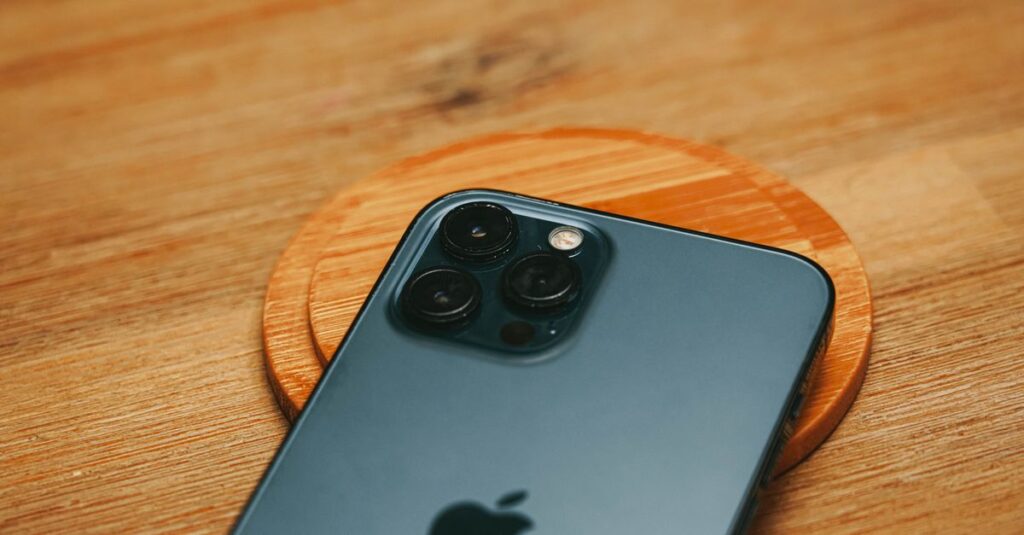
Selling or trading in your iPhone? There’s one thing you absolutely cannot skip: wiping it clean.
A factory reset removes everything—your photos, messages, passwords, saved credit cards, and personal settings. Without it, whoever gets your phone could access your digital life. Your old files, login credentials, message history, location data, and even credit cards would all be there for the taking.
The good news? The process is simple. You just need to follow the right steps in the right order. Here’s exactly how to do it.
What a Factory Reset Actually Does
A factory reset restores your iPhone to the state it was in when you first took it out of the box. It erases all your personal data, removes your Apple Account from the device, and turns off Find My Activation Lock. Everything you’ve added—apps, photos, messages, emails, and settings—gets wiped.
This is different from “Reset All Settings,” which only resets things like network settings and keyboard preferences while keeping your files intact. For selling or trading in, you need “Erase All Content and Settings.” That’s the full wipe.
The $0 Secret To Launching Your Entire Online Empire
Why pay hundreds every month for separate software? Build funnels, send emails, and make sales with Systeme.io completely free.
Get Started For $0Free Forever • No Credit Card Needed • Beginner-Friendly
Before You Start: Backup Your Data
This is the step people skip, and they regret it.
Once you factory reset, everything on that phone is gone permanently. If you haven’t backed up, you lose your photos, messages, and anything else you didn’t save elsewhere.
1. iCloud Backup
Connect to Wi-Fi. Go to Settings > [Your Name] > iCloud > iCloud Backup, then tap Back Up Now. Make sure the backup finishes before you move on.
2. Computer Backup (Mac or PC)
Connect your iPhone to your computer. On a Mac with macOS Catalina or later, open Finder and select your device. On a Windows PC or older Mac, use iTunes. Click Back Up Now. For extra safety, check “Encrypt local backup” to save your passwords and health data.
3. Transfer Directly to a New iPhone
If you already have a new iPhone, you can transfer everything during setup. Only after that transfer is complete should you wipe the old phone.
Whichever method you choose, double-check that your backup actually worked before resetting.
How do I Factory Reset my iPhone?
Once your data is backed up, here’s the actual reset process.
1. Open Settings
Tap the Settings app on your home screen.
2. Go to General
Scroll down and tap General.
3. Tap Transfer or Reset iPhone
At the bottom of the General screen, you’ll see Transfer or Reset iPhone. Tap it.
4. Tap Erase All Content and Settings
This is the option that wipes everything. Don’t confuse it with “Reset” which only resets settings.
5. Enter Your Passcode and Apple Account Password
Your iPhone will ask for your device passcode and your Apple Account password. This confirms it’s really you doing this.
6. Choose What to Do With Your eSIM
If your iPhone uses an eSIM, you’ll be asked whether to keep or delete it. If you delete it, you’ll need to contact your carrier to reactivate your cellular plan on your new phone.
7. Wait for the Erase to Complete
The process takes a few minutes. Your iPhone will show the Apple logo with a progress bar. When it’s done, you’ll see the “Hello” screen. That’s your sign—the phone is ready for its next owner.
What About Find My and Activation Lock?
Here’s something most people don’t realize.
Send, Spend & Hold Money Worldwide Without Hidden Fees
Transfer money internationally at the real exchange rate and hold 40+ currencies in one account.
Open a Wise AccountMid-market rate • Fast transfers • 40+ currencies
When you use “Erase All Content and Settings,” your iPhone automatically signs out of your Apple Account and removes Find My Activation Lock. You don’t need to manually turn off Find My first.
But if you reset using a computer—through Finder or iTunes—you’ll need to turn off Find My manually before the reset will work.
Why does this matter? Activation Lock ties your iPhone to your Apple ID. If it’s not removed, the next person won’t be able to set up the phone. It’ll ask for your Apple ID and password forever. The reset process through Settings handles this for you automatically. Using a computer doesn’t.
What If You Forgot Your Passcode?
If you can’t get into your iPhone because you forgot the passcode, you still have options.
You can put your iPhone into recovery mode and restore it using a computer. Connect your iPhone to a Mac or PC. The button sequence depends on your model:
- iPhone with Face ID: Press and hold the side button and either volume button until you see the recovery mode screen.
- iPhone with Home button: Press and hold the Home button and the top (or side) button until you see the recovery mode screen.
Once in recovery mode, your computer will detect the device and give you the option to restore it. This erases everything, including the passcode.
After the Reset: What to Check
Once the reset finishes, the iPhone should show the “Hello” screen in multiple languages. That’s your confirmation that the wipe was successful.
If you’re trading in at an Apple Store, you can actually leave everything on your phone and let the Apple salesperson handle the transfer and reset in front of you. They’ll verify it’s wiped before you leave.
But if you’re selling privately or shipping your phone, do the reset yourself. You want to be certain your data is gone before the phone leaves your hands.
Common Questions
Do I need to remove my SIM card?
You don’t have to, but it’s a good idea. The reset won’t affect your physical SIM. For eSIM, you’ll have the option to keep or delete it during the process.
The $0 Secret To Launching Your Entire Online Empire
Why pay hundreds every month for separate software? Build funnels, send emails, and make sales with Systeme.io completely free.
Get Started For $0Free Forever • No Credit Card Needed • Beginner-Friendly
Will a factory reset remove my Apple ID?
Yes, if you do it through Settings. The process signs you out automatically. If you use a computer, you’ll need to sign out manually first.
How long does the reset take?
Usually 5 to 10 minutes. It depends on how much data is on your phone.
Can I cancel the reset once it starts?
No. Once you confirm, there’s no undo button. That’s why backing up first is so important.
What if I already reset it and forgot to back up?
Unfortunately, the data is gone. iCloud might have some things if automatic backups were on, but anything stored only on the phone is lost.
Final Thoughts
Factory resetting your iPhone isn’t complicated. The real risk isn’t the reset itself—it’s forgetting to back up your data first. Take five minutes to save your photos, messages, and settings before you wipe anything.
Once that’s done, the rest is straightforward. Settings > General > Transfer or Reset iPhone > Erase All Content and Settings. Enter your passwords. Wait for the “Hello” screen. Done.
Your old phone gets a fresh start. Your data stays yours. And the next person gets a clean device they can actually use.
Have you ever forgotten to back up before a reset? What did you lose—and how did you handle it?
