
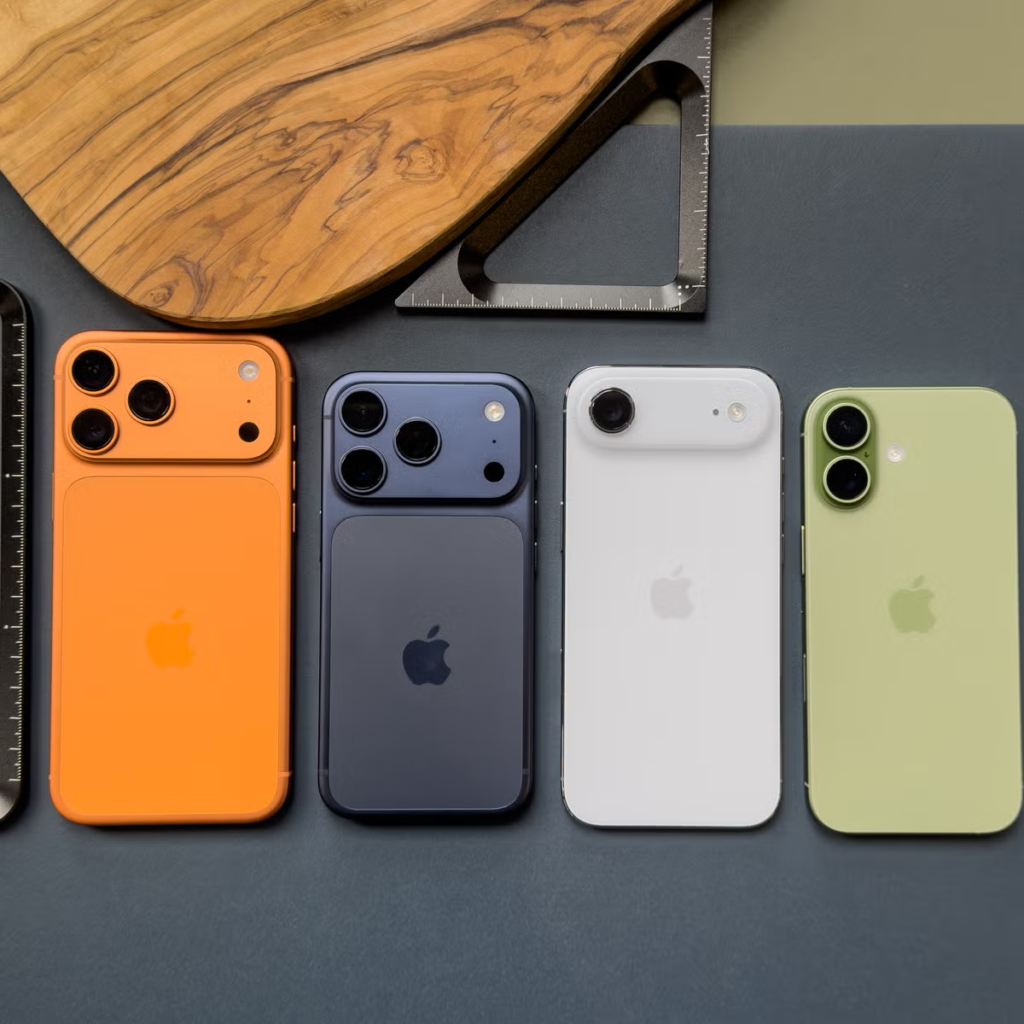
You download the latest iOS 27 update, eager to try out all the shiny new features. The progress bar moves along, the screen goes dark, and then… nothing. Your iPhone goes completely black and refuses to turn back on, no matter how many times you tap the screen or hold the power button.
Panic sets in fast when your primary phone turns into a silent black slab. It feels like your device is permanently dead, along with your photos, contacts, and messages.
The good news is that your iPhone is almost certainly fine. In the vast majority of cases, a phone that shuts off during or after an iOS update isn’t broken. It is usually dealing with a temporary software glitch, a crashed display driver, or a drained battery.
At WhatsBuzzN, we know how stressful tech breakdowns can be. Our mission is to break down confusing news, tech glitches, and viral trends into simple advice that actually helps. If you enjoy clear guides, feel free to check out our latest articles on Technology & AI after we get your phone working again.
Let us walk step-by-step through the exact methods to bring your iPhone back to life.
The $0 Secret To Launching Your Entire Online Empire
Why pay hundreds every month for separate software? Build funnels, send emails, and make sales with Systeme.io completely free.
Get Started For $0Free Forever • No Credit Card Needed • Beginner-Friendly
Why Did Your iPhone Turn Off and Stop Responding?
Before jumping into the fixes, it helps to understand what went wrong inside your device. Updating an operating system like iOS 27 requires huge amounts of processing power, temporary storage, and battery juice.
During an update, your phone replaces millions of lines of system code. If anything interrupts that process, the system gets confused and shuts down to protect its internal hardware.
Here are the most common reasons your iPhone goes black after an update:
1. Software Crash or Frozen System Kernel
The new iOS 27 installation might have hit a minor glitch while restarting. The phone is technically turned on in the background, but the system kernel crashed, freezing the entire software stack.
2. Display Driver Crash
Sometimes the internal phone system is alive, but the software controlling the screen crashes. Your phone is on, but the screen stays 100 percent black.
3. Drained or Voltage-Dropped Battery
System updates consume battery rapidly. If your phone battery was low or degraded, it may have dropped below the minimum voltage needed to power up the screen, leaving it unresponsive.
4. Corrupted Firmware Download
If your Wi-Fi dropped for a split second while downloading iOS 27, some setup files may have corrupted. When the phone tried to boot using damaged files, it got stuck in a dark shutdown state.
Method 1: Perform a Forced Hardware Restart
The first and easiest fix is a forced hardware restart, also known as a hard reset. This step cuts the power to the processor for a brief second and forces the phone to reboot from scratch.
A force restart will not delete your photos, apps, or personal data. It simply clears the temporary memory and forces frozen software to reboot.
Because button layouts vary depending on your phone model, follow the steps matching your device.
For iPhone 8, iPhone X, iPhone 11, 12, 13, 14, 15, 16, and Newer Models
- Press and quickly release the Volume Up button on the left side.
- Press and quickly release the Volume Down button right below it.
- Press and hold the Side Power button on the right side.
- Keep holding the Side button for 20 to 30 seconds. Do not let go when the screen stays black.
- Release the button only when you see the white Apple logo show up on the display.
For iPhone 7 and iPhone 7 Plus
- Press and hold both the Volume Down button and the Side Power button at the same time.
- Keep holding both buttons together for about 10 to 15 seconds.
- Let go of both buttons as soon as the Apple logo appears.
For iPhone 6s, iPhone SE (1st Generation), and Older Models
- Press and hold the Home button on the front and the Top/Side Power button simultaneously.
- Keep holding both buttons down together.
- Release both buttons when the Apple logo pops up on the screen.
If the Apple logo appears, your phone will complete its boot process and load back into iOS 27 normally. If nothing happens, move on to the next method.
Method 2: Charge Your Phone the Right Way
It sounds simple, but a standard quick charge might not work if your battery is deeply discharged after a failed update.
During a heavy system update, an iPhone can drain its battery down to absolute zero. When a battery reaches complete discharge, it needs a higher power flow for a sustained period before it has enough juice to power the display.
Follow these specific steps to perform a deep charging cycle:
Check Your Charging Tools
Plug your phone into a high-wattage wall adapter (preferably 20 watts or higher) using an authentic, working Apple cable. Avoid plugging it into a laptop USB port, a car charger, or a weak power bank, as these often fail to deliver enough power to revive a dead battery.
Send, Spend & Hold Money Worldwide Without Hidden Fees
Transfer money internationally at the real exchange rate and hold 40+ currencies in one account.
Open a Wise AccountMid-market rate • Fast transfers • 40+ currencies
Clean the Charging Port
Gently shine a flashlight into your iPhone charging port. Dust, lint, and debris often get compressed inside the port, preventing the metallic pins from touching.
Use a clean, dry wooden toothpick or plastic pick to carefully scrape out any hidden pocket lint. Never use metal objects like paperclips or needles, as they can damage the internal pins.
Let It Charge Without Touching It
Plug the iPhone in and leave it alone for at least 30 to 60 minutes. Do not tap the screen or attempt to turn it on every two minutes. Give the battery time to build up stable voltage.
Force Restart While Plugged In
After charging for an hour, leave the cable plugged in and perform the forced restart button sequence from Method 1 again. Often, the combination of fresh power and a forced reboot brings the phone back to life instantly.
Method 3: Use Recovery Mode on Your Computer
If your iPhone remains completely unresponsive, the iOS 27 system software might be corrupted. You can fix this by connecting your phone to a computer and using Recovery Mode.
Recovery Mode allows your computer to communicate directly with your phone hardware, repairing the operating system without wiping your personal files.
What You Need Before You Start
- A Mac running up-to-date macOS (using Finder) or a Windows PC (with the Apple Devices app or latest iTunes installed).
- An original USB cable to connect your iPhone to the computer.
- A stable internet connection on your computer so it can download official iOS 27 installation files from Apple servers.
Step-by-Step Instructions for Recovery Mode
Step 1: Connect Your Phone to the Computer
Plug your iPhone into your Mac or PC using your cable. Open Finder on your Mac, or open the Apple Devices app (or iTunes) on your Windows PC.
Step 2: Trigger Recovery Mode
While the phone is connected, you need to press a special combination of buttons until the Connect to Computer graphic appears on your iPhone screen.
- On iPhone 8 or later: Press and quickly release Volume Up. Press and quickly release Volume Down. Then press and hold the Side button continuously. Keep holding through the black screen, past the Apple logo, until you see the image of a computer and cable on the screen.
- On iPhone 7 / 7 Plus: Press and hold the Side button and Volume Down button together. Keep holding them until the computer cable screen appears.
- On iPhone 6s or older: Press and hold the Home button and Top/Side button together until the cable screen appears.
Step 3: Choose “Update”
Once your phone enters Recovery Mode, a popup window will appear on your computer screen. You will see two options: Update and Restore.
Click Update.
The $0 Secret To Launching Your Entire Online Empire
Why pay hundreds every month for separate software? Build funnels, send emails, and make sales with Systeme.io completely free.
Get Started For $0Free Forever • No Credit Card Needed • Beginner-Friendly
Selecting Update tells your computer to reinstall iOS 27 over the current system while keeping all your personal data, photos, and settings completely safe.
Step 4: Let the Download Finish
Your computer will download the official iOS 27 firmware directly from Apple. This download can take anywhere from 10 to 30 minutes depending on your internet speed.
If the download takes longer than 15 minutes, your iPhone will automatically exit Recovery Mode and the screen may go black again. Do not panic! Simply let your computer finish downloading the software file completely. Once finished, repeat the button combination in Step 2 to put your phone back into Recovery Mode, then click Update again.
Method 4: Perform a DFU Mode Restore (Advanced Step)
If Recovery Mode fails or throws an error code, your final software troubleshooting option is a Device Firmware Update (DFU) restore.
DFU mode is the deepest recovery state available on an iPhone. It bypasses the main operating system completely and reloads the phone software from the bare foundation up.
Important Note: A DFU restore will completely erase all data on your iPhone. Only perform this step if you have a recent backup saved to iCloud or your computer, or if no other method has worked.
How to Enter DFU Mode on Modern iPhones (iPhone 8 and Newer)
- Connect your iPhone to your computer and open Finder, Apple Devices app, or iTunes.
- Press and quickly release Volume Up.
- Press and quickly release Volume Down.
- Press and hold the Side Power button for 10 seconds until the screen goes black.
- While still holding the Side Power button, press and hold the Volume Down button for 5 seconds.
- After 5 seconds, release the Side Power button, but keep holding the Volume Down button for another 10 seconds.
- Your computer screen will show a message stating that it has detected an iPhone in recovery mode. The iPhone screen itself must remain completely black. If the Apple logo or recovery cable shows up, you held the buttons too long and need to try again.
- Click Restore iPhone on your computer. Your computer will download a clean copy of iOS 27, erase the device, and reinstall the operating system fresh.
Method 5: Check for Physical or Hardware Damage
If your iPhone screen remains pitch black through all these steps, it is time to check if you are dealing with a hardware problem rather than a software issue.
Sometimes, a phone isn’t actually turned off. The inner components might be running fine, but the display panel or screen backlighting has failed.
Here is a quick diagnostic check you can perform at home:
The Audio and Haptic Test
Flip the Silent/Ring switch on the side of your iPhone, or plug it into a wall charger while paying close attention.
Do you feel a brief vibration? Do you hear the charging chime or notification sounds? If your phone vibrates or makes sounds, the logic board is working, but your screen display panel is broken.
Screen Replacement vs. Software Fix
If your phone shows signs of life through sounds or haptic vibrations, software steps will not solve the issue. You will need to take your phone to a technician to replace the screen assembly or reconnect loose display cables inside the device.
Checking for Water or Physical Drop Damage
Did your phone drop on a hard floor or get exposed to water recently? Even minor drops can loosen sensitive internal ribbon connectors. Water exposure can cause short circuits that coincide with a software update attempt.
If physical or liquid damage is present, stop trying to turn the device on or charge it. Get official repair assistance directly from Apple Support or an authorized service provider to prevent further electrical damage.
Simple Rules to Prevent Future iOS Update Issues
Fixing a black screen is frustrating, but taking a few preventive steps before your next software update can save you from experiencing this issue again.
Follow these rules whenever a new iOS version is released:
- Always Back Up First: Before installing any major software update, back up your iPhone to iCloud or your computer. This guarantees your data remains safe even if the update goes wrong.
- Keep Storage Space Free: iOS updates need several gigabytes of free space to download, unpack, and install files smoothly. Keep at least 10GB to 15GB of free storage open on your phone before starting an update.
- Stay Plugged Into Power: Never update your phone on a low battery. Keep your iPhone connected to a reliable wall charger throughout the entire installation process.
- Use Strong Wi-Fi: Avoid updating over public Wi-Fi or weak cellular connections. Interrupted downloads are the primary cause of corrupted update files.
- Wait a Few Days: You do not have to update on day one. Waiting a few days after a new iOS version releases gives Apple time to fix minor bugs and release quick patch updates.
Frequently Asked Questions (FAQs)
Will fixing my black screen after the iOS 27 update erase my photos and data?
Performing a forced restart, deep charging, or choosing the Update option in Recovery Mode will not erase your photos, messages, or apps. Your personal data stays intact. However, choosing the Restore option in Recovery Mode or doing a DFU restore will erase your phone completely.
Why did my iPhone turn off completely during the middle of the iOS 27 update?
This usually happens if your phone ran out of battery during the installation process, or if the update file encountered a critical error while overwriting system files. When the system detects a severe error, it turns off automatically to protect hardware components.
What should I do if my computer does not recognize my iPhone when plugged in?
First, try switching to a different USB cable or plugging into a different USB port directly on your computer. Make sure your Mac operating system is updated, or that you have the latest version of iTunes or Apple Devices app installed on your Windows PC. Cleaning dust out of your iPhone charging port also helps establish a stable connection.
How long should an iOS update take to install?
A standard iOS update usually takes between 15 to 45 minutes to complete, depending on your internet connection speed and your phone model. If your screen has been pitch black with no activity for over an hour, the process is likely stuck and requires a forced restart.
Can a bad battery cause an iPhone to stay on a black screen?
Yes. If your iPhone battery health is severely degraded, it might not be able to supply the sudden peak voltage needed during a big software update. Leaving the phone on a high-wattage charger for an hour often supplies enough stable power to boot back up.
Dealing with a dark, unresponsive iPhone screen after a fresh update is scary, but following these steps almost always gets your phone back up and running. Start with the quick forced restart, move to a long deep charge, and use Recovery Mode if the software needs a clean reinstall.
If you found this guide helpful and want to discover more practical tech solutions, creative tips, or digital insights, explore our dedicated sections on Technology & AI and YouTube Automation. We regularly post straightforward, easy-to-read guides to help you navigate modern tech without the headache.
Have questions or need help with another tech problem? Feel free to reach out directly through our Contact Us page, or join our growing community online. Connect with us on Instagram, like our Facebook page, and follow us on X (Twitter) to stay up to date on all the latest trends and guides!
