
I’ve built blogs on every platform you can name—WordPress, Squarespace, Wix, Ghost, you name it.
Each one came with trade‑offs. WordPress gives you total control, but it also hands you a never‑ending list of chores: updates, backups, security patches, plugin conflicts, hosting invoices. Many entrepreneurs get stuck there, spending weeks tweaking instead of writing.
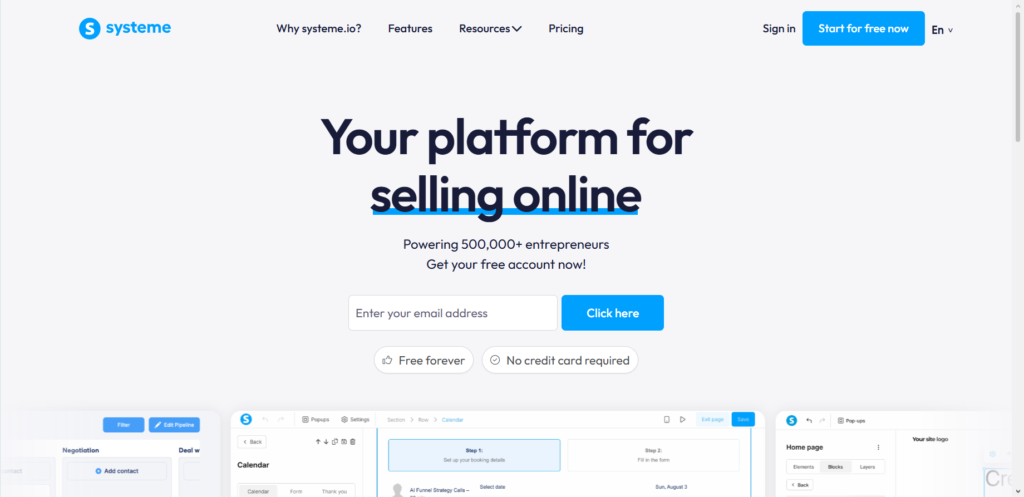
That’s exactly why Systeme.io has become my go‑to recommendation for people who just want to publish and grow. It bundles blogging, email marketing, funnels, and sales into one simple dashboard.
No extra tools, no tech headaches. In this guide I’ll walk you through every step—from creating your blog to writing your first post and optimising it for search engines. I’ll also show you the real limits so you know exactly what you’re getting into.
Why Use Systeme.io for Blogging?
Most all‑in‑one marketing platforms treat blogs as an afterthought. Systeme.io doesn’t. Your blog lives right inside your sales funnel, so you can capture leads, send automated emails, and sell products without ever leaving the interface.
The $0 Secret To Launching Your Entire Online Empire
Why pay hundreds every month for separate software? Build funnels, send emails, and make sales with Systeme.io completely free.
Get Started For $0Free Forever • No Credit Card Needed • Beginner-Friendly
The technical side is also far simpler than running WordPress. Systeme.io handles hosting, SSL certificates, automatic backups, and updates for you. You never install a plugin or fix a broken theme. You just write.
Pricing is another reason I recommend it. The free plan includes one blog with unlimited posts. Paid plans start at $17 a month and scale up to $97 for unlimited everything. Unlike many platforms, Systeme.io does not charge extra transaction fees on your sales.
That said, I need to be honest about the trade‑offs. Systeme.io gives you less design flexibility than WordPress. Templates are limited, and you cannot import or export pages if you ever decide to move elsewhere. For a simple content blog or a business blog that feeds into an offer, that trade‑off is usually worth it. For a highly customised media site, it may not be.
1. Create Your Systeme.io Account and Blog
Go to Systeme.io and sign up. The free plan is enough to get started, so you do not need to enter payment details yet.
Once you are logged in, follow these steps:
- From the main dashboard, go to the Sites tab.
- Click Blogs, then click New Blog.
- Enter your blog name, the URL path you want (for example
myblog), and a short description. - Choose one of the ready‑made templates. You can change the design later, so pick any template for now.
- Click Create to generate your blog.
Systeme.io automatically creates five default pages: Home, About, Post List, Search, and Contact. You can edit or delete the About and Contact pages, but the Home, Post List, and Search pages are required and cannot be removed.
2. Set Up Your Blog Design
Your blog’s look is controlled from two places: the blog layout (which applies globally) and individual page settings.
To access your blog layout, go to Sites > Blogs, click your blog name, then open the Layout section. Here you can:
- Upload your logo and set a site icon.
- Edit the header and footer that appear on every page.
- Configure your navigation menu. Add links to your Home page, About page, Contact page, and any categories you create later.
- Set default fonts, colours, and spacing for all text and headings.
For the post list page (the page where all your articles appear), you can customise how many posts show per page, choose between different visual layouts, and control pagination colours.
For the individual post layout (the template used for every article), you can add static elements like an author bio, a sidebar, or a call‑to‑action form that appears on every post. Systeme.io uses dynamic placeholders for the title, featured image, and content, so your actual article content fills those spots automatically.
This may sound technical, but the drag‑and‑drop editor makes it very straightforward. Spend fifteen minutes setting up your layout once, and every future post will look consistent without extra work.
3. Write and Publish Your First Blog Post
With your design ready, it is time to create content.
- Go to Sites > Blogs and click your blog name.
- Click the Posts section.
- Click Create.
- In the pop‑up window, fill in these fields:
- Title – Your post headline.
- Short description – A brief summary shown on your blog listing page.
- URL Path – The web address for this post (for example
my-first-post). Keep it short and descriptive. - Image – Upload a main image. This will appear on the listing page and as the social media preview.
- Categories – Select an existing category or leave it uncategorised for now. You can always add categories later.
- Click Save. Your post is now created but not yet live.
- Click the three dots next to your post and choose Edit to open the content editor.
- Write your post using the visual editor. You can add text, images, videos, buttons, and email forms.
- When you finish editing, go back to the post list, click the three dots, and choose Activate to publish.
A quick note: new posts are hidden from search engines by default. You need to change that setting for each post you want Google to index. We will cover that in the next section.
4. Optimise Every Post for Search Engines
This step separates bloggers who get traffic from those who do not. Systeme.io gives you six SEO controls for every page and post:
- Title – The text that appears in browser tabs and as the headline in search results.
- Description – The short paragraph shown under your title on Google.
- Keywords – Terms people search for, separated by commas.
- Author – Your name or your brand name.
- Social media image – A custom image that appears when your post is shared on Facebook, LinkedIn, or X.
- Hide from search engines – A checkbox that blocks indexing. Uncheck this box to let Google find your post.
To access these settings, edit your post, click Settings in the left panel, and scroll down to the Search Engine Optimization (SEO) section.
Send, Spend & Hold Money Worldwide Without Hidden Fees
Transfer money internationally at the real exchange rate and hold 40+ currencies in one account.
Open a Wise AccountMid-market rate • Fast transfers • 40+ currencies
Here is a practical example. Suppose you are writing a post about starting a podcast. Your SEO title might be “How to Start a Podcast on a Small Budget – Step by Step” instead of just “Podcast Guide”.
Your description should include the main benefit, like “Learn how to launch your first podcast episode for under $100 with this beginner‑friendly guide.”
Do not stuff keywords unnaturally. Write for people first. If your content genuinely answers a question, Google will reward you.
One more tip: after you uncheck “Hide from search engines”, go to Google Search Console and manually request indexing for your first few posts. This speeds up how quickly Google finds your new blog.
5. Organise Your Content with Categories
Categories help readers find related articles and improve your site structure for search engines. A well‑organised blog looks professional and keeps people reading longer.
To create categories:
- Go to Sites > Blogs, click your blog name.
- Click the Categories section.
- Click Create.
- Enter a category name (like “Email Marketing” or “Productivity”).
- Set a URL path (for example
email-marketing). - Add a short description of what this category covers.
- Fill in the SEO title and SEO description for the category page itself.
- Click Save.
After creating categories, you can assign them to posts. Edit any post, go to its settings, and tick the boxes next to the relevant categories. A single post can belong to multiple categories if needed.
I recommend keeping your category list short. Three to six categories is usually enough for a new blog. Too many categories confuse readers and dilute your SEO focus.
6. Add Lead Capture and Monetisation
This is where Systeme.io truly shines over traditional blogging platforms. Because your blog lives inside a marketing suite, you can add lead capture forms directly inside your posts.
When you edit a post, drag the Form element onto the page. Connect it to your email list inside Systeme.io. Offer a free lead magnet—a checklist, a template, a short guide—in exchange for an email address. Every new subscriber enters your automated email sequence automatically.
The $0 Secret To Launching Your Entire Online Empire
Why pay hundreds every month for separate software? Build funnels, send emails, and make sales with Systeme.io completely free.
Get Started For $0Free Forever • No Credit Card Needed • Beginner-Friendly
If you sell digital products, courses, or coaching, you can also add Button elements that link directly to your checkout pages. The buyer stays inside your Systeme.io account, and the platform handles the transaction without extra fees.
This integrated approach turns a simple blog into a customer acquisition machine. Each article becomes a potential entry point into your sales funnel.
7. Promote Your Blog and Build Consistency
A blog with no readers is just a private journal. Once you have published five to ten solid posts, start promoting:
- Share each new post on your social media channels.
- Send a weekly newsletter to your email list with your latest articles.
- Link between your own posts (internal linking) to keep readers on your site longer.
- Respond to comments if you enable them.
Consistency matters more than perfection. Publishing one well‑researched post every week for six months will outperform sporadic bursts of content every time. Systeme.io’s simple editor makes it easy to maintain a steady schedule because you are not fighting with plugins or slow page builders.
8. Scale When You Are Ready
The free plan works well for your first one hundred posts. When your traffic grows and you want more advanced features, consider upgrading:
- Startup Plan ($17/month) – Adds more funnels, automation rules, and removes most limits.
- Webinar Plan ($47/month) – Includes webinar hosting and advanced automation.
- Unlimited Plan ($97/month) – Removes all restrictions and includes one‑on‑one coaching.
All plans, including the free plan, allow unlimited blog posts. The only limits are on funnels, contacts, and automation rules.
I have seen entrepreneurs stay on the free plan for over a year while building their audience. Upgrade only when you outgrow the features, not before.
Frequently Asked Questions
Can I use my own domain name with Systeme.io?
Yes. You can connect a custom domain to your Systeme.io blog. The help centre has a guide for adding a root domain to the platform.
How many blogs can I create on the free plan?
The free plan includes one blog. Paid plans allow up to twenty blogs or more, depending on the tier.
Is Systeme.io good for SEO compared to WordPress?
WordPress offers more advanced SEO plugins and greater customisation. However, Systeme.io covers all the essentials: custom titles, meta descriptions, clean URLs, alt text for images, and category pages with their own SEO settings. For most small business blogs, this is sufficient.
Can I move my blog away from Systeme.io later?
Exporting your content is limited. You cannot directly export posts to another platform. If you plan to scale into a large media site long term, WordPress may be a better starting point. For a business blog that supports an offer, Systeme.io works beautifully.
Wrapping Up
Creating a blog on Systeme.io takes about fifteen minutes from sign‑up to first post draft. The real work begins after that—writing helpful content, capturing emails, and showing up consistently. The platform removes the technical friction so you can focus on what actually grows your business: serving your audience.
I have used Systeme.io for client blogs in niches ranging from fitness coaching to digital marketing agencies. In every case, the simplicity of the tool helped my clients publish more often and build momentum faster than they ever did with WordPress.
What is the one topic you have been wanting to write about but have not started yet? Drop it in the comments. I would love to hear what you plan to create.
